Add GIZMOCHINA on Google:
As an Amazon Associate, Gizmochina earns from qualifying purchases. Links on this page may earn us a commission at no extra cost to you.
In today’s fast-paced work environment, efficiency and productivity are paramount. If you’re a professional who constantly finds themselves multitasking or a tech enthusiast seeking a more immersive experience, having more screen real estate can significantly boost your workflow.
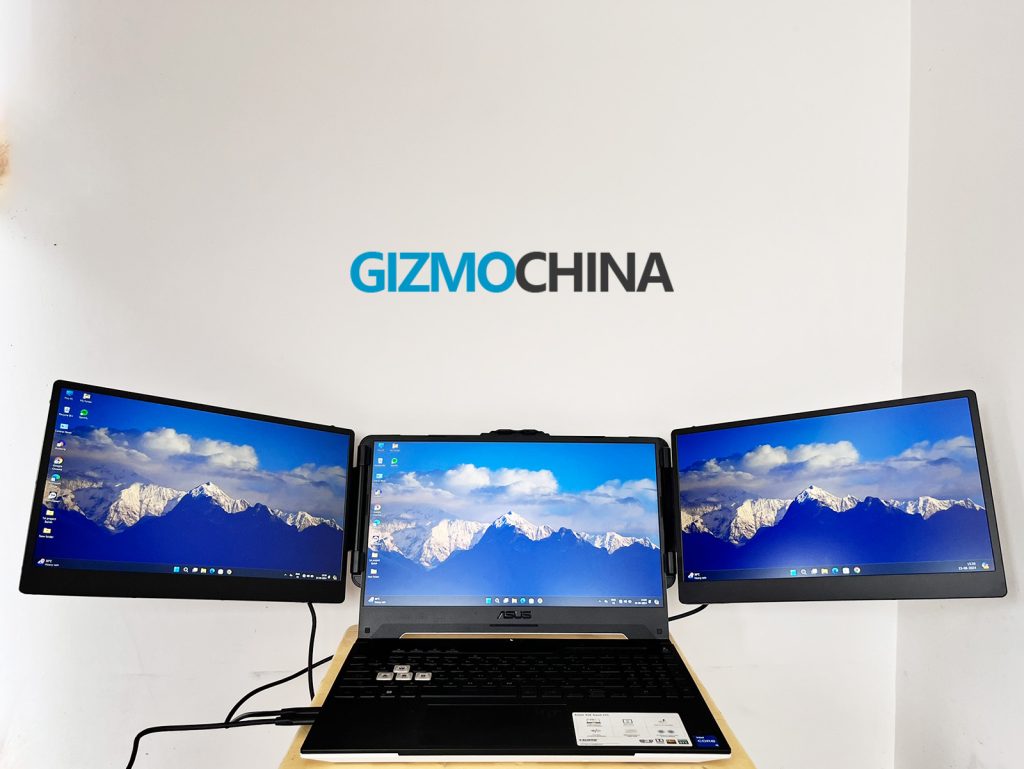
While desktop users often have the luxury of multiple screens, laptop users are typically limited to a single display, making multitasking more challenging. This is where the Teamgee 14-inch dual-screen monitor for laptops steps in, promising to deliver a seamless, multi-monitor setup on the go.
I recently had the chance to test out this product, and here’s a detailed look at how it performs in real-world scenarios.
1. Unboxing and First Impressions
Upon unboxing the Teamgee monitor extender, it’s clear that portability and user convenience are top priorities. The packaging is neat and protective, ensuring that the two monitors arrive without any scratches or damage. Inside the box, you’ll find the two 14-inch Full HD screens, multiple connection cables (USB-C to USB-C, USB-C to HDMI, and USB-C to USB-A), and a user guide.
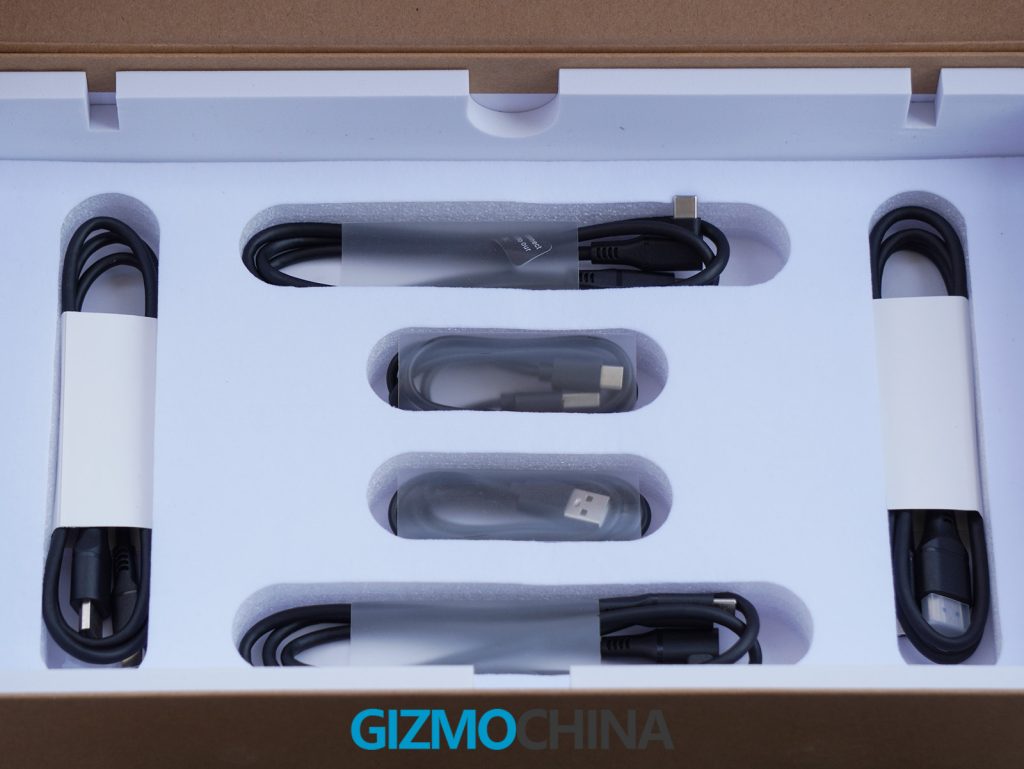
However, unlike what is shown in the product pictures, my review unit did not come with the carrying bag that’s advertised. While this was a slight letdown, given the portability of the monitors, it’s not a deal-breaker. The screens are lightweight and slim, with a thickness of just 0.9 mm and a weight of 2.1 lbs (0.95 kg), making them easy to transport in a standard laptop bag.
The monitors have a matte finish, reducing glare, and the build quality feels robust. It also comes with an adjustable built-in kickstand and rubber mats, which protect both your laptop and the monitors from scratches during setup. The overall design feels well thought out for mobile professionals.
2. Setting Up the Screens
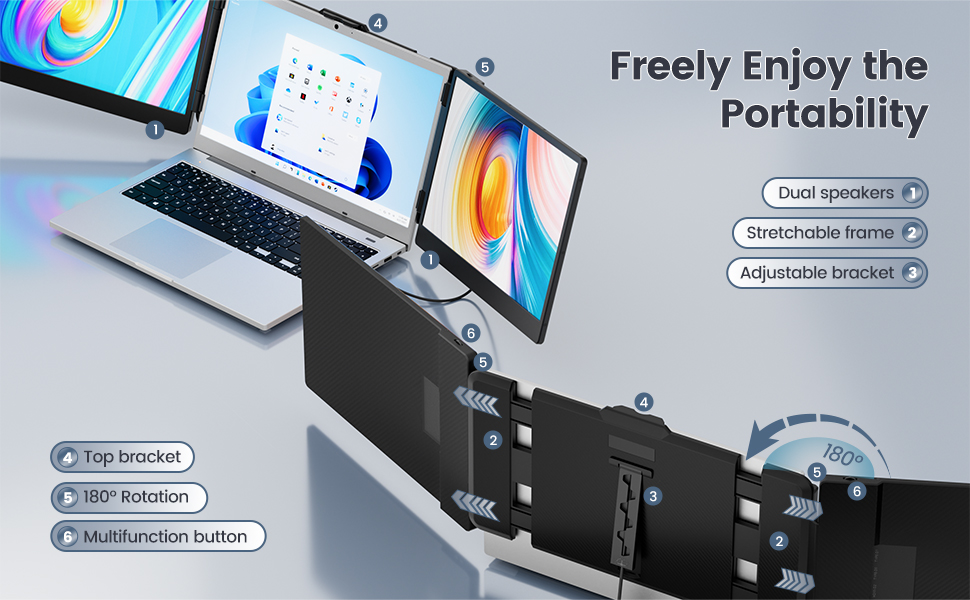
Setting up the Teamgee dual-screen monitor extender is remarkably straightforward, even for those who may not be familiar with additional display setups. The frame of the monitor is adjustable, allowing it to fit laptops between 13 to 17 inches. It uses a stretchable fixing frame, which securely attaches to your laptop. Once attached, the screens can be rotated 0-180°, giving you plenty of flexibility in terms of viewing angles and placement.
For connectivity, Teamgee offers two primary options: the USB-C and HDMI setup or the USB-A and HDMI setup. Since I tested this on a laptop with a full-featured USB-C port, I simply connected the monitors with the provided USB-C to USB-C cables, and both screens powered up immediately.
However, if your laptop doesn’t have a USB-C port, you’ll need to use the USB-A and HDMI setup, which is slightly more involved but still easy enough to manage.
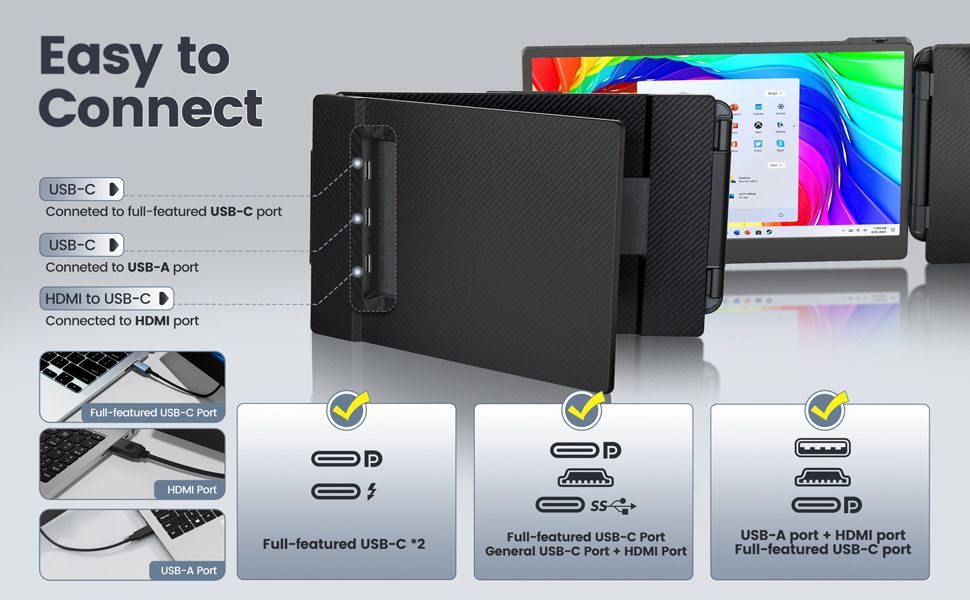
If you’re using a MacBook with the M1, M2, or M3 chip, you’ll need a DisplayLink docking station due to hardware limitations with those models. Teamgee provides detailed instructions for such setups, and their support team is available if you need further assistance.
3. Performance and Display Quality
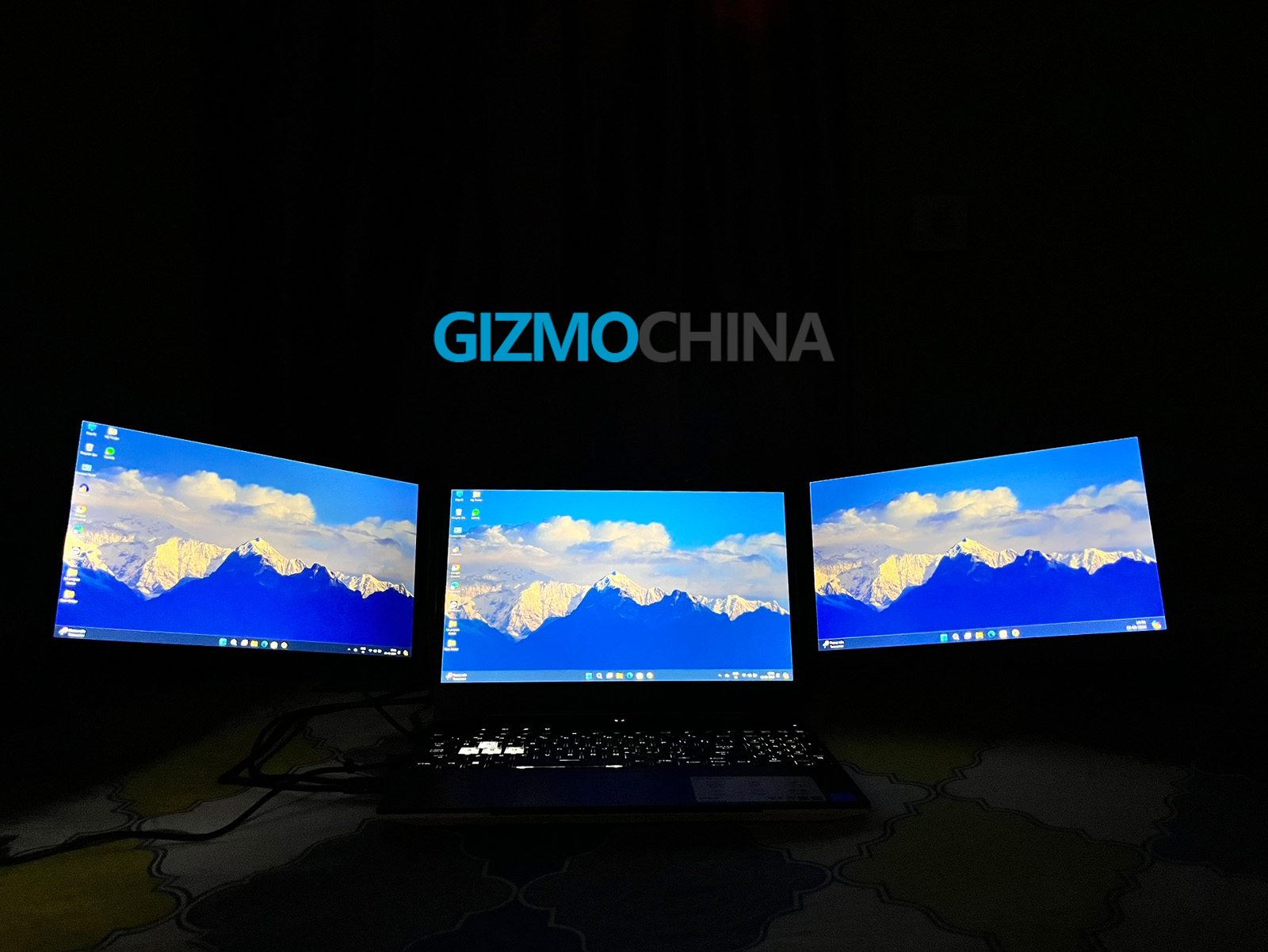
Once the monitors were up and running, I was impressed by the 14-inch Full HD IPS displays. The 1080×1920 resolution offers clear, sharp visuals with vibrant colors, thanks to its 72% NTSC color gamut and 300 nits of brightness. The screens also have a 1000:1 contrast ratio, which ensures that images and text appear crisp and well-defined, even in brightly lit environments.
What’s especially convenient is the multifunctional button on each monitor, which provides quick access to on-screen display controls. This allows you to adjust the brightness, contrast, and color settings directly from the monitor itself, without needing to navigate through your laptop’s settings.
The button is intuitive to use, making it easy to customize the viewing experience based on your environment or personal preferences. This feature is particularly handy for users who frequently switch between different lighting conditions or tasks.
Additionally, if you don’t need to use both screens at all times, the monitors offer flexibility in usage. You can opt to use just one screen in portrait mode, with the second screen acting as a base for stability. This is particularly useful for reading long documents or coding, where a taller display is more convenient than a wider one. The ability to switch between dual-screen and single-screen setups makes it a versatile tool for different tasks.
The wide 180-degree viewing angle is another standout feature, making it easy to share content with others during meetings or presentations without losing visibility. The screens also performed well during video conferences, where I used the expanded screen real estate to keep multiple windows open, enhancing my ability to multitask.
The monitor also comes with built-in dual speakers. While they do provide audio output, the sound quality is basic. For casual media consumption or video calls, they work fine, but for a more immersive audio experience, I would recommend using external speakers or headphones.
4. Boosting Productivity
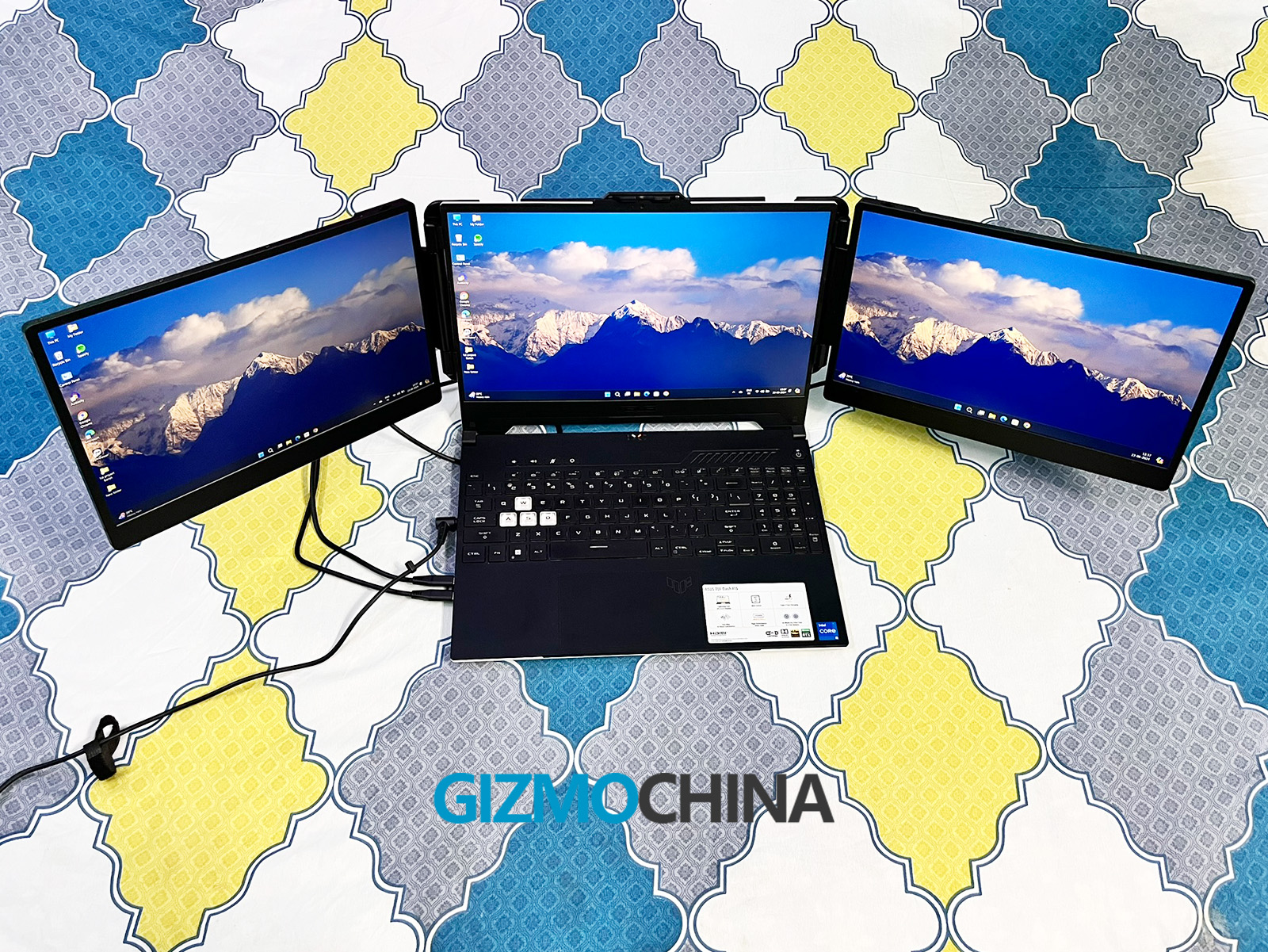
One of the main selling points of the Teamgee dual-screen setup is its ability to boost productivity, and this claim holds true in my experience. Being able to work on three different tasks simultaneously, one on each screen, without constantly switching between windows significantly improved my workflow. I could have my emails open on one screen, a document or spreadsheet on another, and a video call on the third screen. The added efficiency felt like a game-changer.
Teamgee claims a 200% productivity boost, and while that number may vary depending on the user, the real advantage here is the flexibility and ease of managing multiple tasks. For professionals who often juggle multiple projects or need more screen space for detailed work, such as video editing, coding, or data analysis, this setup is invaluable.
5. Who Should Buy It?
The Teamgee dual-screen monitor is ideal for anyone who regularly works on the go but still needs the functionality of multiple displays. It’s especially useful for remote workers, frequent travelers, and business professionals who need a more robust workspace without sacrificing portability. The versatility in terms of OS compatibility (supporting Windows, Mac, Android, and more) makes it accessible to a wide range of users.
6. Where to Buy It?
The Teamgee 14-inch dual-screen monitor can be purchased from Amazon.