
Add GIZMOCHINA as Preferred Source on Google
The Samsung Galaxy S25 series offers some impressive photo editing features, and two that often get compared are the Galaxy AI Eraser and the Object Eraser. Both aim to remove unwanted elements from your photos, but they approach the task differently. So, which one is better? After spending considerable time experimenting with both, I’m here to share my insights and help you decide which tool is right for you.
Understanding the tools
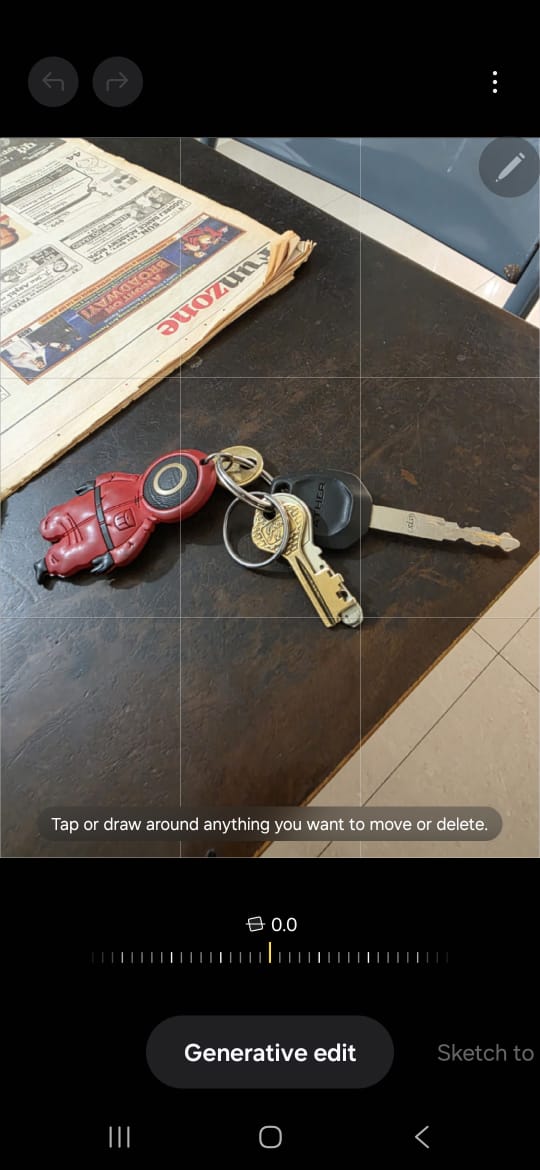
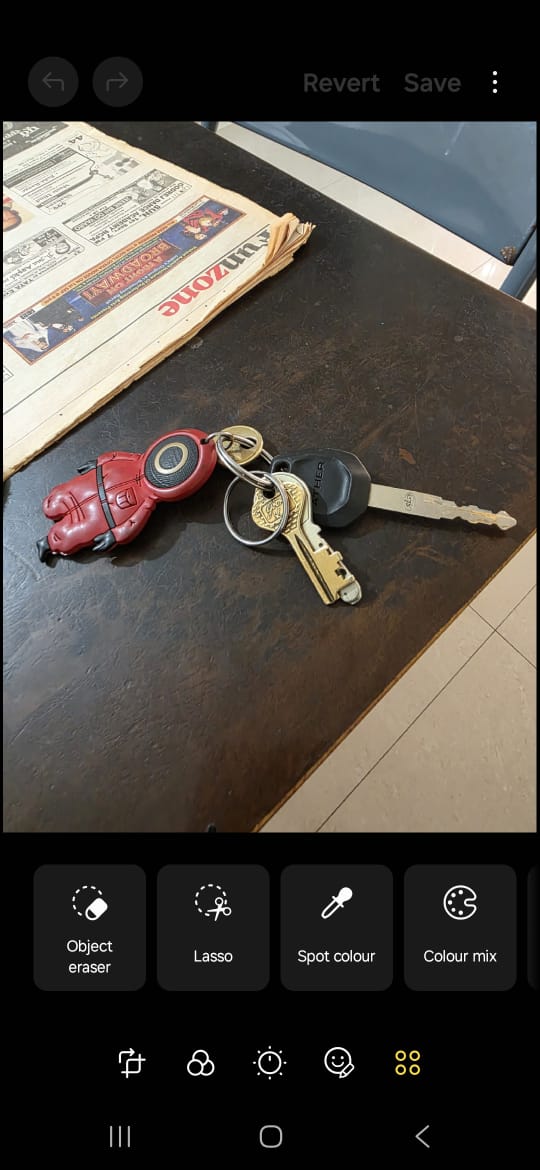
Both the Galaxy AI Eraser and the Object Eraser can produce good results. However, the key difference lies in how they achieve those results. The Object Eraser, a more traditional approach, essentially tries to patch or clone pixels from the surrounding area to fill in the gap left by the removed object. It’s like a digital version of using the clone stamp tool in Photoshop.
The Galaxy AI Eraser, on the other hand, leverages the power of generative AI. It doesn’t just copy pixels; it understands the context of the image and generates new content to seamlessly replace the removed object. This makes a significant difference, especially when dealing with complex backgrounds or objects.
Comparing the results
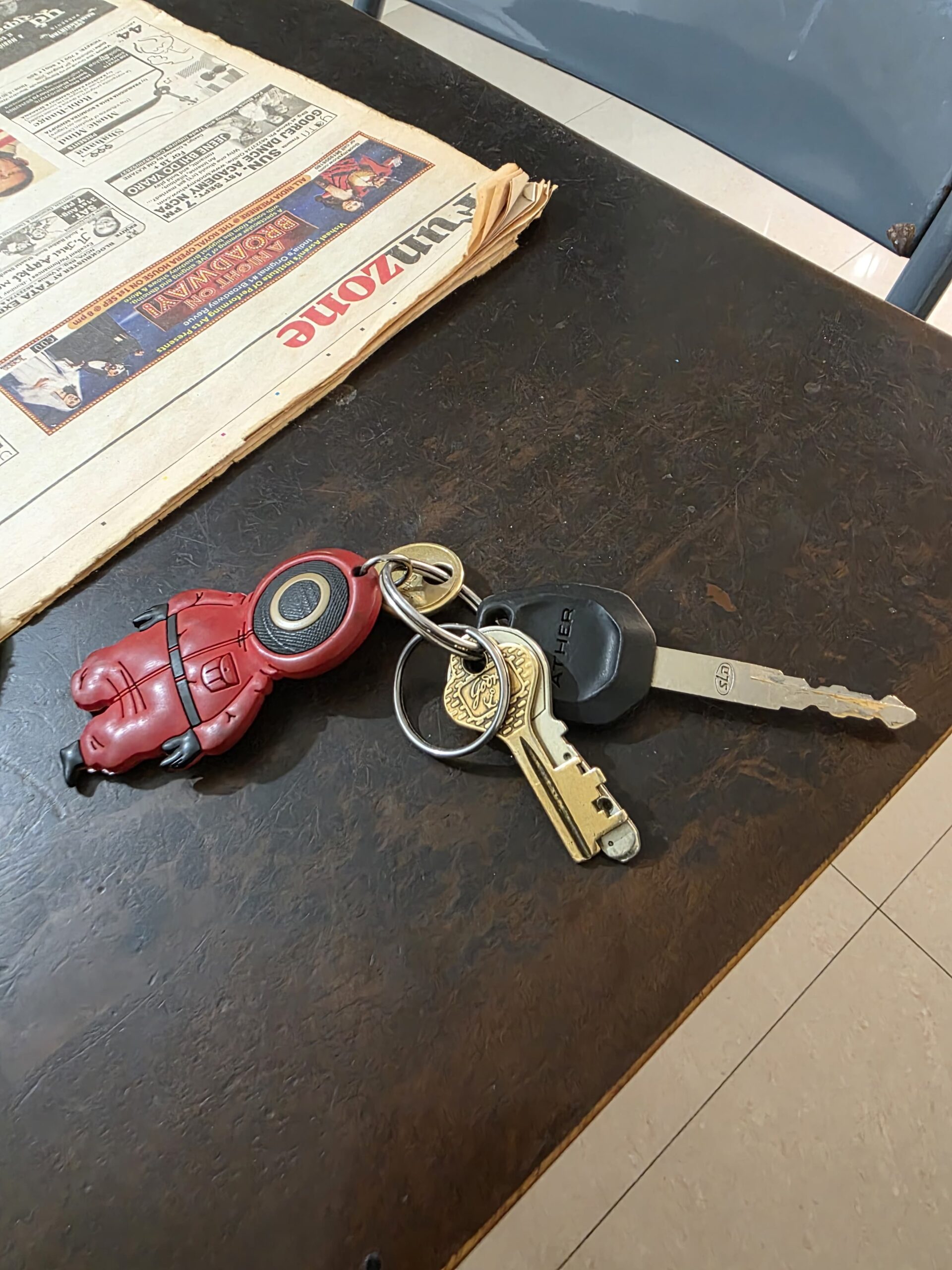
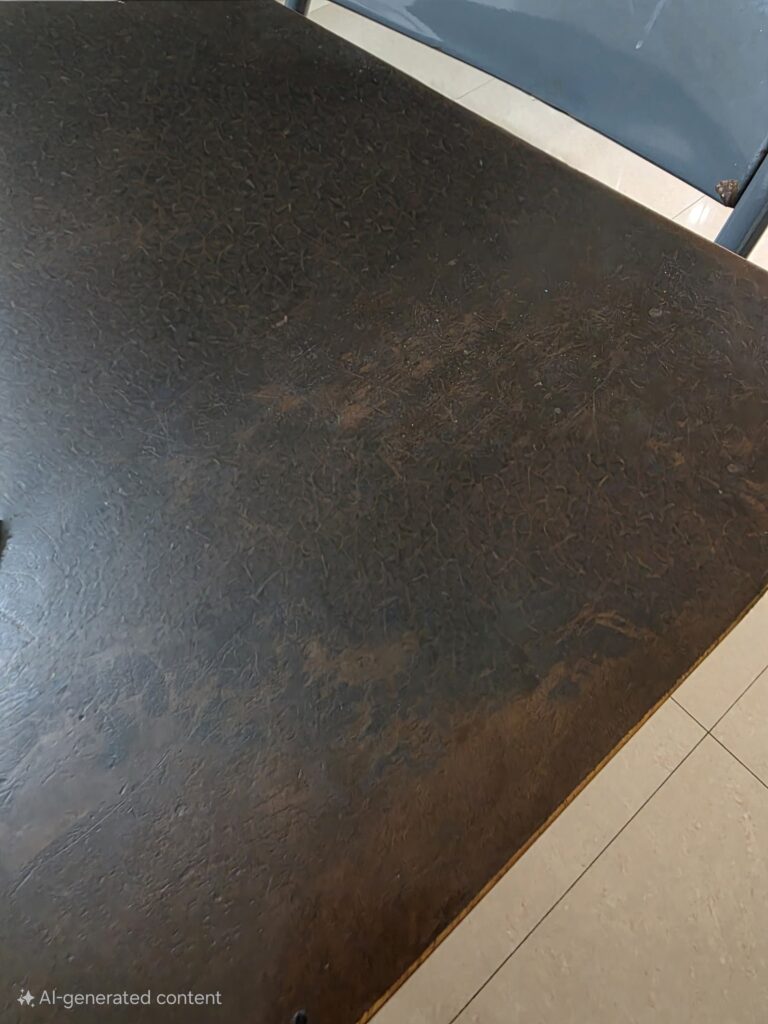
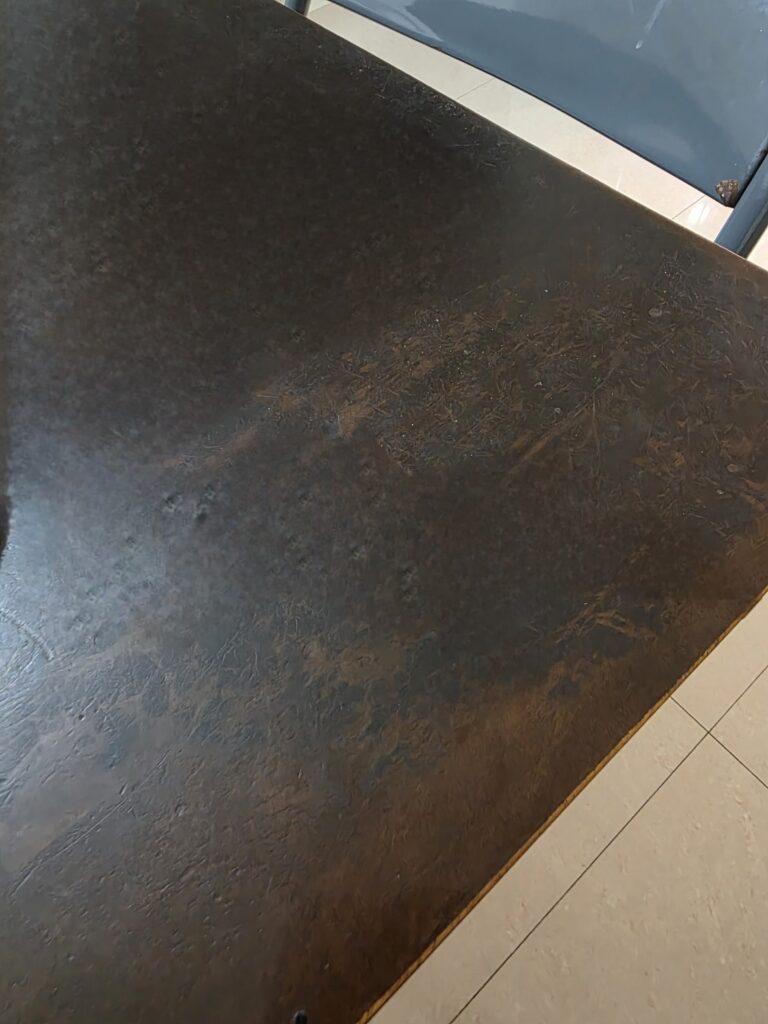
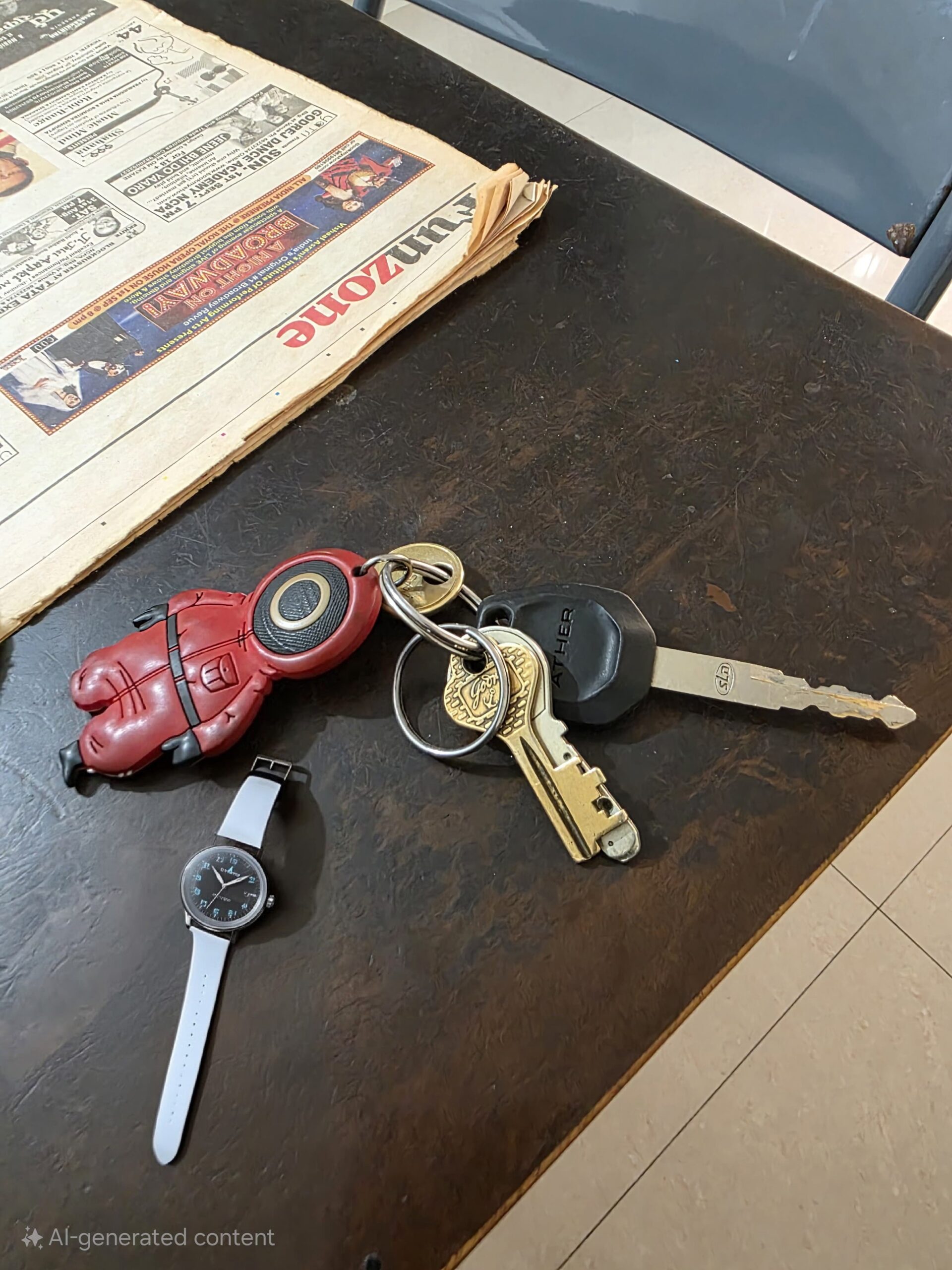
To illustrate the difference between the Galaxy AI Eraser and the Object Eraser, I’ve included three images above. The first is the original photo. The second demonstrates the result achieved with the Galaxy AI Eraser, and the third shows the image after using the Object Eraser. As you can see, the AI Eraser typically achieves a clean removal in just one or two attempts, while the Object Eraser often requires a few more steps to reach a comparable result. This efficiency highlights the power of generative AI.
The AI Eraser “understands” the image context in a way traditional object removal tools simply can’t, allowing it to seamlessly reconstruct the missing areas. It’s also important to note that because the AI Eraser generates new content, the resulting image is marked with a watermark indicating “AI-generated content.”
How to access Galaxy AI Eraser and Object Eraser
To access the Galaxy AI Eraser, open an image in the Gallery and tap the Galaxy AI icon. Then, draw a lasso around the area you want to edit. Once selected, you can move or delete it as needed. As can be seen in the first image of this post, it provides the “Sketch to Image” option, which can be used to leverage the power of generative AI to add new elements to the image.
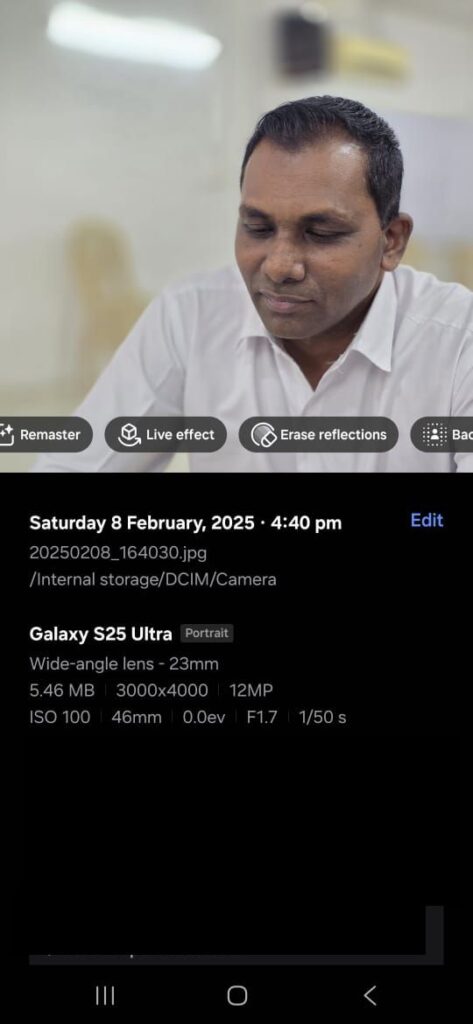
Galaxy AI can also be used in a couple of other ways to enhance the image. When you open an image within the Gallery and swipe up, it will suggest some AI-driven options to modify the image. For instance, swiping up on the above image brought up four options:
- Remaster: Enhances the overall quality of the image, often improving brightness, contrast, and sharpness.
- Live Effect: Adds dynamic effects to the image, such as light trails or motion blur.
- Erase Reflections: Specifically targets and removes unwanted reflections from the image.
- Background Effect: Allows you to change or blur the background of the image.
Accessing the Object Eraser
The Object Eraser can be accessed by opening an image from the Gallery and hitting the four dots icon. Apart from erasing certain portions of the image, it provides some other options like Erase Shadows and Erase Reflections.
Tips for Best Results
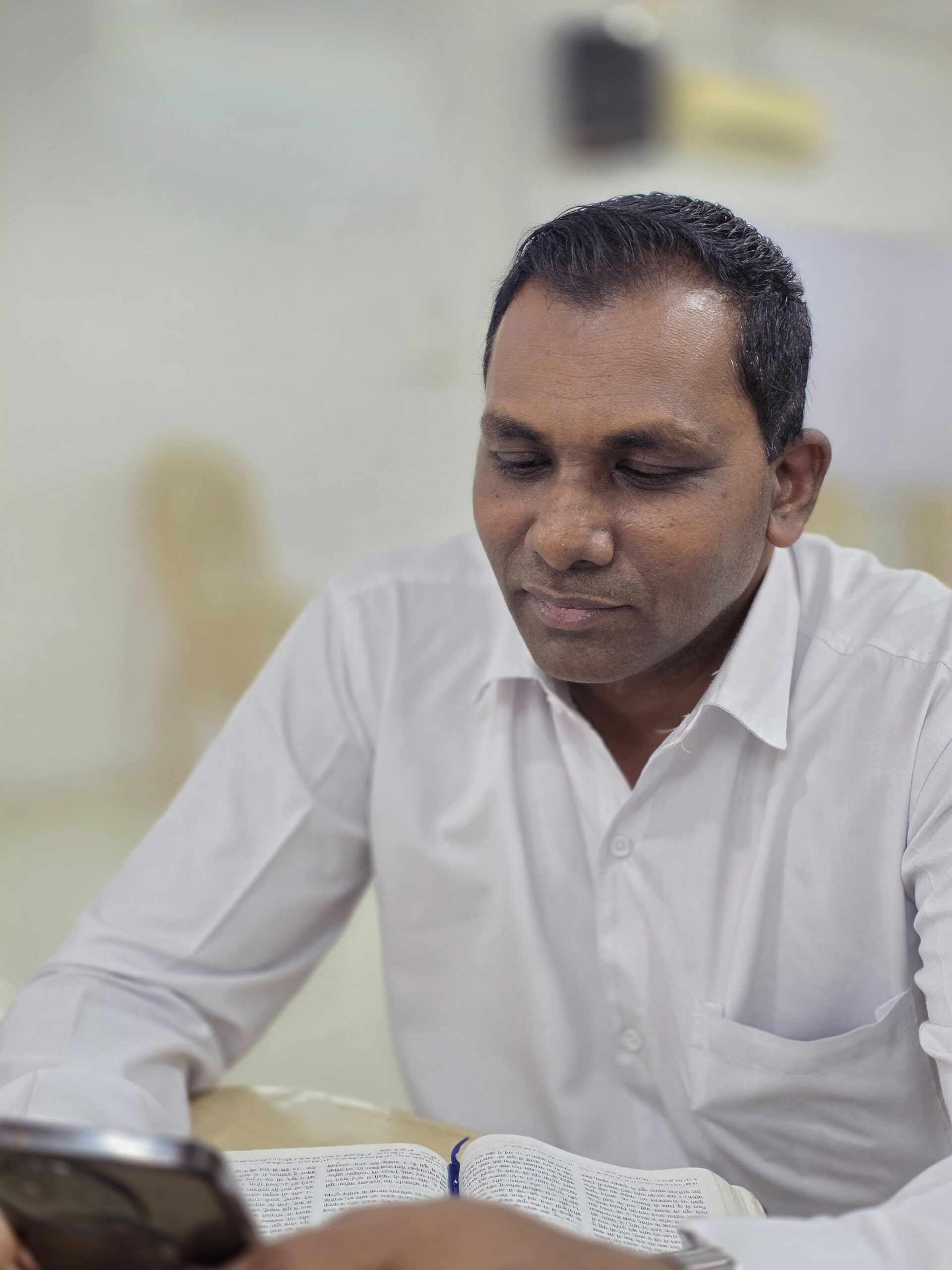
Here are a few tips to maximize your success with both the AI Eraser and Object Eraser:
- For complex removals, start with the AI Eraser. If the result isn’t perfect, you can then use the Object Eraser for fine-tuning.
- Zoom in for precise selections, especially when using the Object Eraser. Accurate selections are key for seamless results.
- Don’t be afraid to experiment! Both tools are forgiving—if you’re not happy with the result, you can undo the changes or save a copy. If you’ve made multiple edits to the same image, you can always tap “Revert to original” from the three-dot menu at the top-right corner to restore the original version.
- Remember that the AI Eraser generates new content, so the results might sometimes be unpredictable. Always review the edited image carefully.
For more daily updates, please visit our News Section.
Stay ahead in tech! Join our Telegram community and sign up for our daily newsletter of top stories




Comments