Add GIZMOCHINA as Preferred Source on Google
If you’re using a Xiaomi, Redmi or POCO phone running HyperOS, you might notice ads showing up inside many system apps, from the Downloads and Mi Browser to Music, Security and Themes. Fortunately, while Xiaomi doesn’t remove all advertising by default, you can turn most of it off with a few simple settings changes. So here’s how to clean up your phone and cut down on ads across the OS.
1. Disable the MSA System Ad Service
Many of the ads you see originate from a service called MSA (MIUI System Ads), which is a telemetry-linked background app responsible for displaying recommendations and ads system-wide. Turning this off is one of the most important first steps:
- Open Settings
- Go to Fingerprints, face data & screen lock (or Passwords & security on some Xiaomi phones)
- Tap Authorization & revocation
- Toggle MSA off and tap Revoke to confirm
Doing this stops the system from serving many ads, though you’ll still need to disable certain app-specific ads separately.
2. Turn Off Personalized Ads
You can also disable targeted ads that use your data:
- Open Settings and then head to Privacy
- Select Ad services or Advertising services
- Turn off Personalized ad recommendations
Once again, this wouldn’t remove all advertisements, but it prevents the system from tailoring these to your behavior.
3. Disable Ads Inside Individual System Apps
HyperOS places ad toggles inside many pre-installed apps. While you’ll likely never interact with most of them, you’ll need to turn these off one app at a time to get a true ad-free experience. The exact labels may differ slightly by region or build, but they’re usually easy to spot:
- Downloads: Open the app > menu (three dots) > Settings > turn off Show ads.
- Mi Browser: Profile icon > Settings > Advanced > disable Show ads.
- Mi Video Player: Profile > gear icon > disable Personalized recommendations (note: in some builds, this only lasts 90 days).
- Music: Profile > Settings > disable Allow permanent notifications, then in Advanced settings turn off Show ads and Personalized recommendations.
- Security: Settings > disable Show recommendations, also turn off under the Cleaner section.
- Themes: Account > gear > disable Show ads and Personalized recommendations.
- App Vault: Open App Vault > menu > Manage services > turn off App suggestions and Ads.
4. Disable Ads in Other Places
While HyperOS doesn’t offer a universal one-click switch for all ads (although such a toggle has been spotted in leaked test builds), you can also reduce other ad-feed interruptions:
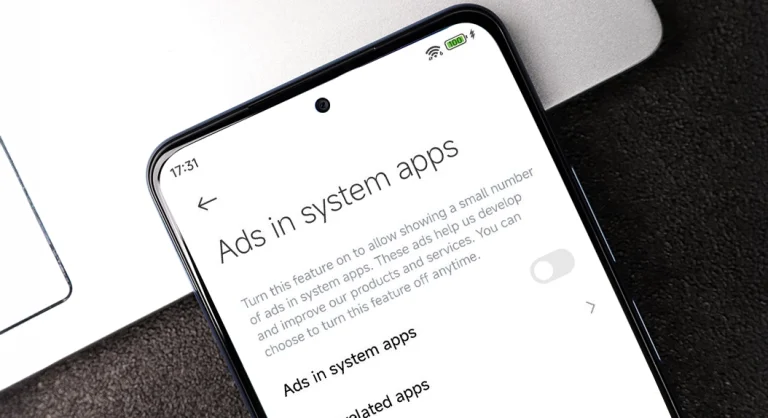
- Some devices include an “Ads in System Apps” toggle inside Mi Account > About Xiaomi Account
- For persistent ads or notifications from the msa daemon, you can disable its notifications: go to Settings > Apps > Manage apps > View all apps > msa > Notifications and turn off Show notifications.
- Advanced users sometimes set up private DNS ad-blockers (e.g., using AdGuard DNS) to block ad servers at the network level.
5. Why It’s Worth Doing
HyperOS is still evolving, and despite the various improvements over time, ads remain a controversial part of the experience. This is especially frustrating when they appear inside system apps or notifications. While a completely ad-free operation may require patience and thorough cleanup, going through these settings drastically reduces the amount of unwanted content you’ll see and improves both privacy and battery life. Keep in mind that after system updates, some settings may reset, so revisiting them occasionally helps maintain your preferred, ad-free configuration.
For more daily updates, please visit our News Section.
Tech enthusiast? Get the latest news first! Follow our Telegram channel and subscribe to our free newsletter for your daily tech fix! ⚡