
Add GIZMOCHINA as Preferred Source on Google
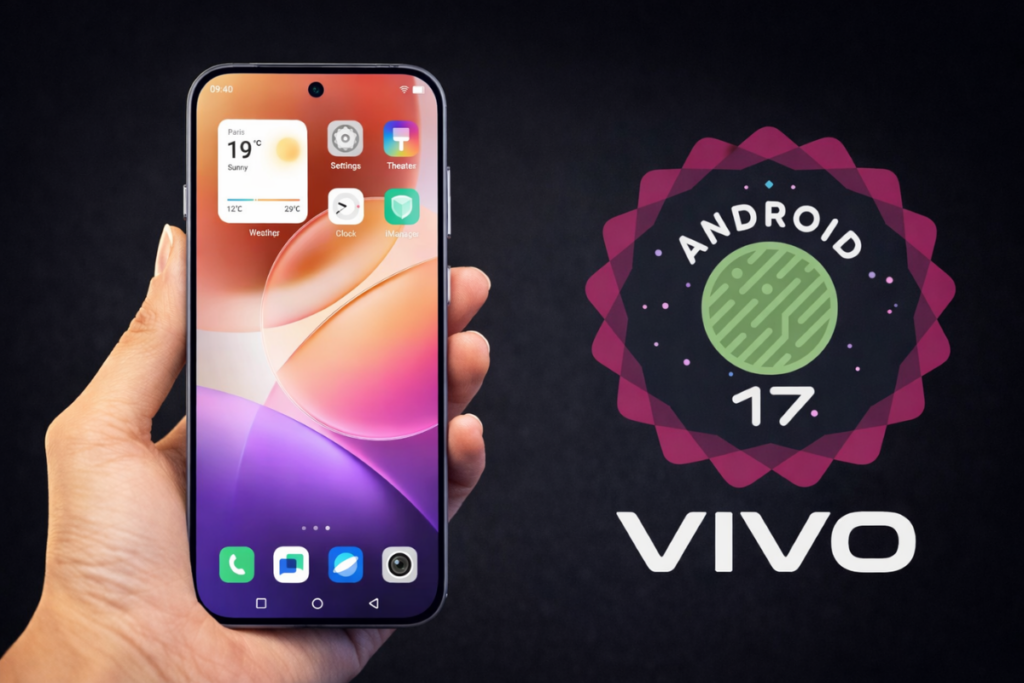
Vivo finally joins its Chinese rivals, Oppo, OnePlus, and Realme, to offer its users early access to Android 17 via the Developer Preview program. This preview program build is based on Android 17 Beta 2 and is currently limited to the newest flagships, Vivo X300 Pro and iQOO 15.
The company has already begun accepting applications for its Android 17 Developer Preview program, although it’s currently live in mainland China. We can expect its expansion to other regions in the coming days and weeks. We’ll keep you posted in the Vivo section.
If you have an eligible device and live in a supported region, you can sign up for Android 17 Developer Preview and get early access to the latest features and upgrades. Keep in mind that these early builds are intended for developers and advanced users. Below is a list of issues in the current beta build shared by Vivo.
Known issues:
Vivo X300 Pro
1. Fingerprint cannot be used
2. Screenshot function is unavailable.
3. Some built-in and third-party applications may crash.
4. Some system settings (system style, easy mode, privacy system, etc.) cause crashes.
iQOO 15
1. Fingerprint cannot be used
2. Screenshot function is unavailable.
3. There is a chance that the small window cannot be opened.
4. Facial recognition is temporarily unavailable.
5. The Home button may occasionally malfunction; it is recommended to use the navigation keys.
Before you upgrade to Android 17 beta, note that you can’t go back to the preview stable build without doing a full factory reset. Make sure to back up important data. Also, ensure that your phone has at least 5GB of free storage and is charged to at least 40% before installing the beta build.
How to install Android 17 beta on Vivo and iQOO phones?
Back up your important data by navigating to Settings > Additional settings > Back Up and Reset > Backup & Restore and choosing what to back up. Once done, download the required firmware file from the official website.
Now, follow these steps:
- Connect your Vivo phone to a computer via a USB cable.
- Switch the phone’s USB settings to file transfer mode.
- Copy the downloaded software firmware to the phone’s internal storage. (if it isn’t already there)
- On your phone, go to Settings > System Management and Upgrade > System Upgrade > Upgrade Settings > Local Upgrade
- Choose the downloaded firmware file and start the upgrade.
- Once the upgrade is complete, tap Restart.
If you encounter any problems with the beta build, submit your feedback through the Feedback application. This will help the brand in addressing those bugs. You can also downgrade to the stable Android 16 build. Check the Vivo developer site for the required package and steps.
Remember to visit the Vivo section on Gizmochina regularly for the latest information. Or, you can join our Telegram channel to get instant notifications about the latest software updates and breaking tech news.

Comments