
Add GIZMOCHINA as Preferred Source on Google
Intro
We’ve tested plenty of pen tablets, pen displays, and styluses over the years. Every product faces the same challenge: how do you balance price and performance? The XPPen Deco 01 V3 has a very clear answer — it delivers an impressive spec sheet, but quietly cuts corners in places you might not notice at first. With 16,384 levels of pressure sensitivity, a 10 x 6.25-inch active area, 220–266 RPS report rate, USB-C connectivity, and Android support, the Deco 01 V3 looks great on paper. But after spending real time with it, you’ll see that this tablet knows exactly who it’s for — and where it can afford to hold back.

Buy the XPPen Deco 01 V3 on XPPen official store and get a 5% off with our exclusive code – GizmoXP
Unboxing and Accessories
Open the box, and the first thing you’ll notice is how much XPPen includes. You get 8 replacement nibs, a screen protector, an anti-fouling glove, a USB-A to USB-C adapter, and more. Purchased separately, these accessories could easily cost $20–30. XPPen bundles them all in, effectively lowering your total cost of ownership. No need to worry about buying a glove or hunting for spare nibs right after unboxing.

Build and Design
Thickness and Weight:
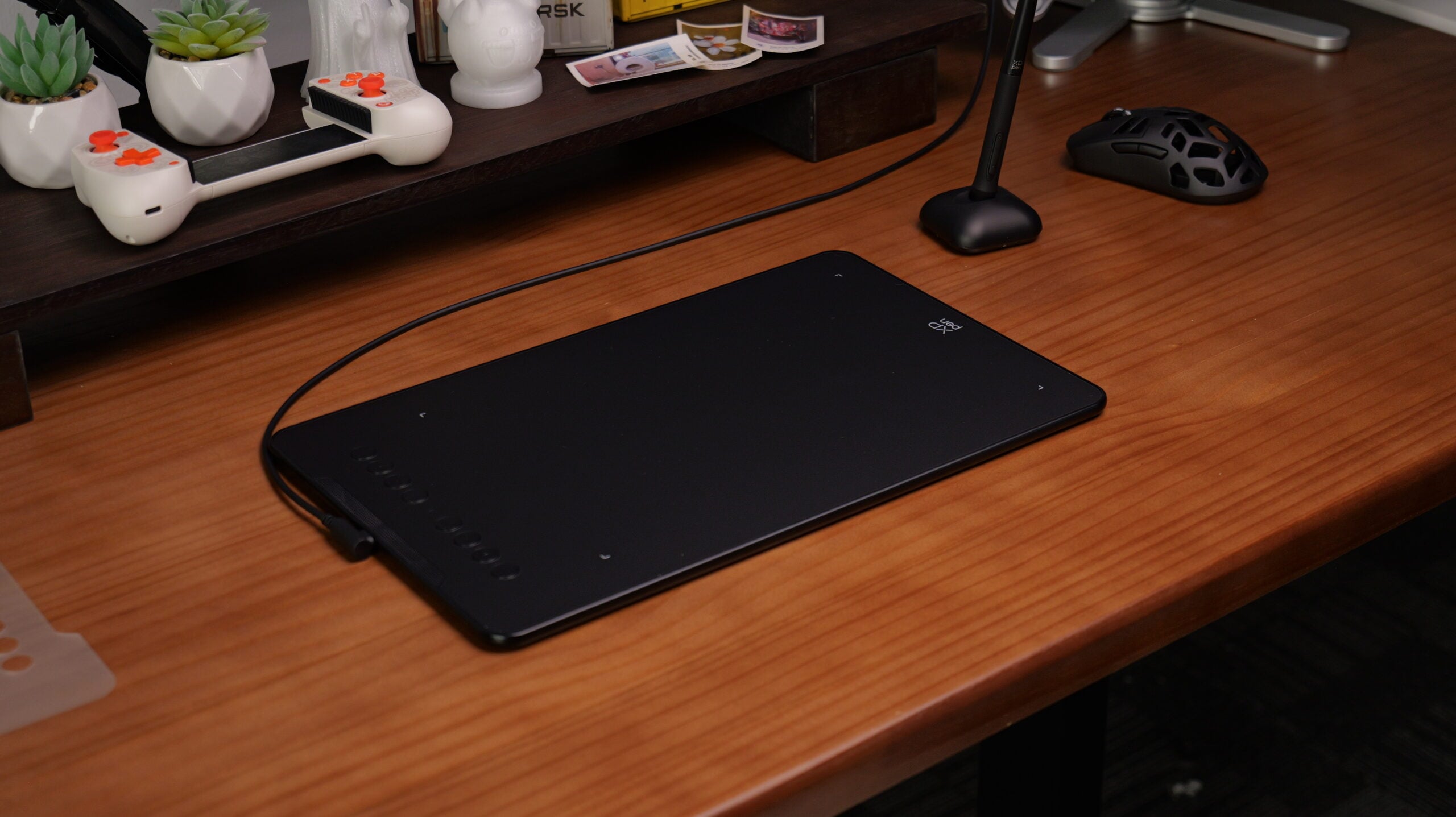
At just 8mm thick, the Deco 01 V3 is one of the slimmest pen tablets in its class. Most tablets in this price range measure around 8.5–9mm. That 1mm difference is noticeable — it slips easily into a laptop bag sleeve without bulging. Weight is also well-controlled.

Surface Feel
The matte surface has a medium-fine texture. The drag resistance sits right in the sweet spot — not so slippery that you lose control, not so rough that long strokes feel tiring. Another nice touch: it resists fingerprints. Most black tablets are fingerprint magnets, but the Deco 01 V3’s matte finish keeps it looking clean. However, durability is a concern. After about a month of use, the most frequently used area showed visible polishing wear. It doesn’t affect functionality, but it may bother users who care about aesthetics. Compared to Wacom tablets, the Deco 01 V3’s surface simply doesn’t hold up as well.

Connectivity
USB-C connectivity is a welcome feature. No adapters needed — just plug in a C-to-C cable to connect to a MacBook or Android device. That said, the USB-C port lacks reinforced shielding, which could lead to loosening over time with frequent plugging and unplugging. We recommend being gentle or using a magnetic cable to reduce wear.

Shortcut Keys
The eight round shortcut keys on the left side are the most distinctive design element of the Deco 01 V3.
The keys have a short travel distance and deliver a crisp, clicky feedback. At about 1cm in diameter, they’re easy to locate with your fingertip. However, the spacing between keys is a bit tight, so blind operation can sometimes lead to mispresses until you get used to the layout.

The shortcut keys are positioned on the left side. That’s fine for right-handed users, but left-handed users will find the placement awkward — and XPPen doesn’t offer a left-handed version.
XPPen’s driver software is mature. Each key can be independently mapped to keyboard shortcuts, mouse functions, modifier keys, system commands, and even application-specific settings. You can save different shortcut profiles for Photoshop, SAI, and Clip Studio Paint — the driver automatically switches when you change software.

If you’re used to keyboard shortcuts, these eight keys will probably go unused. But if you prefer working without a keyboard, they can be helpful. We recommend mapping your most frequent actions (undo, brush, eraser) to the bottom four keys, and less frequent functions (save, new layer) to the top four.

Pressure Sensitivity and Stylus Feel
Pressure Performance
Jumping from 8,192 to 16,384 levels of pressure sensitivity does make a difference — but the law of diminishing returns applies heavily here. The improvement is most visible with very light strokes, such as the faintest pencil hatching, where transitions feel slightly smoother. At normal drawing force, however, the difference between 8,192 and 16,384 levels is hard to perceive. Think of it like display refresh rates: 60Hz to 120Hz is a game-changer, but 120Hz to 240Hz is barely noticeable to most people. This upgrade feels more like a spec war checkbox. If you paint thick, highly textured work that demands extremely nuanced pressure response, you’ll appreciate the difference. But if you primarily do line art or anime-style illustrations, 8,192 levels are more than enough.

Stylus FeelPros:
- Battery-free and wireless — no charging worries
- Comfortable grip with balanced weight distribution
- 60° tilt recognition works well, delivering noticeable angle-based brush variation

Cons:
- Noticeable nib wobble. This is a common issue with XPPen pens — the nib feels slightly loose in the barrel, creating a subtle “wiggle” sensation when you press down.
- High initial activation force. Very light strokes require a bit more pressure than you might expect, which could frustrate users who rely on ultra-fine, delicate lines.

Android Support
XPPen officially supports Android 10.0 and above via the XPPen tools app. In our testing:
- Connection was stable, with no disconnects or lag issues
- However, the app offers limited functionality — advanced features like pressure curve adjustment still require returning to the desktop driver
It works, but don’t expect the same full-featured experience you get on a desktop.

Final Verdict
The XPPen Deco 01 V3 is a precisely targeted product. It focuses its manufacturing costs on the features that matter most to entry-level buyers — high pressure sensitivity, a large active area, and USB-C connectivity — while making compromises in stylus build quality, surface durability, and shortcut key ergonomics. This isn’t a “buy it blindly” tablet. But if you’re on a tight budget, want a large drawing surface, care about specs, and can accept a few trade-offs in build and feel, the Deco 01 V3 is a solid choice.



Comments