
Add GIZMOCHINA as Preferred Source on Google
Android 15 Developer Preview 1 version has been released for the Nothing Phone (2a). Note that this update is only available for Phone (2a) users. The regular Phone (2) users do not have access to Android 15 yet. Read our previous article to discover the new features coming with Android 15.
Nothing has released the Android 15 update for the Phone (2a). Before updating, remember to back up your data, as all data will be lost during the update process. Nothing announces the arrival of several new features with Android 15, including Glyph SDK support, new wallpapers, and the Nothing boot animation. Fingerprint recognition and face unlock are currently not working in the Android 15 build for Phone (2a). Additionally, Nothing’s exclusive features (X/Weather/Launcher/Recorder/Widgets) are absent in this build.
Download Android 15 for Nothing Phone (2a)
To install the new Android 15 Beta update for the Nothing Phone (2a), click here (LINK). And if you encounter any bugs, click here to obtain the required package for downgrade back to the previous version (LINK).
You can install Android 15 on the Nothing Phone (2a) in just a few steps, please refer to the images below as well.
- Go Settings > About phone > Software info to confirm that your phone runs the latest software version (Nothing OS 2.5.5a). If not go to Settings > System > System update to check for updates and update to the newer version.
- Download the Android 15 package file from the link given.
- Create a folder named “ota” in your internal storage directory.
- Dial *#*#682#*#* on your phone.
- Select the update package you downloaded on the recently opened window.
- Tap “Directly apply OTA from selection”.
- Wait until the update finishes and then reboot.
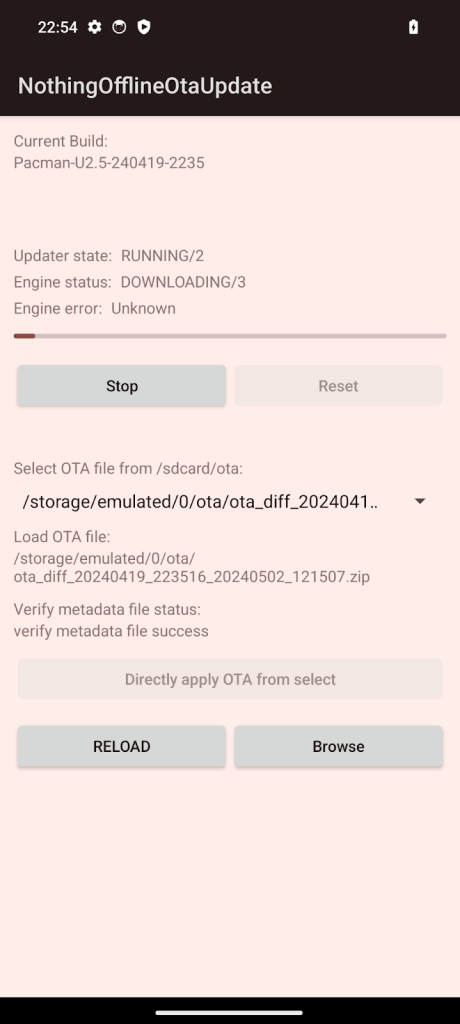
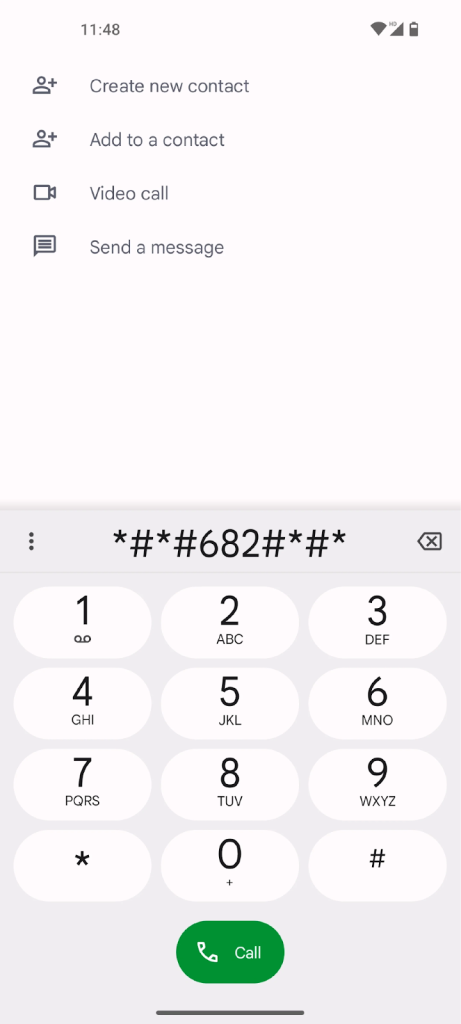
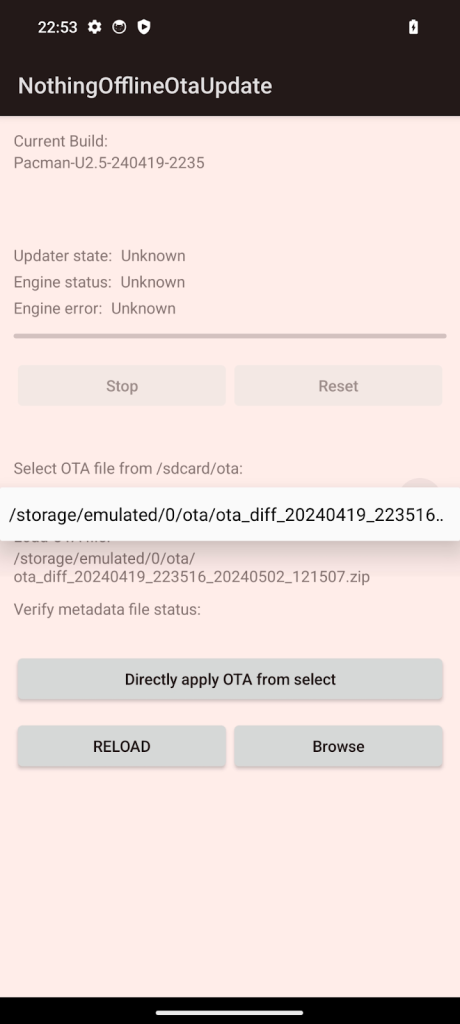
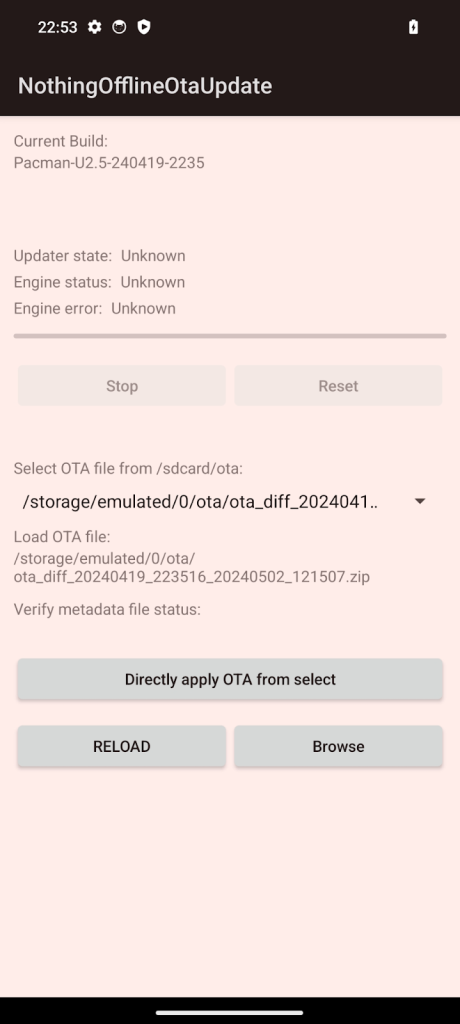
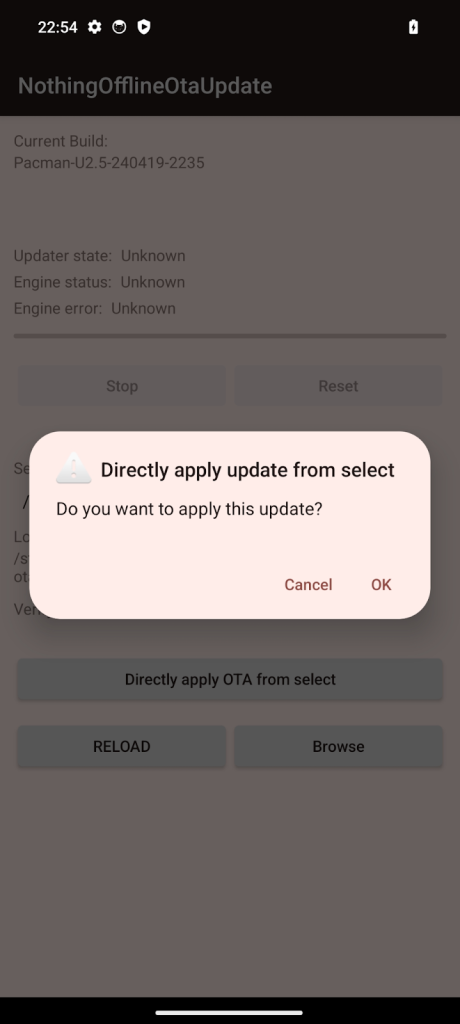
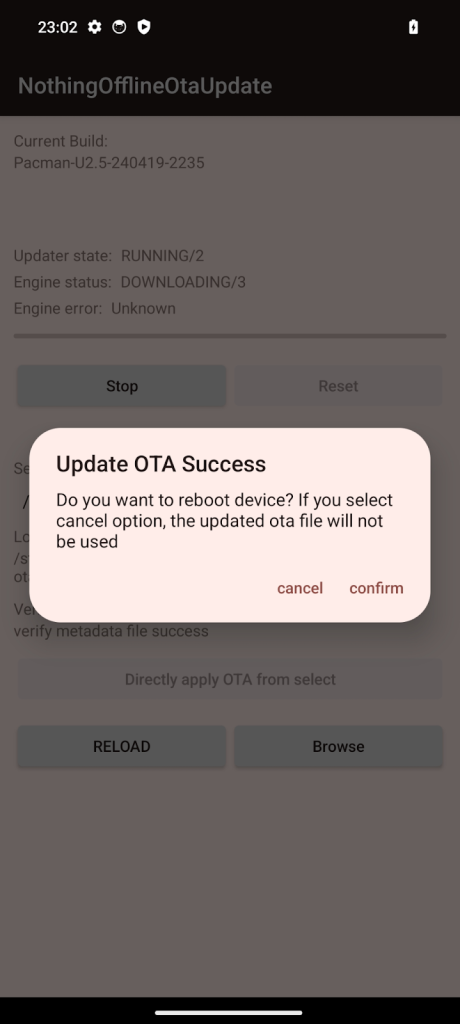
The Android 15 installation on the Nothing Phone (2a) is quite straightforward, but remember that it’s a Beta software. So you may encounter some issues. You can do the same steps given above to downgrade to the previous version, in case you’re not happy with the new Beta update. You just need to select the rollback package before starting to the process. For more information or if you have further questions, you can visit the official Nothing community.




Comments