
Add GIZMOCHINA as Preferred Source on Google
As soon as the Google I/O 2024 event kicked off on May 14, smartphone companies began announcing the availability of the Android 15 beta for select premium smartphones. This allows users to get an early taste of the new operating system (OS) without having to wait for months for the stable release.
Google released multiple Android developer preview builds for Android 15 in February and March and then Beta 1 in April. As always, Google Pixel devices are the first to get these new builds, followed by other brands. The Android 15 beta has been available to eligible Google Pixels since April; hence, we haven’t included them in this post.
Check the list below to see if you’re lucky enough to get an early look at the Android 15 via the beta program.
Android 15 Beta Is Available for These Devices
- Nothing Phone (2a)
- Vivo X100
- iQOO 12
- OnePlus 12
- OnePlus Open
- Xiaomi 14
- Xiaomi 13T Pro
- Xiaomi Pad 6S Pro 12.4
- Realme 12 Pro+ 5G
- Honor Magic V2
- Honor Magic 6 Pro
- Tecno Camon 30 Pro 5G
- Oppo Find N3
- Oppo Find X7
- Lenovo Tab Extreme
- SHARP AQUOS sense8
Disclaimer:
Android 15 beta builds are for developers and advanced users, as they might have missing features, bugs, and non-working features. We are not responsible if anything wrong goes with your device. Also, remember to back up your important data to avoid any data loss.
Also Read: 10 Amazing Features in Android 15
Nothing Phone (2a)
Nothing was one of the very first brands to announce Android 15 beta for its Phone (2a). The Android 15 developer preview is available for the device that brings Glyph SDK support, new Wallpaper, and Nothing boot animation.
Known issues:
- Fingerprints can’t be registered
- Face unlocked unavailable
- No pre-installed Nothing X/Weather/Launcher/Recorder/Widgets
Android 15 beta download links:
Follow these steps to upgrade to Android 15 Developer Preview:
- Go to Settings > About phone > Software info and confirm that your system has been updated to the latest version (Nothing OS 2.5.5a).
If your Nothing phone has older software, go to Settings > System > System update to update to the latest version.
- Create a folder named “ota” in your phone’s internal storage.
- Copy the beta update package to the “ota” folder.
- Open your phone’s dialer and enter this code: *#*#682#*#*. It will open the local update too.
- Select the upgrade package you copied from the drop-down list.
If the upgrade package isn’t included in the drop-down list, tap RELOAD to update the list. If it still doesn’t show up, tap Browse and choose the upgrade package.
If the device shows a “Verify metadata file status” error, it means the upgrade package is wrong. Make sure you’ve downloaded the correct one. Delete the existing one before downloading it again.
- Tap the Directly apply OTA from selection button and click OK to install the upgrade package.
- Tap Confirm to upgrade to the Android 15 beta. It will reboot your device.
If you want to roll back to the previous version, download the roll-back package (download link) and follow the same steps.
Vivo X100 and iQOO 12
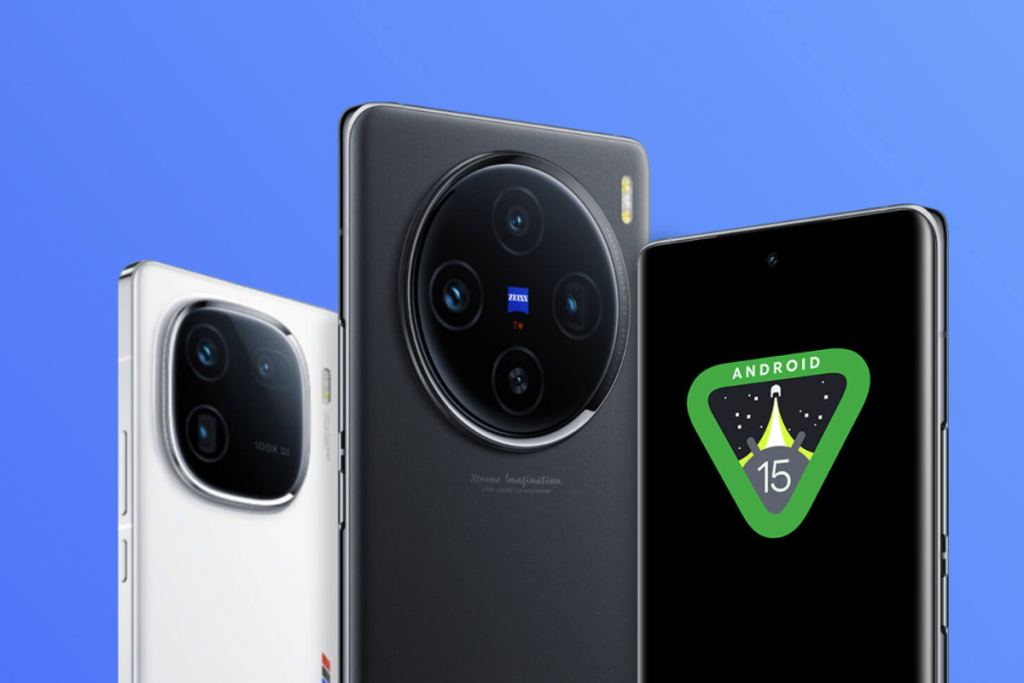
Vivo has also announced Android 15 Beta for the Vivo X100 and iQOO 12. Interested users can now download and upgrade to Android 15 Beta 1 by following the instructions listed below.
Android 15 Beta is currently available for Vivo X100 users in India, Taiwan, Malaysia, Thailand, Hong Kong, and Kazakhstan. It’s also available for iQOO 12 users in India, Thailand, Indonesia, and Malaysia.
Before you rush to install the Android 15 beta on your Vivo or iQOO device, read these known issues first:
Known issues (Vivo X100)
- Notification content is cropped in the notification tray.
- The fingerprint sensor indicator (white) overlaps with an unlocking icon (also white).
- Compatibility issues with certain third-party apps.
- Certain features in Settings cannot be used.
- Abnormal UI display on certain interfaces.
Known issues (iQOO 12)
- If the camera crashes after the upgrade, try rebooting to restore it.
- Compatibility issues with certain third-party apps.
- Certain features in Settings cannot be used.
- NFC is temporarily not supported.
- Abnormal UI display on certain interfaces.
Android 15 beta download links:
- Vivo X100 (Taiwan, Malaysia, Thailand, Hong Kong, Kazakhstan): Download
- Vivo X100 (India): Download
- iQOO 12 (Thailand, Indonesia, Malaysia): Download
- iQOO 12 (India): Download
Steps to install Android 15 beta on Vivo and iQOO devices:
- Connect your phone to your PC and switch the USB settings to Transfer Files.
- Copy the downloaded upgrade package to the root directory of your phone.
- On your phone, go to Settings > System update > Local update and tap on the upgrade package file to begin the installation.
- Wait for the process to complete.
You might need to reboot your phone to apply the changes.
To uninstall the Android 15 beta and go back to the stable Android 14 build, download the required roll-back firmware using the links given below and install by following the same steps:
Roll-back package:
- Vivo X100 (Taiwan, Malaysia, Thailand, Hong Kong, Kazakhstan): Download
- Vivo X100 (India): Download
- iQOO 12 (Thailand, Indonesia, Malaysia): Download
- iQOO 12 (India): Download
OnePlus 12 and OnePlus Open
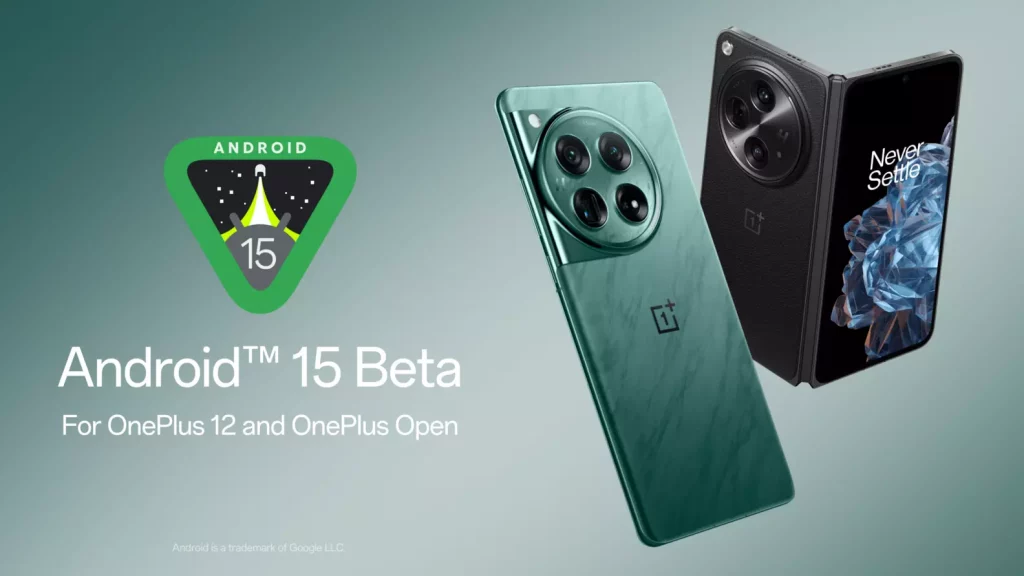
OnePlus 12 and Open Open users can now upgrade to Android 15 Beta 1 to get an early taste of the new OS before the stable release.
Known issues (OnePlus 12)
- There are some compatibility issues with the Bluetooth connection.
- In certain scenarios, Wi-Fi may not be able to connect to the printer
- The Smart Lock function cannot be used.
- Some camera functions display abnormally in certain scenarios.
- In some scenarios, the Multi-Screen Connect function is abnormal when connecting with PC or PAD.
- Some third-party applications have compatibility issues such as crashes
- Stability issues in specific scenarios.
- Personal hotspot may not work after modifying the security settings.
- The Auto Pixlate function fails during the screenshot preview.
- After taking a photo, the photo does not show the ProXDR button.
Known issues (OnePlus Open)
- There are some compatibility issues with the Bluetooth connection.
- Some camera functions display abnormally under certain scenes.
- In some scenarios, the Multi-Screen Connect function is abnormal when connecting with a PC or PAD.
- Some third-party applications have compatibility issues such as crashes
- There are stability issues in specific scenarios.
- The split screen function of the main screen is abnormal in some scenarios.
- After taking a photo, the photo does not show the ProXDR button.
- Personal hotspot may not work after modifying the security settings.
- The Auto Pixlate function fails during the screenshot preview.
- Long-pressing the main body of a picture in Photos cannot trigger the smart select and cutout function.
- Creating the System Cloner and open, when input the main system password, it will crash to the desktop and the multitask button and home button of are unavailable.
- The size of the drop-down status bar quick switch is abnormal after the screen resolution is switched between Standard and High. You can switch to the original resolution to restore it. (Method:Settings > Display & brightness > Screen Resolution > Standard or High)
Requirements:
- Battery level should be above 30% and a minimum of 4GB unoccupied storage space.
- OnePlus 12 must be running the software version 14.0.0.610 or older. Devices with the newer version need to be downgraded first. To do that, install a rollback page (link given below).
- OnePlus Open must be running the software version 14.0.0.702 or older. Devices with the newer version above need to be downgraded first. To do that, install a rollback page (link given below).
- Carrier version devices (TMO/VZW) are not compatible with Android 15 Beta 1.
Android 15 Beta 1 download links:
- OnePlus 12 (NA version): Download
- OnePlus 12 (IN version): Download
- OnePlus 12 (EU version): Download
- OnePlus 12 (GLO version): Download
- OnePlus Open (NA version): Download
- OnePlus Open (IN version): Download
- OnePlus Open (EU version): Download
Roll-back package (Android 14) download links:
- OnePlus 12 (NA version): Download
- OnePlus 12 (IN version): Download
- OnePlus 12 (EU version): Download
- OnePlus 12 (GLO version): Download
- OnePlus Open (NA version): Download
- OnePlus Open (IN version): Download
- OnePlus Open (EU version): Download
Steps to upgrade to Android 15 beta (EU & IN only):
- Download the correct ROM upgrade package.
- Copy the upgrade package to the phone’s internal storage.
- Go to Settings > About device > Version > tap 7 times on the build number and enter the password to enable the developer mode. Skip this step if the developer mode is already enabled.
- Go to Settings > About device > Up to date > and click the button in the top-right corner.
- Choose Local install and tap the correct installation package.
- Extract the package and Upgrade.
- Click Restart once the upgrade is successful.
Steps to upgrade to Android 15 beta (NA only):
- Download the correct ROM upgrade package.
- Copy the upgrade package to the phone’s internal storage.
- Install this APK (download link).
- Open the installed app, tap the gear icon in the top-right corner, and tap on the upgrade package.
- After the upgrade is complete, click Restart.
Whenever you feel like returning to Android 14, install the correct roll-back package (links above) and follow the same installation steps.
Xiaomi 14, Xiaomi 13T Pro, and Xiaomi Pad 6S Pro 12.4
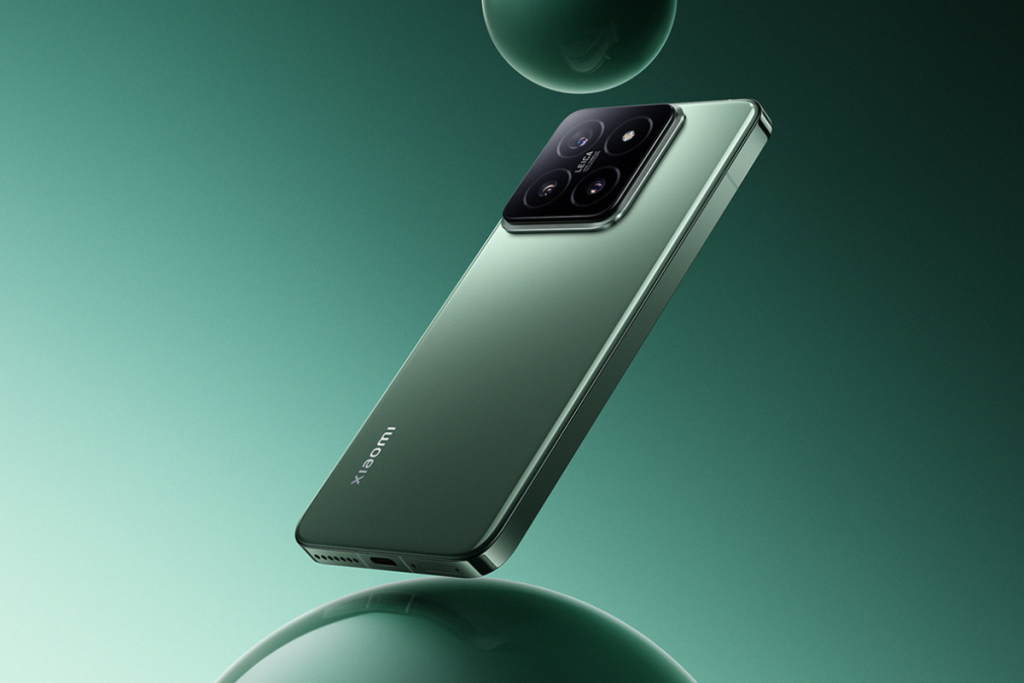
Xiaomi has made the Android 15 Developer Preview available for the Xiaomi 14, 13T Pro, and Pad 6S Pro 12.4.
The brand hasn’t revealed a list of known issues, but they will likely be present in the beta build.
Android 15 beta download links:
Steps to install Android 15 beta on Xiaomi devices:
- Unlock the bootloader (guide).
- Copy the upgrade package to your phone’s internal storage.
- Connect your Xiaomi device to a PC via a USB cable.
- Go to Settings > About phone > System update, tap the three dots in the top-right corner, and click Choose update package.
- Select the upgrade package and click OK.
Wait for the upgrade to finish. Once done, your device should reboot automatically to apply the changes.
If you want to go back to Android 14 for any reason, download the correct fastboot ROM file and install it using the same steps. You can use a third-party website such as XiaomiFirmwareUpdater to download the ROM.
Realme 12 Pro+ 5G
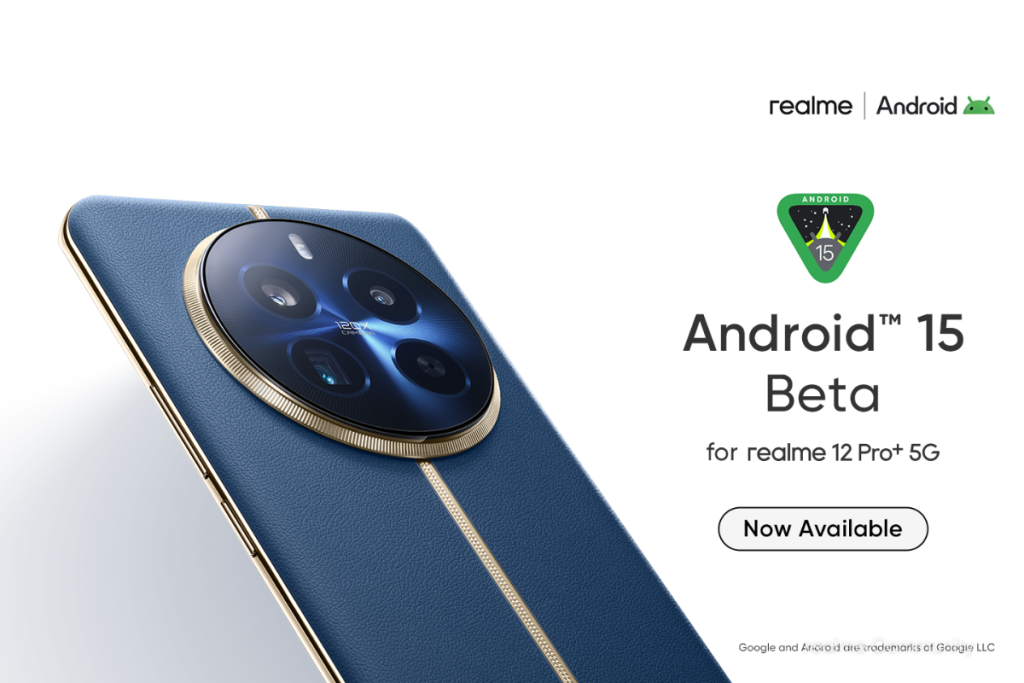
Realme 12 Pro+ 5G is the company’s first phone to get the Android 15 Beta. If you can’t hold your patience until the stable release, follow the steps mentioned below to install the beta build.
Before that, take a quick look at the known issues:
- All user data will be erased during the upgrade.
- Some system functions are not available.
- Part of the interface display may look less than desirable.
- Some applications may not work properly or be fully functional.
- The system may have some stability issues.
Android 15 beta download link:
- Realme 12 Pro+ 5G: Download
Steps to install Android 15 beta on Realme devices:
- Copy the downloaded firmware to the phone storage.
- Turn on the developer mode.
- Go to Settings > Software Update > tap the settings icon in the upper-right corner, manually select the installation package, and click Install.
- After the installation finishes, the device will restart automatically to the new OS.
If you ever want to switch back to Android 14, download the rollback package (download link) and install it by following the same steps.
HONOR Magic V2 and HONOR Magic 6 Pro
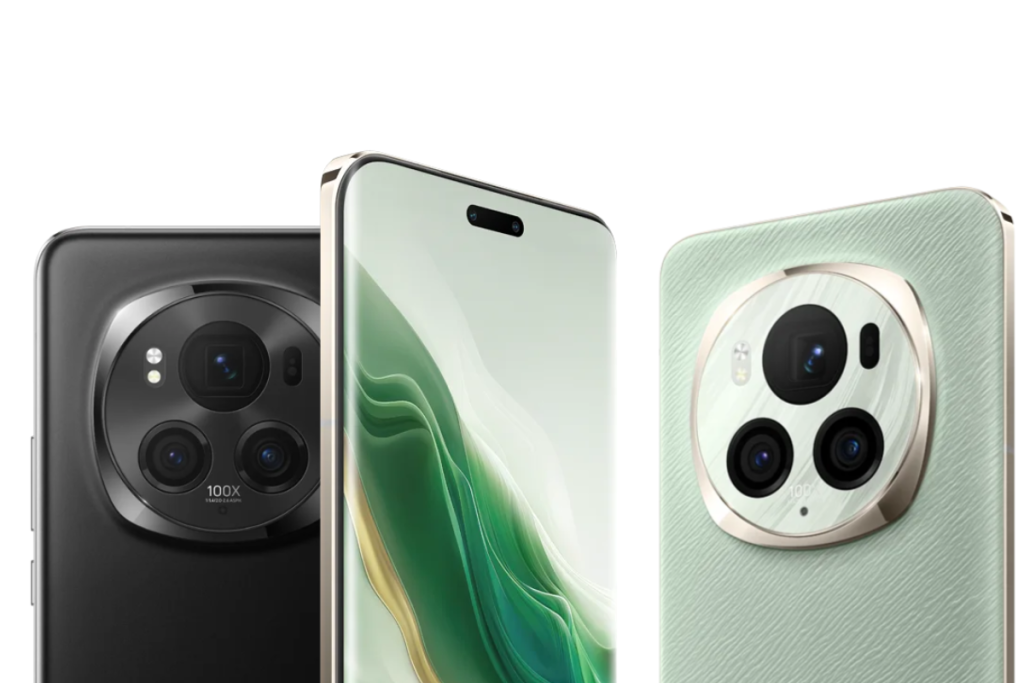
Android 15 Beta 1 is available for HONOR Magic V2 and Magic 6 Pro. If you have any of these devices, install the beta and explore the goodness of the new OS.
Known issues:
- HDR effect probability failure for images within the gallery.
- Low probability of phone restart in some scenarios.
- Camera crash issue in some scenarios.
- Mobile screen mirroring is not available.
- In dual card mode, the dial only displays Card 1, you can try Settings > Mobile network > SIM management > Default calling SIM and select Not set.
- Parallel space and Magic Portal are not available.
Required firmware version:
- HONOR Magic 6 Pro: BVL-N49 8.0.0.148(C431E4R2P2) , 8.0.0.152(C636E2R2P2) or higher.
- HONOR Magic V2: VER-N49 8.0.0.105(C431E2R2P2), 8.0.0.105(C636E2R2P2) or higher.
Android 15 Beta 1 download links:
Steps to upgrade to Android 15 beta for Honor devices:
- Make sure your PC have adb, python environment, and Honor Suite.
- Go to Settings > About phone > tap 7 times on the build number to enable the developer mode.
- Go back to the Settings homepage, navigate to System & updates > Developer options, and enable USB debugging.
- Connect your Honor device to your PC via a USB cable.
- Unzip the upgrade package on your PC and run the script “python dsu_tool_for_win.py” to install the beta package.
- Tap Restart after the installation is finished.
You can easily return to the previous system by tapping Rollback. If the option disappears, you can execute the “adb shell gsi_tool disable” command and then reboot directly to return to the previous system.
Tecno Camon 30 Pro 5G
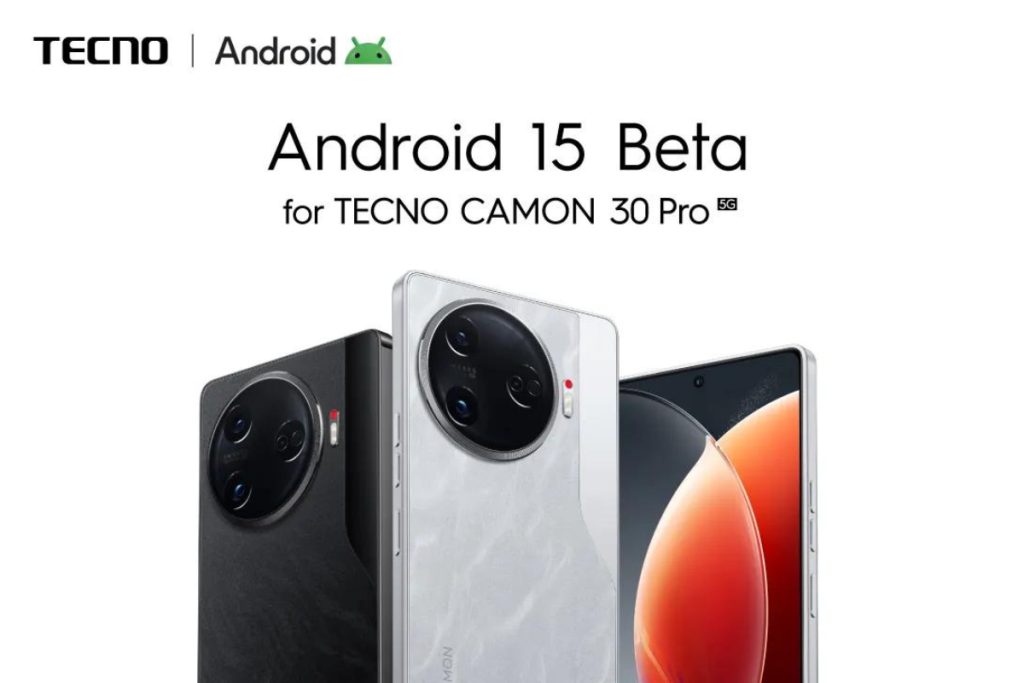
Tecno Camon 30 Pro 5G is the company’s first phone to receive the Android 15 beta update.
Android 15 beta download link:
- Tecno Camon 30 Pro 5G: Download
After downloading the upgrade package, follow this official setup guide to get Android 15 Beta on your Techno phone.
If you want to revert to Android 14, download the rollback package (download link) and follow the same installation steps mentioned in the setup guide.
Oppo Find N3 and Find X7
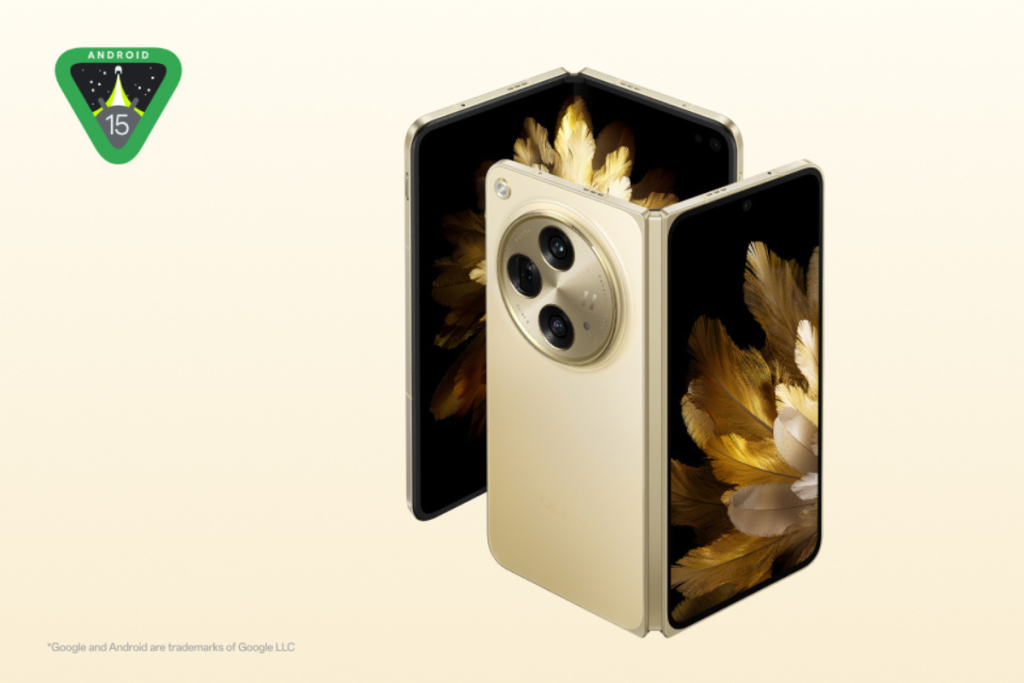
Android 15 Beta 1 is available for Oppo Find N3 in Singapore and Indonesia and for Oppo Find X7 in China.
Known issues:
- There are some compatibility issues with the Bluetooth connection.
- Some camera functions display abnormally under certain scenes.
- In some scenarios, the Multi-Screen Connect function is abnormal when connecting with PC or PAD.
- Some third-party applications have compatibility issues such as crashes
- There are stability issues in specific scenarios.
- The split screen function of the main screen is abnormal in some scenarios.
- After taking a photo, the photo does not show the ProXDR button.
- Personal hotspot may not be open after modifying the security settings.
- The automatic mosaic coding function fails during screenshot preview.
- Long pressing the main body of a picture in Photos cannot trigger the Smart Image Matting function.
- Creating the System Cloner and open, when input the main system password, it will crash to the desktop and the multitask button and home button of are unavailable.
Android 15 Beta 1 download links:
Requirements:
- OPPO Find N3 must have the software version 14.0.0.703 or below.
- OPPO Find N3 must have the software version 14.0.1.501 or below.
Steps to upgrade to Android 15 beta on Oppo phones:
- Copy the upgrade package to your phone storage.
- Go to Settings > About device > Version > tap 7 times on the build number to enable the developer mode.
- Go back to Settings > About device, tap the icon in the top-right corner, and choose Local install.
- Select the upgrade package and Extract.
- After the installation is complete, tap Restart.
If you want to revert to Android 14, download the correct rollback package and install it using the same steps.
Android 14 rollback package:
Lenovo Tab Extreme
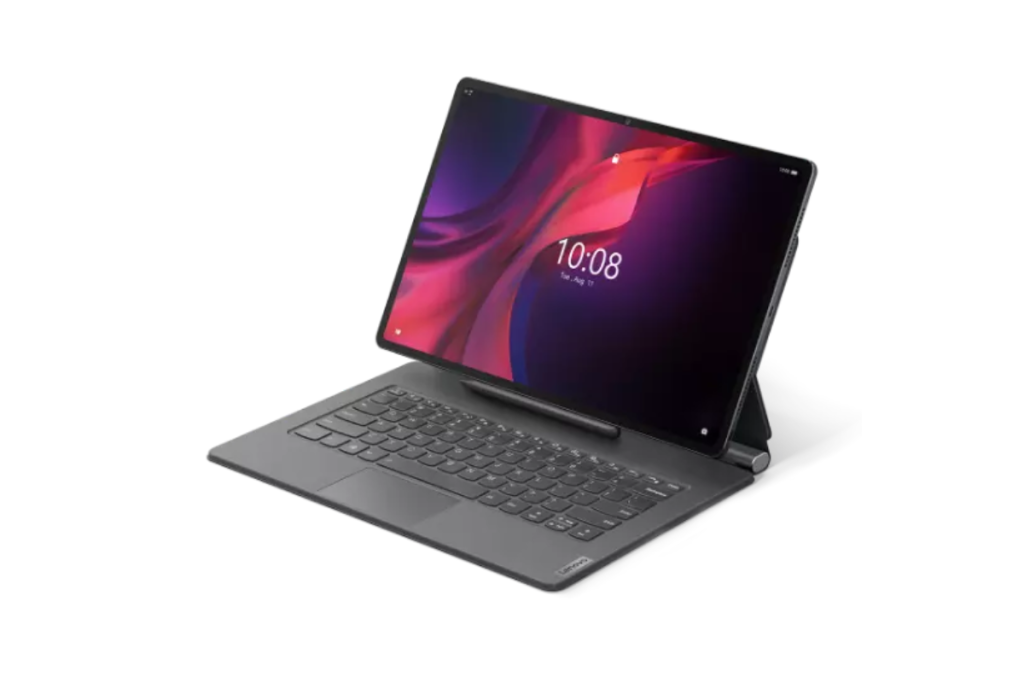
Lenovo has announced the Android 15 Developer Preview program for the Lenovo Tab Extreme. Keep reading to get the download link and required steps.
[Important: The Android 15 beta is available to the Wi-Fi version of Lenovo Tab Extreme purchased outside of China mainland. Flashing the firmware on a wrong device can cause damage.]Known issues:
- Face Unlock is not supported.
- TOF sensor-related function is removed.
- Stylus key function is not supported but basic function works.
- Touchpad functions with two fingers are not supported.
- Touchpad swipe up/down/left/right with 3 or 4 fingers are not supported.
- Miracast function is not supported.
- Bluetooth headphones do not work properly when playing audio.
- It does not respond normally when pressing the power button while inserting the charging cable in the powered-off state.
- Screen output via cable (extended screen) can be supported when <force desktop mode> is turned on in developer menu.
- VPN is not tested and may not work properly.
- WIDI is not supported.
- Video play may face audio issue.
- Settings may display abnormal sometimes, re-selecting or cleaning recent apps can make it work properly.
- One Vision is not supported.
Download the Android 15 developer preview Beta1 image for Lenovo Tab Extreme (Wi-Fi version) and follow the instructions as mentioned on the official website.
SHARP AQUOS sense8
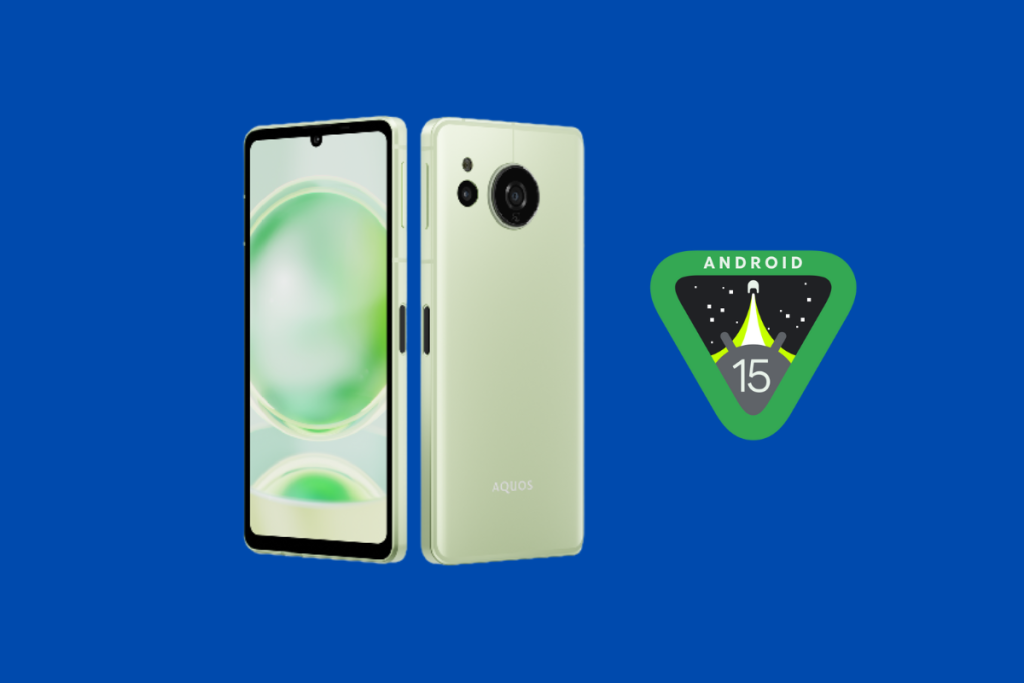
SHARP has announced the Android 15 Developer Preview program for the AQUOS sense8 (SH-M26).
Read the known issues first, and then we’ll proceed to the installation steps
Known issues:
- Facial recognition cannot be registered or operated.
- AQUOS trick → Rich Color Technology Mobile does not work.
- AQUOS trick → Smooth high-speed display does not work.
- AQUOS trick → Fingerprint sensor and Pay trigger do not work.
- AQUOS trick → Clip Now does not work.
- AQUOS trick → gaming menu does not work.
- AQUOS trick → quick operation does not work.
- AQUOS trick → Cannot switch to AQUOS Home.
- AQUOS trick → Unable to check battery health level of Intelligent Charge.
- No sound can be heard when connecting Bluetooth earphones.
- Unable to receive SMS.
- Unable to transfer eSIM from Settings > Network and Internet > SIM > Transfer SIM from another device.
Steps to upgrade to Android 15 beta:
- Install the JoinDeveloperPreviewProgram APK on your SHARP device.
- Go to Settings > About phone and make sure the build number is “02.00.00” or newer.
If your device has an older software version, go to Settings > System > System update and install the latest update.
- Launch the Join Developer Preview Program app.
- Check the Terms of Privacy Policy box and click Register.
- Tap three dots in the upper-right corner and select Load.
- Tap on Beta1 Android 15 to download and install it.
- After the installation is complete, tap Restart on the notification.
If you want to revert to Android 14, tap Restart on the notification. The software will return to Android 14. To completely remove Android 14 Developer Preview software from your device, tap Discard on the notification and then select Not Register in the Join Developer Preview Program app.
Which Android device do you have, and what are your expectations from Android 15? Do let us know your thoughts in the comments below.



Comments