
Add GIZMOCHINA as Preferred Source on Google
One UI 6.1 offers plenty of ways to optimize the battery life of a Samsung Galaxy. However, these options are scattered across various menus, making it difficult for most users to implement the best battery-saving strategies.
To save you the hassle of navigating through each and every setting on your Samsung Galaxy device, we’ve compiled the best battery optimization tips for One UI 6.1 to maximize the battery life. Apply the tips mentioned below and observe the difference.
Also Read: 7 Tips to Supercharge One UI 6.1 Performance
Best One UI 6.1 Battery Optimization Tips
Apply these optimizations to get the best battery life on your Samsung Galaxy device.
Tip #1: Switch to Maximum Battery Protection
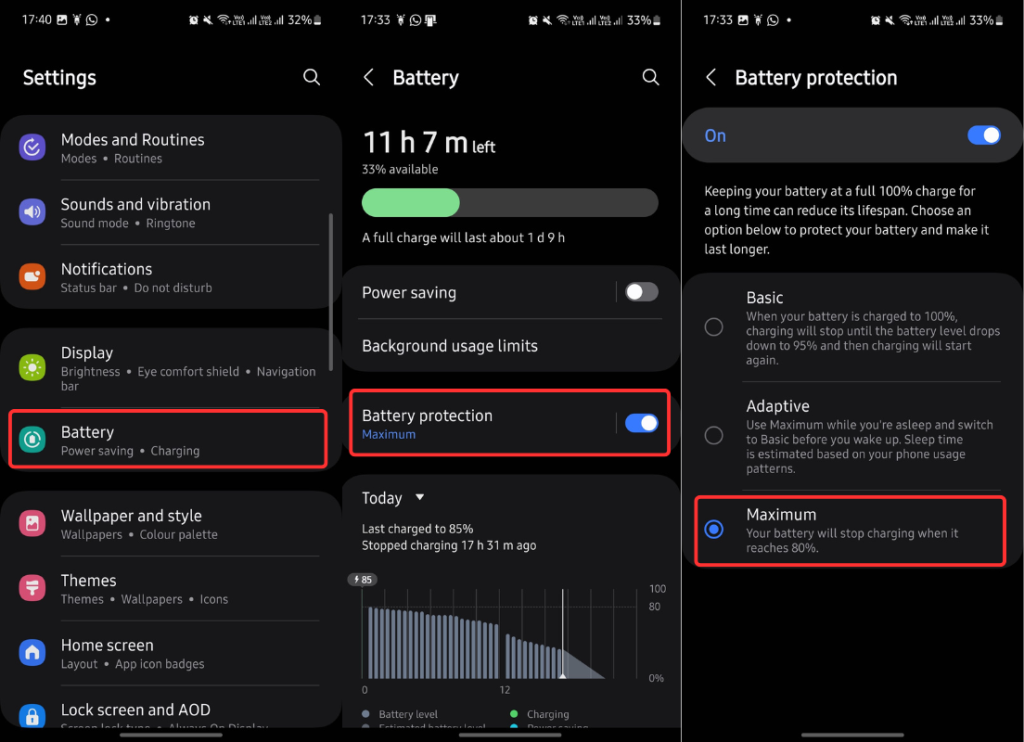
One UI 6.1 introduces new battery protection features to keep the battery health in check in the long term. It offers three battery protection options: Basic, Adaptive, and Maximum.
The Basic protection stops charging the device once the battery level reaches 100% and resumes when it reaches below 95%.
The Adaptive protection charges the battery to 80% while you asleep and fills the rest before you wake up.
Maximum protection prioritizes slowing down battery degradation by limiting the maximum charge to 80% while providing enough power for most daily needs.
Go to Settings > Battery and select Maximum protection (recommended) to achieve the best balance of battery health and screen-on time.
Tip #2: Create Routines
Modes and routines on the Samsung Galaxy are one of the best features that are overlooked by most users. You can create custom routines to disable unnecessary features at a specific time or place.
Routine 1 (battery level is less than 30%)
- Enable power saving
- Disable GPS
- Switch to the standard screen refresh rate
Routine 2 (at bedtime)
- Change the network mode to 4G
- Enable power saving
- Turn off NFC
- Turn off Wi-Fi
- Turn off mobile data
- Turn off Bluetooth
- Turn off edge panels
- Turn off Always on Display (AOD)
- Disable fingerprint unlocking
- Turn off location
You can add or remove functions from the above two routines as per your requirements.
Steps to create a routine in Samsung Galaxy:
- Open the Settings app.
- Tap on Modes and Routines.
- Go to the Routines tab.
- Tap the “+” icon at the top.
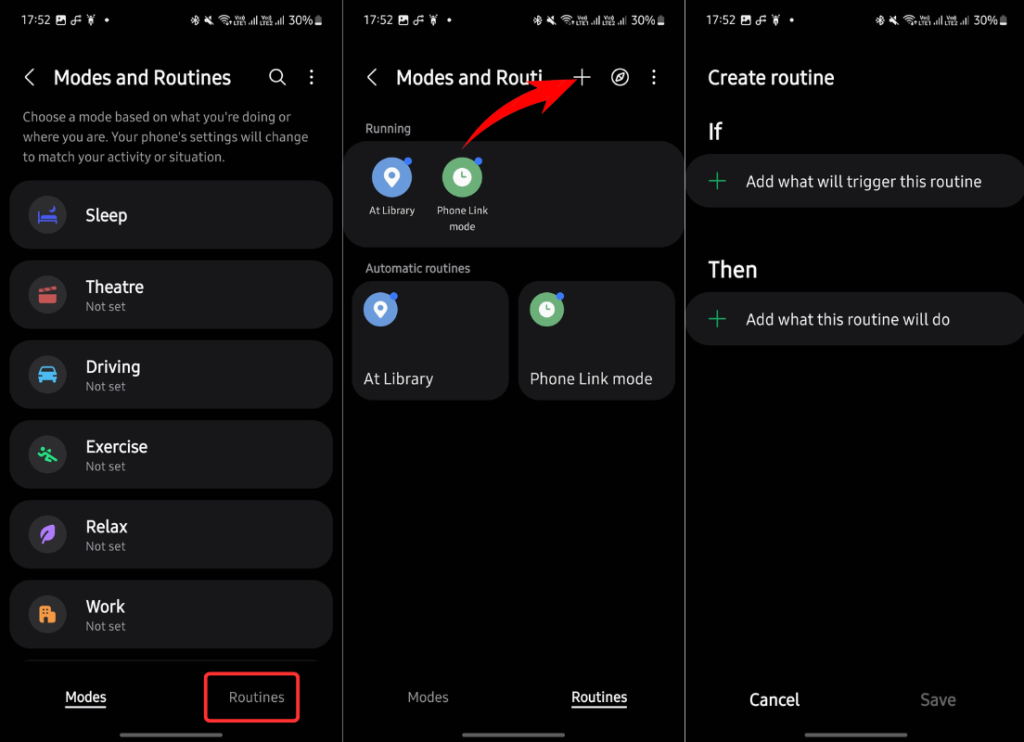
Set the if condition to trigger a routine. For routine 1, tap “Add what will trigger this routine”, click “Battery level” and set it to below 30%. Thereafter, add the settings you want to change, enable, or disable by tapping on “Add what this routine will do”. For routine 2, you can set a specific time to trigger the routine.
Tip #3: Put Unused Apps to Sleep
Many apps on our phones are for occasional usage. Even if you don’t open them regularly, they can still consume resources. You can limit background usage of such apps to save some battery and resources.
Here’s how to do it:
1. Open the Settings app.
2. Tap on Battery and click Background usage limits.
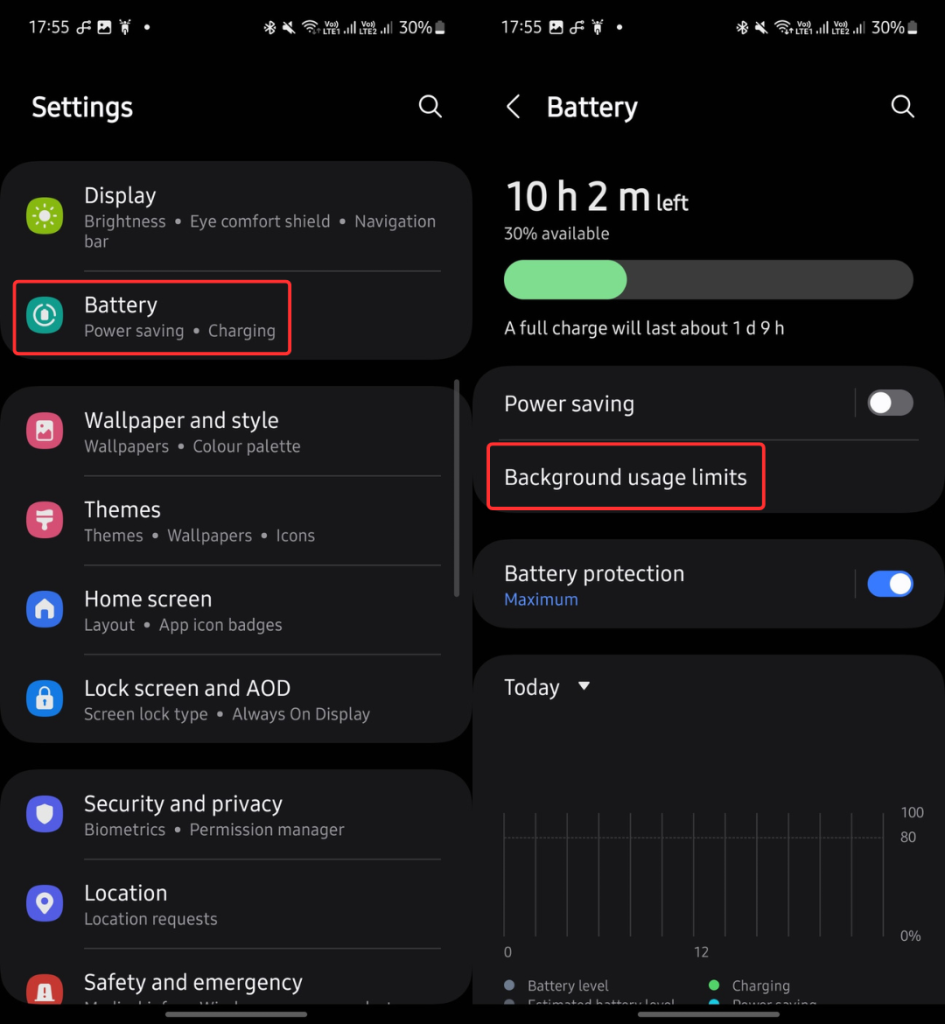
3. Tap Deep sleeping apps.
4. Click the “+” icon at the top.
5. Select the apps and click Add.
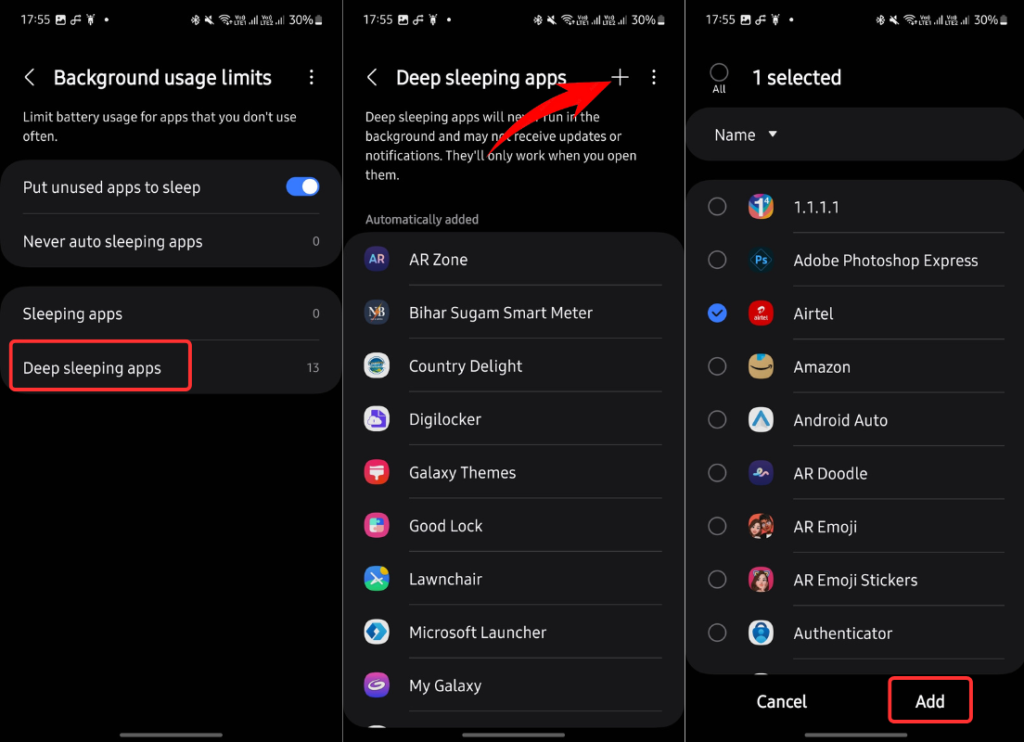
These deep sleeping apps will not run in the background. They can only run when you launch the app.
Tip #4: Change These Settings
Many features contribute to increased battery drain on a smartphone. Hence, try to limit the activated features to as few as possible. Here are some recommendations:
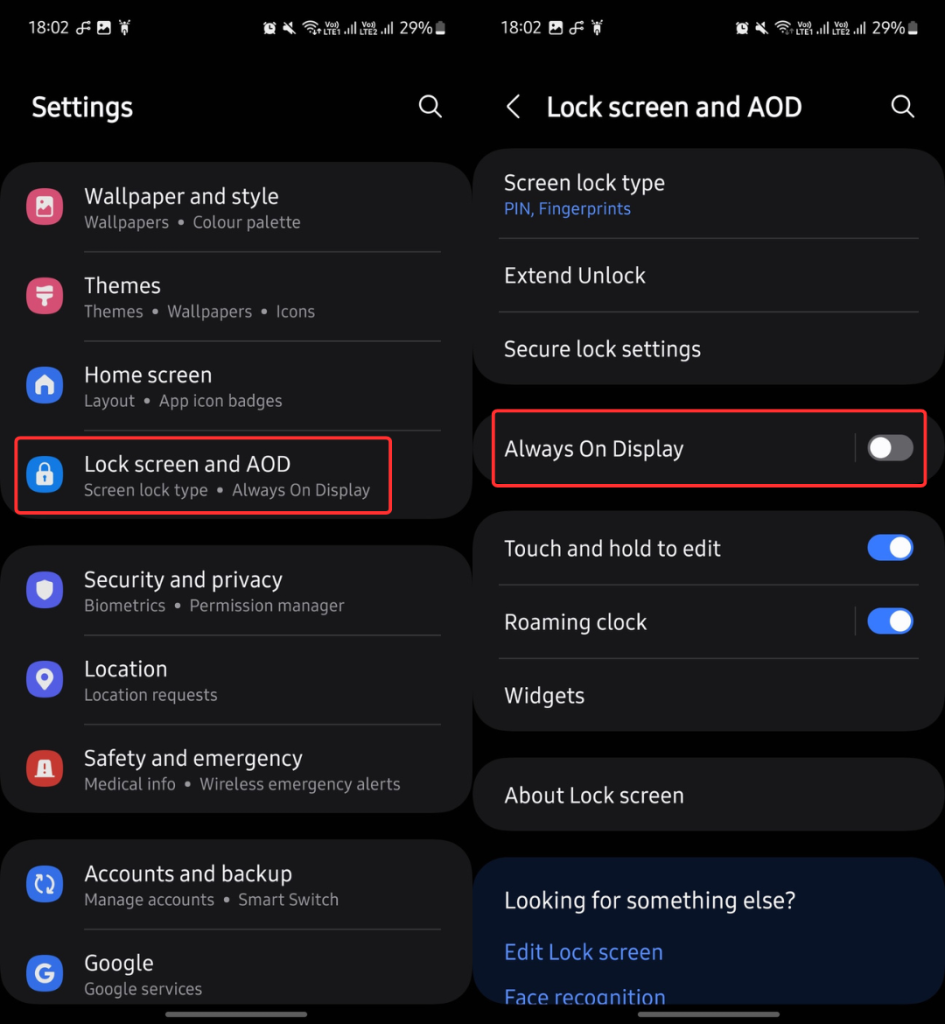
1. Turn off Always On Display (AOD)
The Always On Display (AOD) looks cool, but if you have it enabled all day, it can significantly increase battery drain.
I would recommend disabling AOD for the best screen-on time. However, if you can’t do this, set a routine to activate the AOD when you need it the most.
To disable the AOD, go to Settings > Lock screen and AOD and toggle off Always On Display.
2. Switch to a Wi-Fi Network
Cellular data consumes more battery than a Wi-Fi connection (source). Hence, it is always better to use a Wi-Fi connection compared to cellular data.
While you’re connected to a Wi-Fi network, switch to a 4G network, as 5G consumes more battery. You can also set a routine to automate this.
[Tip: You can set a routine to automatically switch your Samsung Galaxy to a cellular data connection whenever the Wi-Fi connection is weak.]3. Lower the Screen Refresh Rate
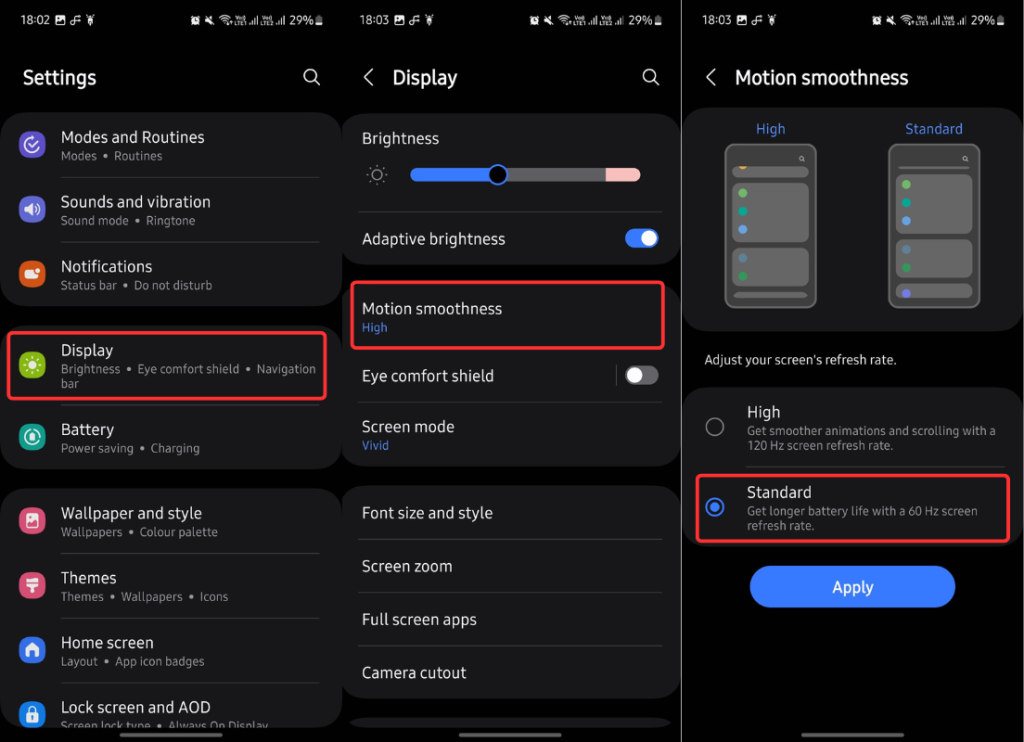
High refresh rates lead to more power consumption as the screen refreshes the image more frequently. Hence, lowering the screen refresh rate results in more screen-on time but at the cost of screen smoothness.
If your Samsung Galaxy has an LTPO display, the display settings should include an adaptive refresh rate option that automatically adjusts the refresh rate based on the content displayed on the screen.
However, if your Galaxy device doesn’t support an adaptive refresh rate, switch to the 90Hz or 60Hz option for better battery saving.
Go to Settings > Display > Motion smoothness and select a lower refresh rate option.
4. Lower the Screen Resolution
A higher-resolution display requires more processing power from the GPU, leading to increased battery consumption. Lowering the screen resolution could help your battery perform well.
To change the screen resolution in Samsung Galaxy, go to Settings > Display > Screen resolution and select a lower resolution.
5. Turn on Auto Optimization
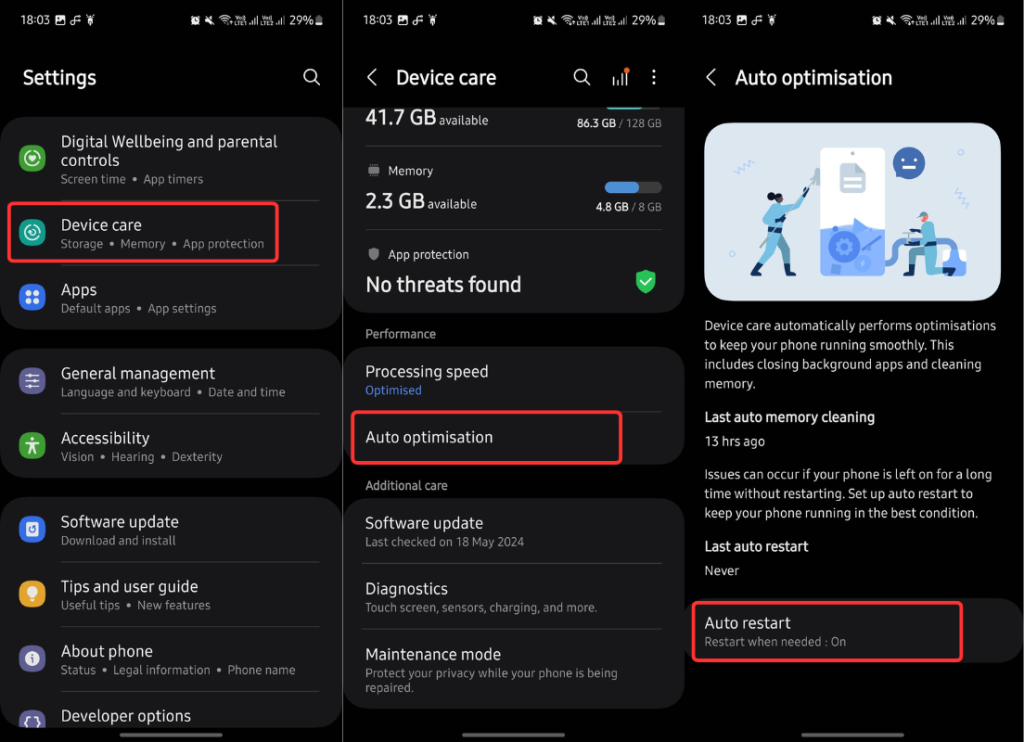
Auto optimization on Samsung Galaxy phones performs optimizations to keep the device running smoothly. It closes background apps and cleans memory by restarting the device when you don’t use it.
To enable it, go to Settings > Device care > Auto optimisation and enable Auto restart.
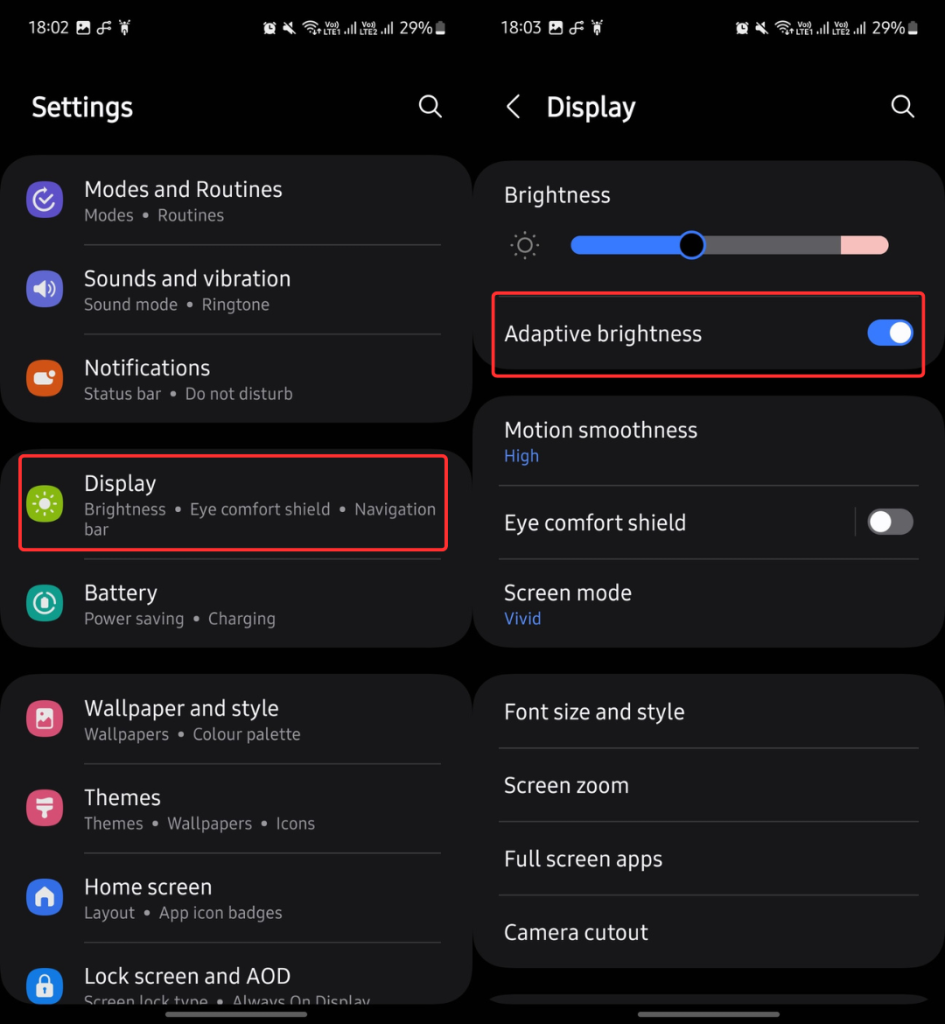
6. Enable Adaptive Brightness
Using a smartphone with high brightness for a prolonged period can result in faster battery drain. Enable Adaptive brightness to allow the device to automatically adjust the brightness based on the lighting conditions around you.
To enable Adaptive brightness, go to Settings > Display and toggle on Adaptive brightness.
7. Lower the Screen Timeout Duration
If the screen timeout is high, the device will stay awake for a longer period, resulting in more battery drain. Unless you don’t need to see the screen for long, set the screen timeout to 15 or 30 seconds.
To change the screen timeout, go to Settings > Display > Screen timeout and choose a lower duration.

Enable “Keep screen on while vieweing” to never turn off the screen while you’re looking at it.
Applying these battery optimization tips will not show results immediately. Wait for a few days and then check the battery usage to see the positive impact. I hope this guide helps you optimize the battery life on your Galaxy device running One UI 6.1. If you have any questions or suggestions, please comment below.
Also Read:
1. One UI 7: Eligible Devices, Release Date, and New Features
2. 10 Amazing Features Coming to Android 15



Comments