Add GIZMOCHINA on Google:
When I first came across the FlipGo Portable Dual Monitor, its concept intrigued me. A vertically stacked dual-screen setup designed for portability is not something you come across often. With its promise to boost productivity and its portable form factor, I was curious to see if it would live up to its claims. I tested the 16-inch Pro model, priced at $599, which is on the higher side for portable monitors. Here’s my experience with the device.
1. Design & Build Quality
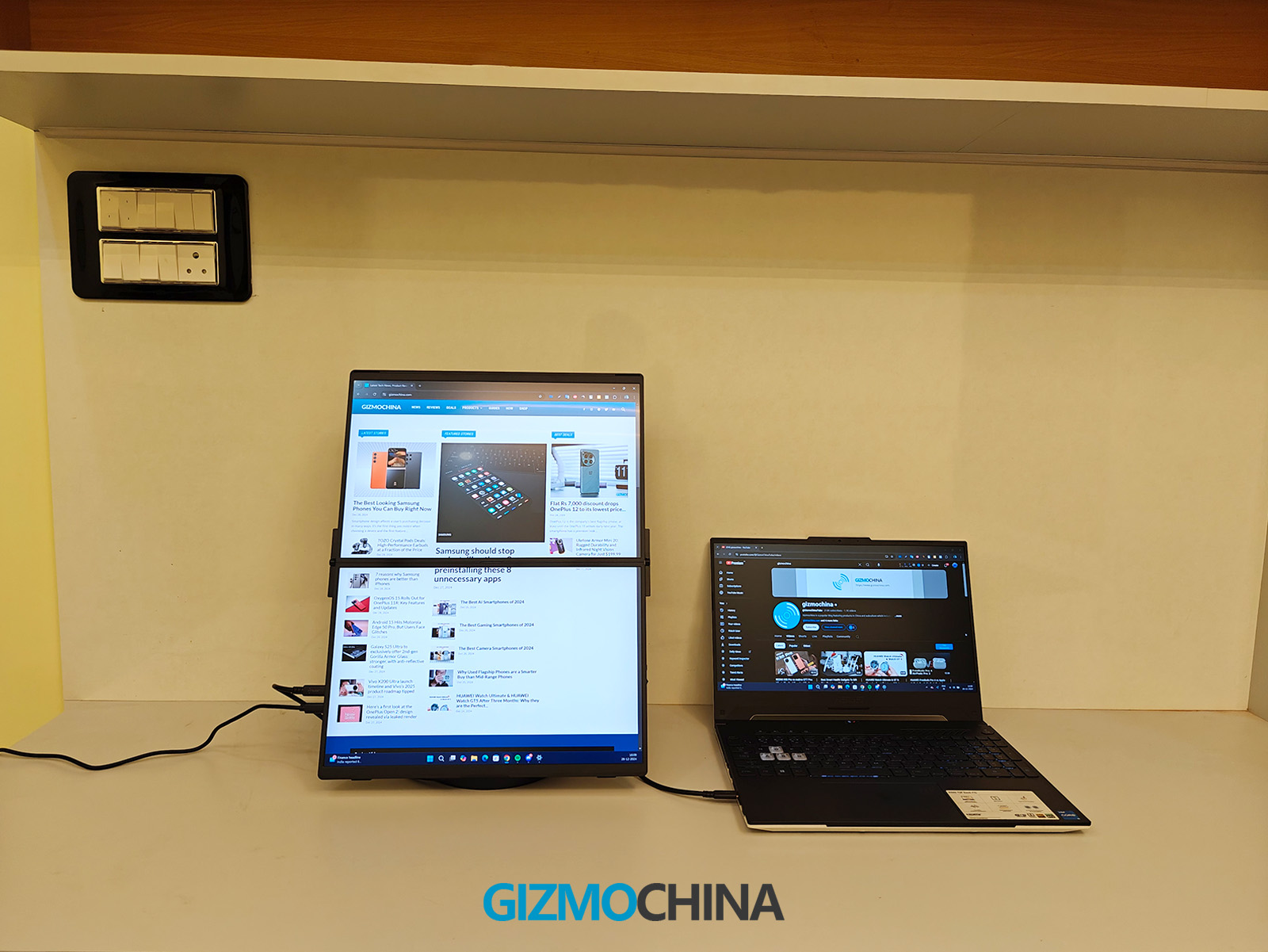
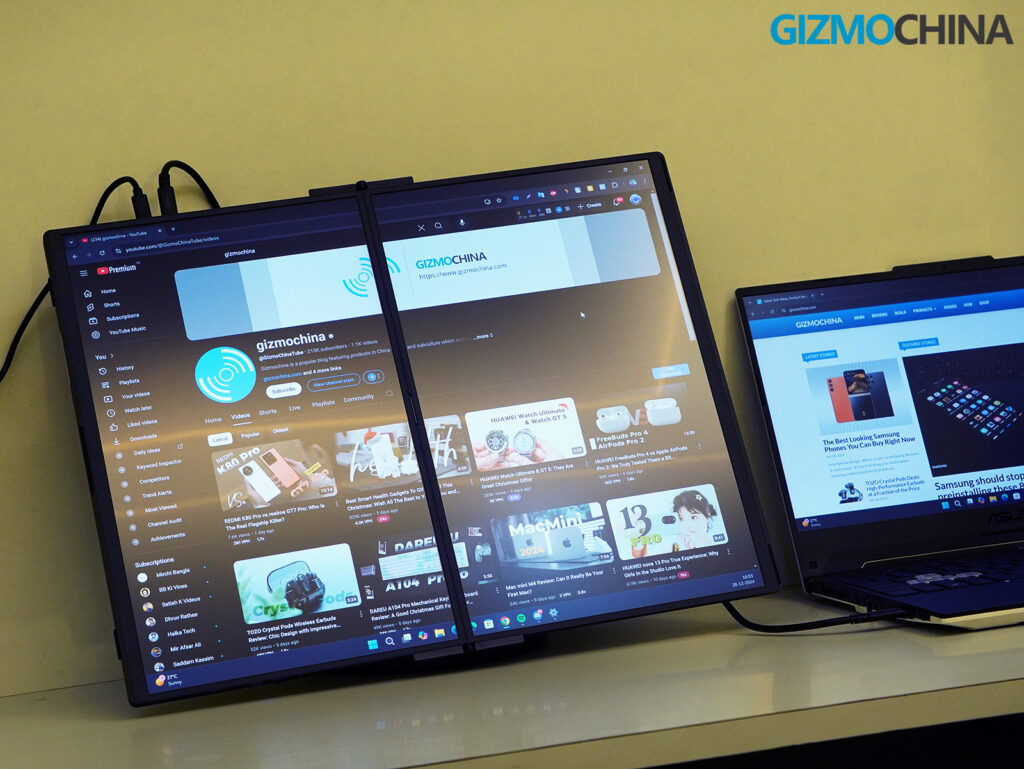
The portable monitor has a distinctive design that immediately sets it apart from traditional portable monitors. At first glance, it resembles a compact laptop when folded, but unfolding it reveals its true nature: two stacked screens designed for vertical/horizontal productivity. The overall build quality reflects a balance between durability and portability, but there are several elements worth discussing in detail.
The monitor’s main body is constructed from a combination of aluminum alloy and high-grade plastic. The aluminum gives the device a premium feel while adding durability, particularly for the outer casing. The plastic bezels around the screens are slightly thicker than those on many modern monitors, particularly at the top and bottom. While this isn’t an issue for usability, it does give the monitor a slightly dated aesthetic when viewed head-on.
The hinge mechanism is sturdy and allows for smooth opening and closing of the device. However, the hinge protrudes noticeably when the monitor is folded, which impacts the overall sleekness of the design. The hinge also houses a visible ribbon cable, which is a potential vulnerability. Although the cable is well-secured and protected, its visibility detracts slightly from the overall polished look.
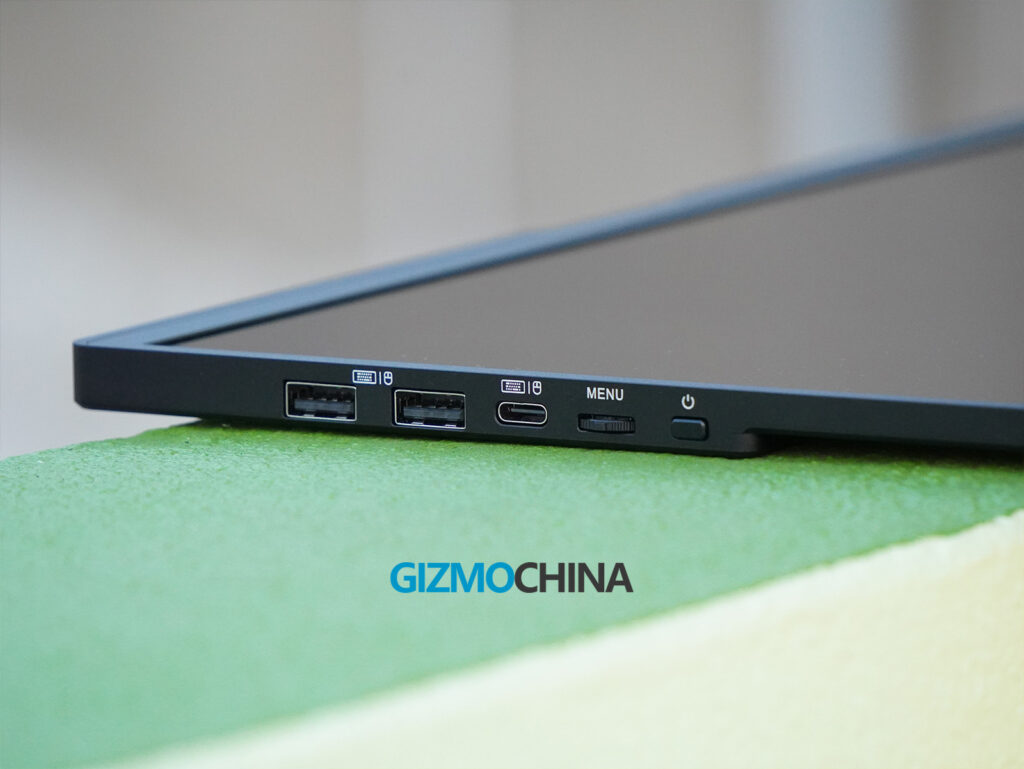
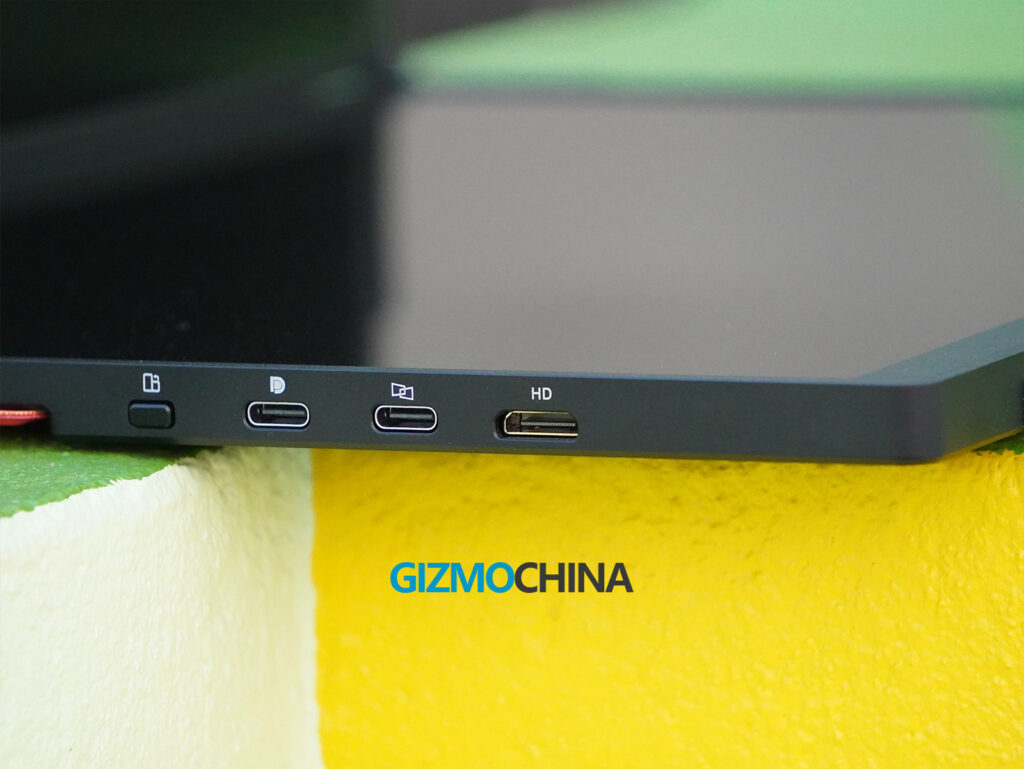
The ports are strategically placed along both sides of the device, ensuring they are easy to access regardless of how the monitor is positioned. On one side, you’ll find two USB-C ports, one for DisplayPort alt mode and another for DisplayLink functionality, along with a Mini HDMI port. The opposite side houses an additional USB-C port, two USB-A ports, a power button, and a rocker-style menu navigation switch.
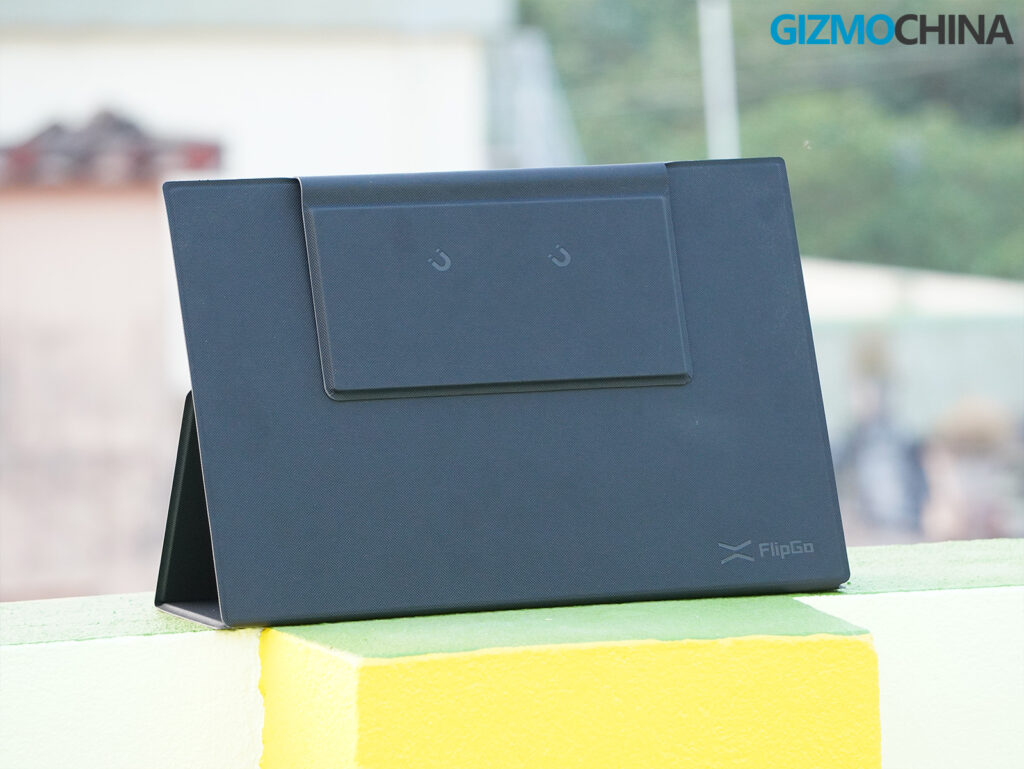
FlipGo features a magnetic strip along the back panel, designed to attach accessories like stands or folio cases, enhancing the monitor’s versatility. The magnets are impressively strong, ensuring secure attachments and a seamless snap-on experience with accessories. To address the exposed strip, the back panel comes with a stylish soft leather protective cover that not only looks fantastic but also adds a layer of sophistication and protection. This thoughtful design detail ensures the FlipGo remains functional and visually appealing whether the magnetic strip is in use or not.
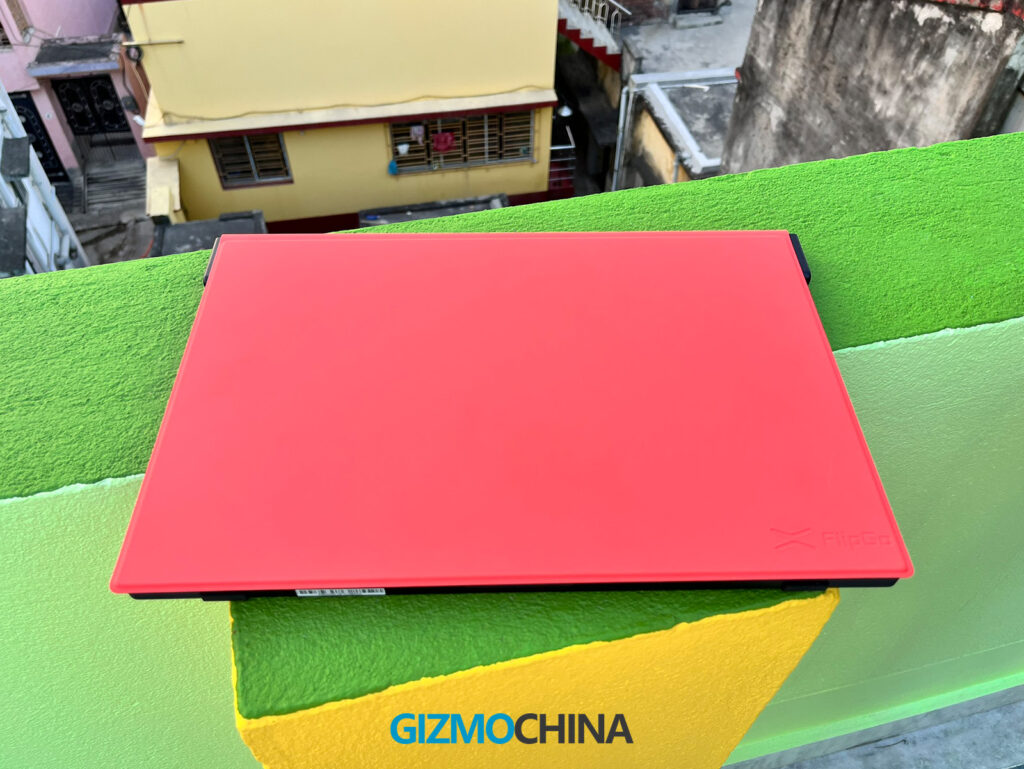
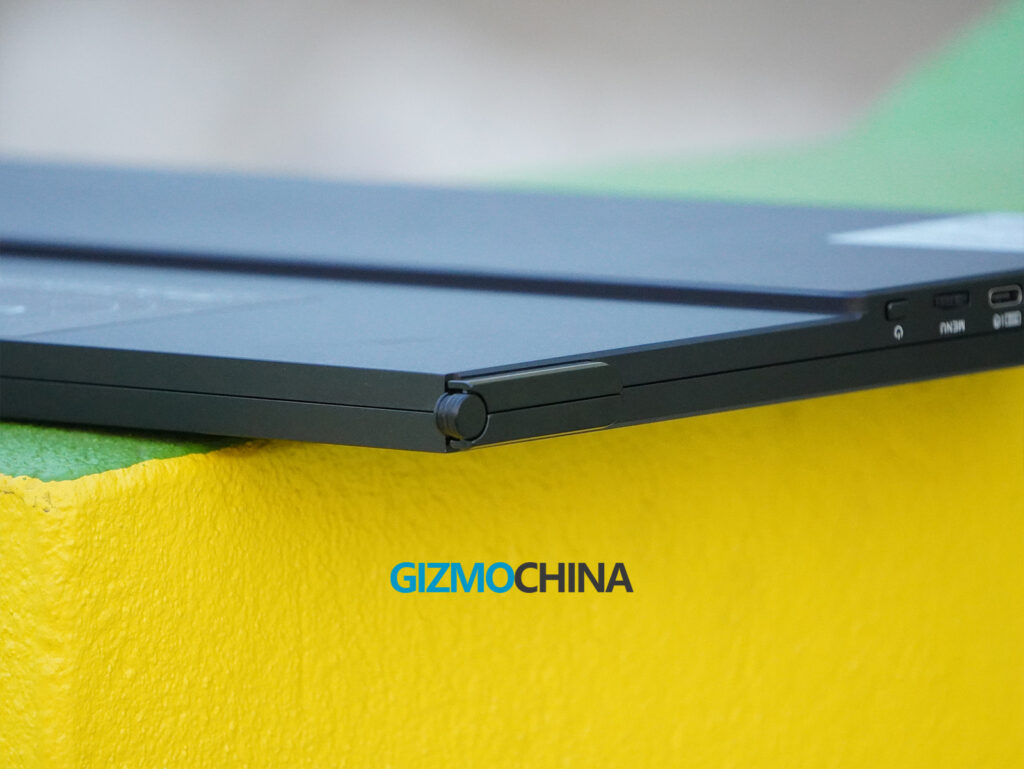
Weighing approximately 1.6 kilograms (3.5 pounds), the FlipGo is heavier than many single-screen portable monitors. This is understandable, given the dual-screen design, but it does impact its portability. Carrying it alongside a laptop and other essentials can make for a heavier load, which may deter frequent travelers. When folded, it measures about the same size as a 16-inch laptop, making it compact enough to fit into most laptop bags or backpacks.
The FlipGo feels solid and well-built overall, with no noticeable flexing in the frame or screens. The hinge mechanism seems durable enough to withstand frequent adjustments, but the exposed ribbon cable near the hinge could be a concern for long-term use. The choice of materials ensures that the monitor can handle occasional bumps and knocks, but it’s best to use the protective cover during travel to prevent potential damage.
2. Connectivity and Setup
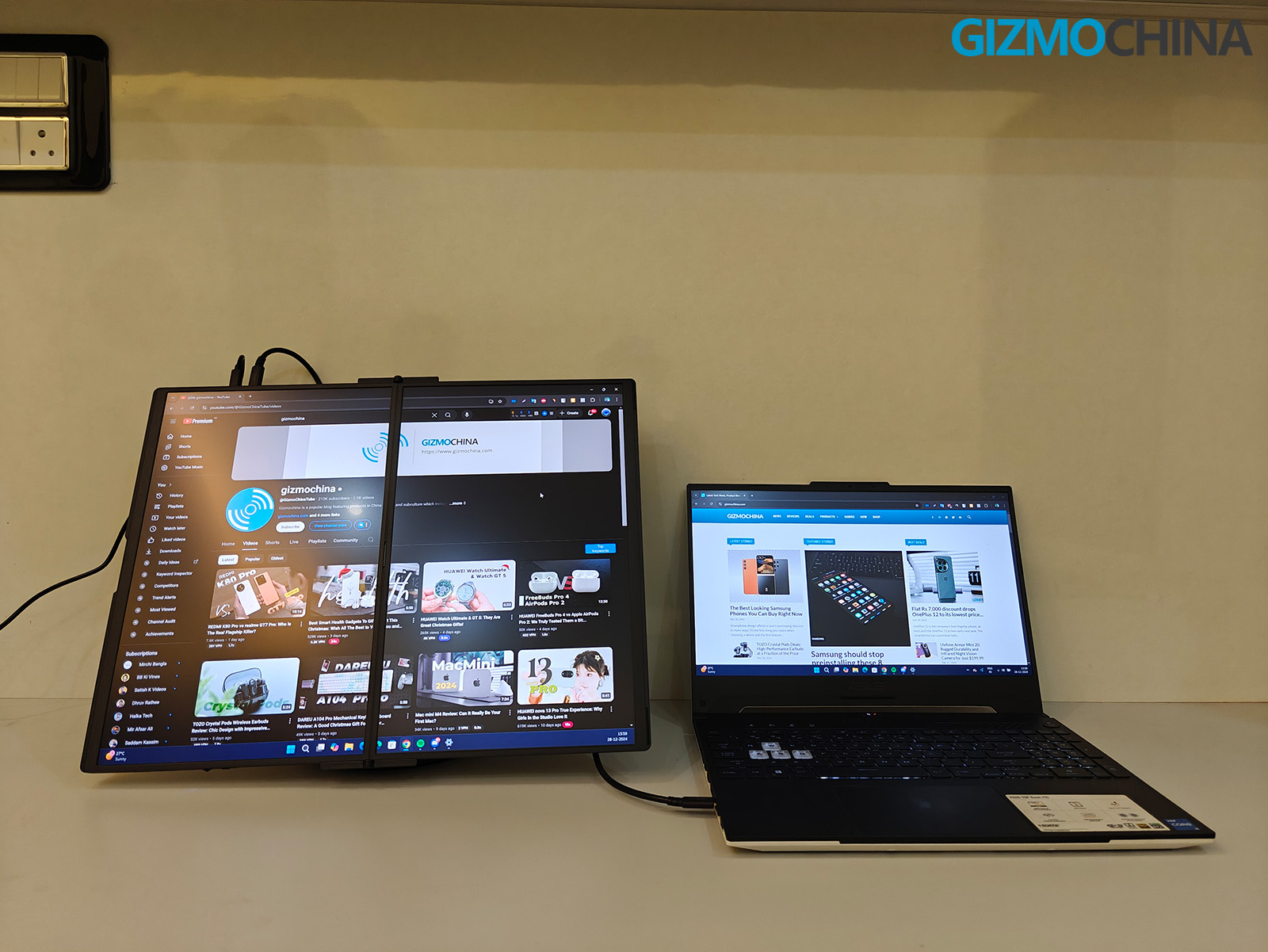
Setting up the FlipGo was surprisingly straightforward. The monitor connects to most modern laptops using a single USB-C cable that simultaneously handles both power and display signals. However, if your laptop doesn’t support DisplayPort over USB-C, you’ll need to use the included Mini HDMI cable for video and connect the monitor to a power adapter for power.
For macOS users, the process is slightly more involved, as FlipGo requires installing DisplayLink software to enable dual-screen functionality. While this adds an extra step, the software integration is seamless once installed, making it easy to configure the screens.
It’s also worth noting that the FlipGo doesn’t achieve full brightness when powered solely through USB-C. To utilize the monitor at its maximum brightness, you’ll need to connect it to a power adapter.
3. Features
FlipGo Portable Dual Monitor is packed with features designed to enhance productivity and versatility for users on the go. While I have mentioned some of these features earlier, let’s take a moment to recap.
Display Modes
UltraView Mode: In this mode, both screens act as a single continuous display, providing a large vertical workspace. This is ideal for tasks like coding, editing long documents, or working on video timelines where scrolling can be minimized. The content spans seamlessly across both screens, giving the impression of one extended monitor. UltraView mode is particularly useful for applications that benefit from vertical real estate, making it a powerful tool for productivity-focused workflows.
DuoView Mode: This mode enables each screen to function as an independent display. It allows multitasking by letting users run different applications or tasks on each screen simultaneously. For example, you can host a video call on the top screen while taking notes, editing files, or referencing documents on the bottom one. DuoView mode enhances flexibility and helps streamline workflows by reducing the need to switch between windows or applications frequently.
USB Hub and Peripheral Support
Beyond acting as a dual monitor, the FlipGo includes two USB-A ports for connecting peripherals such as a mouse, keyboard, or USB drives. It also features an additional USB-C port for data transfer or connecting other accessories. This USB hub functionality reduces desk clutter and makes the monitor a practical addition to multi-device setups.
Power Delivery and Battery Use
While the FlipGo does not have a built-in battery, it supports 60W reverse charging, allowing it to power connected devices such as a laptop via its USB-C port. For optimal use, an external power source is required.
On-Screen Adjustments
The FlipGo includes basic on-screen display (OSD) controls for adjusting brightness, contrast, and color temperature. However, the navigation system uses a rocker-style button that feels outdated and cumbersome, making frequent adjustments less convenient. Despite this, once the settings are configured, the device performs reliably.
4. Display and Performance
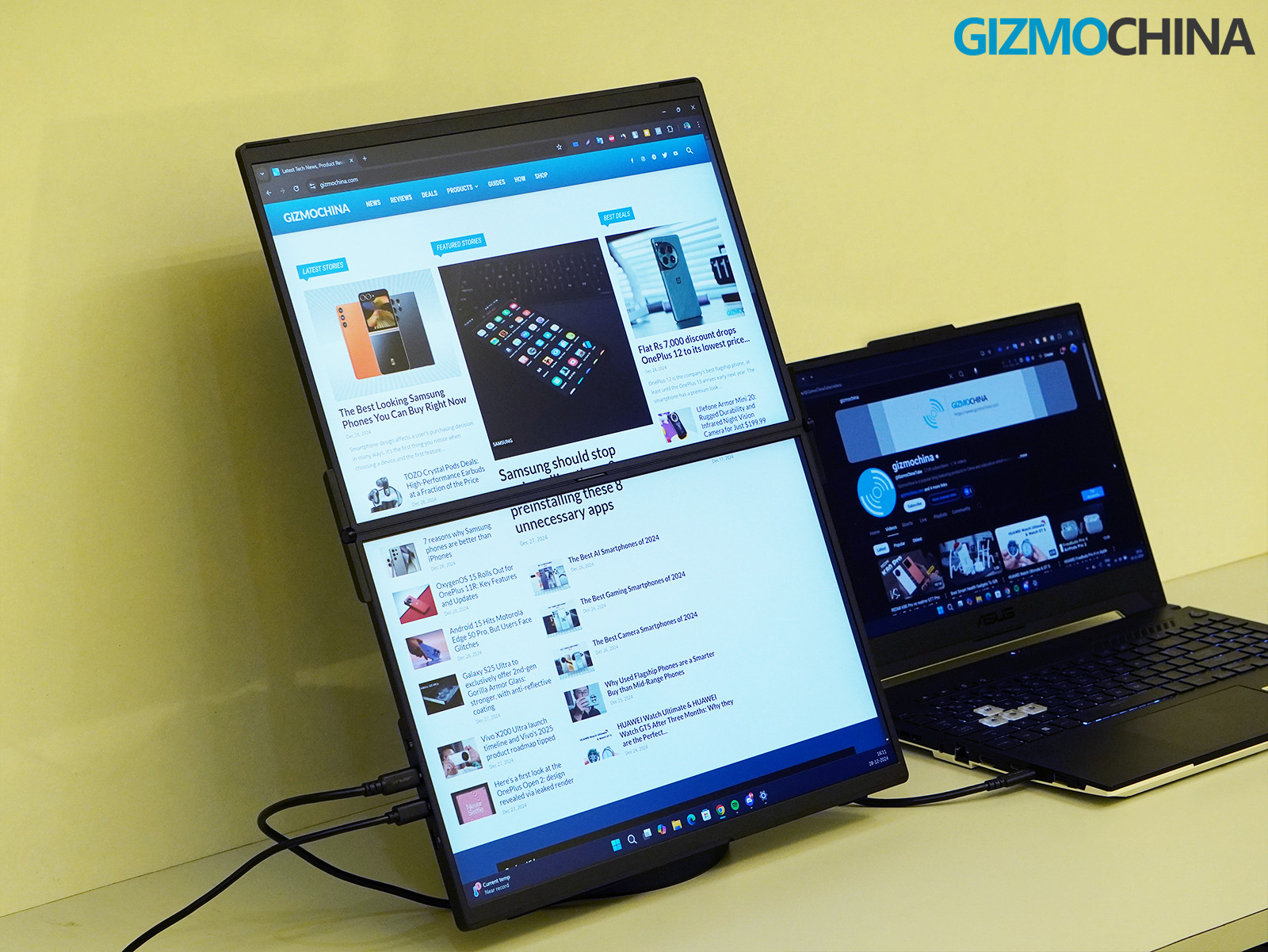
The FlipGo Portable Dual Monitor delivers a solid visual experience with its dual QHD (2560 x 1600) IPS panels, each featuring a 3:2 aspect ratio. This aspect ratio is particularly advantageous for productivity-focused tasks, offering more vertical space than the typical 16:9 displays. The screens provide crisp and detailed visuals, making text sharp and easy to read, whether you’re working with documents, coding, or analyzing data.
The color reproduction is vibrant and accurate, covering 100% of the sRGB gamut, which is sufficient for most creative tasks such as photo editing or graphic design. However, the lack of support for wider color spaces like AdobeRGB or DCI-P3 means it might not meet the needs of high-end color-critical professionals.
Brightness levels peak at 500 nits, which is adequate for indoor use but struggles under bright lighting or in direct sunlight. The matte finish on the screens helps to reduce glare, improving usability in varied lighting conditions, but the overall brightness limits outdoor usability. Viewing angles are wide, typical of IPS technology, ensuring consistent color and contrast when viewed from different positions, which is helpful when collaborating or presenting work.
In terms of performance, the screens operate at a 60Hz refresh rate, which is more than sufficient for general productivity tasks like office work, web browsing, and content creation. However, the refresh rate and response times make the FlipGo less suited for gaming, particularly fast-paced or competitive titles that benefit from higher refresh rates and quicker response times.
During testing, the FlipGo handled multitasking scenarios with ease. The screens maintained consistent performance, even when connected to devices with limited graphical power, thanks to its efficient DisplayLink technology.
The device’s ability to handle dual QHD displays through a single USB-C connection is commendable, but this does come with power demands. When powered via a laptop, the FlipGo significantly increased battery drain, necessitating the use of an external power source for longer sessions. Paired with a high-capacity power bank or a direct power adapter, the performance remained steady, but the reliance on external power may be a limitation for users seeking a completely mobile solution.
5. Accessories
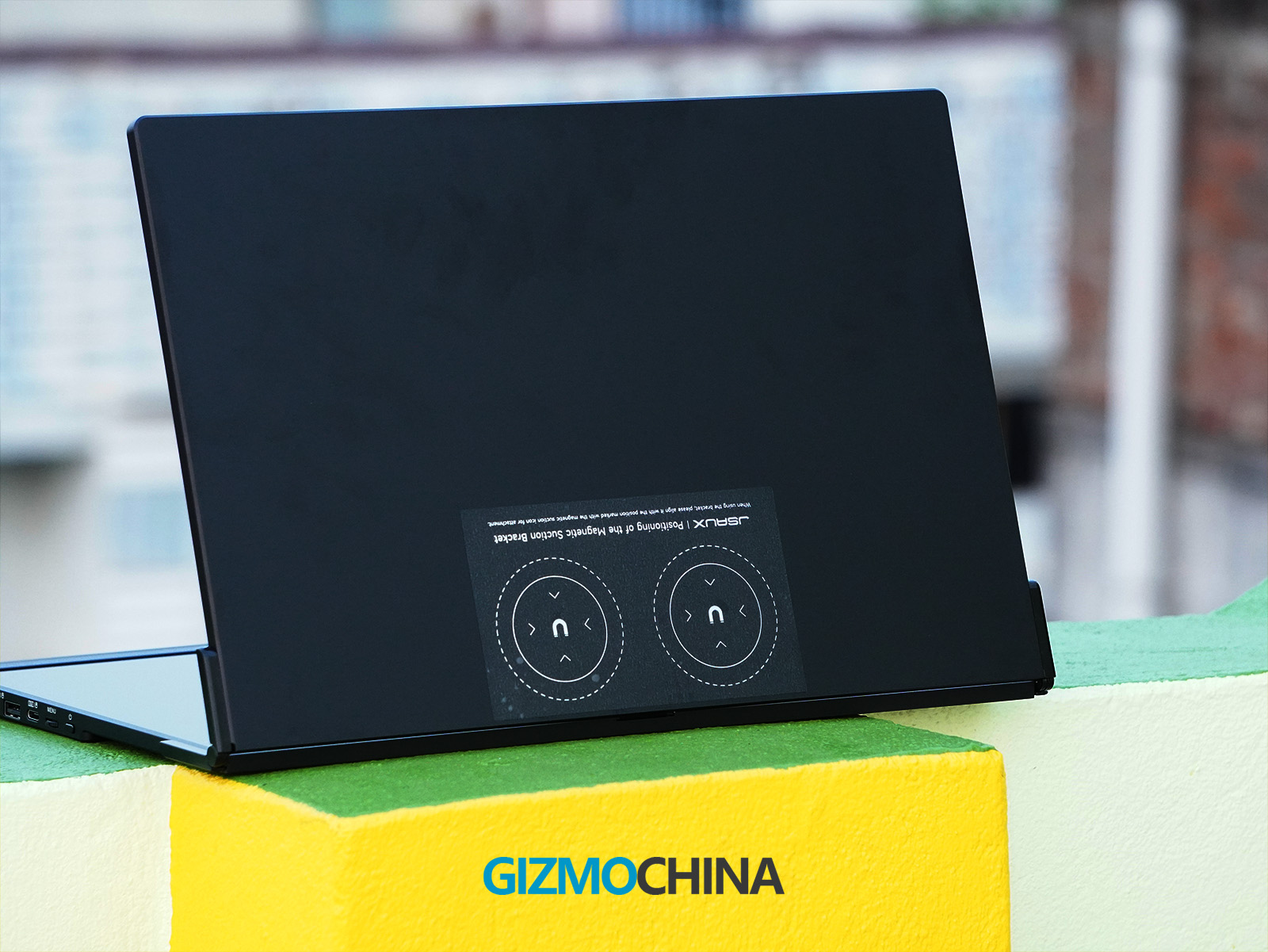
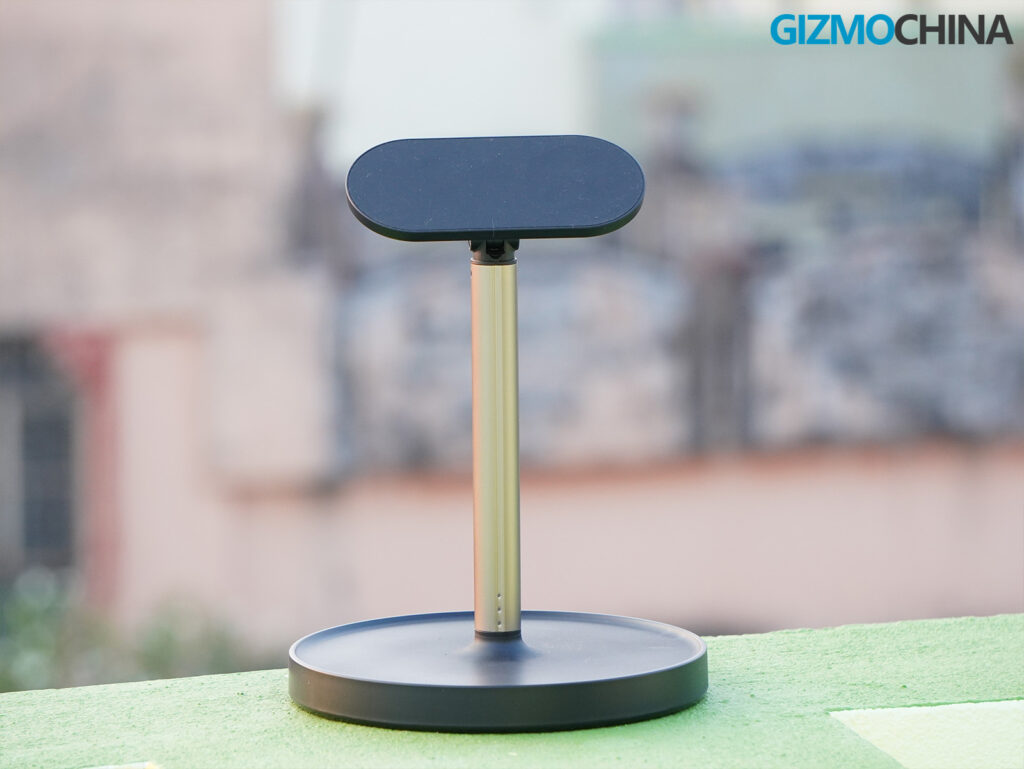
FlipGo offers several accessory options that significantly improve its usability. The SnapStand, a magnetic stand designed specifically for the monitor, is one of the most practical additions. It securely attaches to the back of the monitor using strong magnets, allowing the screen to stand upright in both vertical and horizontal orientations. The stand features a telescopic arm that provides adjustable viewing angles, making it ideal for desk setups. However, the alignment process can be finicky, and users need to ensure the stand clicks firmly into place for stability. On uneven surfaces, the stand’s stability might be compromised, so it’s best suited for flat workspaces.
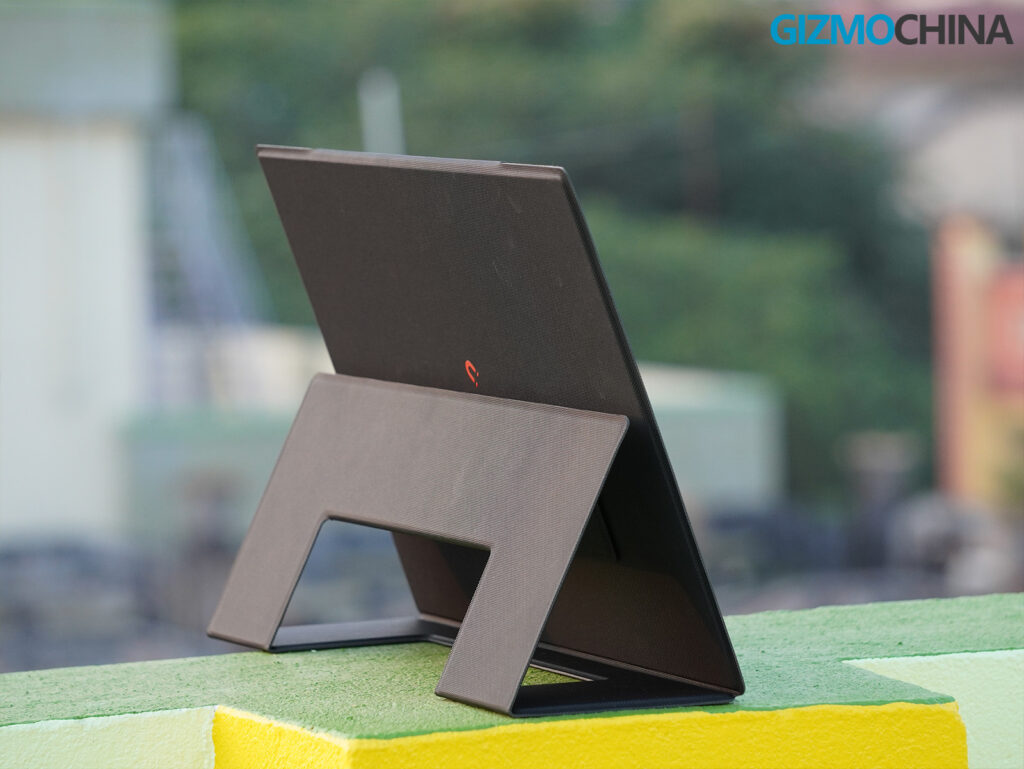
For users seeking a more lightweight and portable option, the Folio Case serves as both a protective cover and a folding stand. The folio’s magnetic attachment mechanism is simple and reliable, making it easy to switch between transport and setup modes. While not as adjustable as the SnapStand, the folio stand is adequate for casual use and excels in mobile setups, such as working in libraries or coffee shops. Additionally, the folio doubles as a mouse pad in a pinch, adding to its versatility.
For more permanent or adjustable setups, the FlipGo is compatible with VESA mounts, allowing it to integrate seamlessly into existing desk configurations. The VESA adapter accessory is easy to install and works well with most monitor arms or wall mounts, making it ideal for users who want a clean and organized workspace.
Lastly, FlipGo offers a Flex Folio, a more robust version of the standard folio case. The Flex Folio provides stronger magnetic attachment points and improved stability, making it a suitable choice for users who frequently switch between portable and stationary setups. It also allows for more varied angles, enhancing its usability for different tasks.
6. Is It Worth It?
At $599, the FlipGo Pro is an investment. For users who frequently multitask and need more screen real estate without committing to a traditional dual-monitor setup, it’s a compelling option. The stacked design is unique and genuinely useful for productivity-focused workflows. However, it’s not for everyone. If you’re looking for a simple portable monitor, more affordable options exist.
For me, the FlipGo Pro added noticeable convenience to my workflow, especially for tasks involving extensive research and writing. That said, I wouldn’t recommend it to casual users or gamers. It’s a niche product that excels in specific scenarios but doesn’t try to be an all-rounder – and that’s perfectly fine.
Stay ahead in tech! Join our Telegram community and sign up for our daily newsletter of top stories! 💡