
Add GIZMOCHINA as Preferred Source on Google
Google Chrome for iOS is getting a useful new feature that helps users move their Safari data directly into Chrome. The update is designed for iPhone and iPad users who want to switch browsers without using a computer.
With this feature, users can import their bookmarks, browsing history, and saved passwords from Safari into Chrome. The feature was first reported by MacObserver and is currently available in Chrome 145 Beta for iOS. It is expected to roll out to all users soon with the stable release.
Because of Apple’s strict privacy rules, Chrome cannot access Safari data automatically. Instead, Chrome provides a guided, step-by-step import process that users can complete directly on their iPhone.
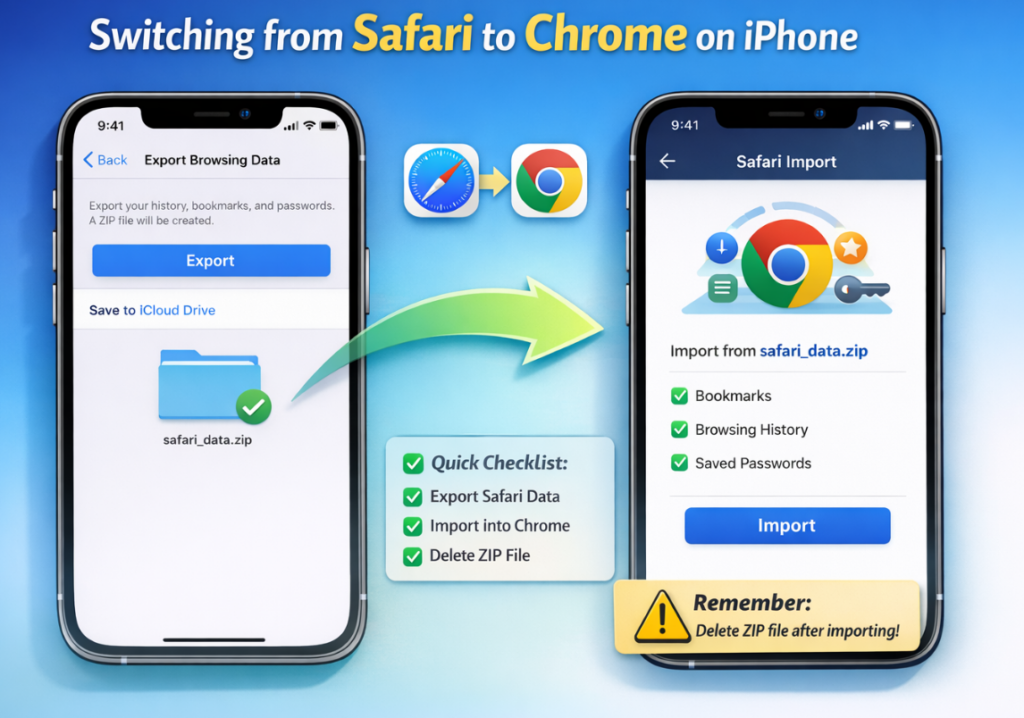
Step-by-Step: How to Import Safari Data into Chrome
Step 1: Update Chrome
Make sure Google Chrome is updated to version 145 or newer.
Step 2: Export Safari Data
- Open Settings on your iPhone
- Tap Safari
- Select Export Browsing Data
- A ZIP file will be created
- Save it to iCloud Drive – Downloads
Step 3: Import into Chrome
- Open Google Chrome
- Go to Settings – Safari Import
- Select the ZIP file
- Review bookmarks, history, and passwords
- Tap Import
Step 4: Delete the ZIP File
Chrome will warn that the file contains sensitive data. Delete it immediately for security.
Things to Know Before Importing
- Manual import is required due to Apple’s privacy limits
- The ZIP file contains personal and sensitive data
- The process works fully on iPhone, no Mac needed
Why This Update Matters
Earlier, switching from Safari to Chrome was confusing and time-consuming. With this guided import feature, Google removes one of the biggest barriers for iPhone users, making browser switching simpler, safer, and faster in 2026.
Read More:
- Xiaomi Mi 17 Ultra Update Brings New Zoom Ring Leica Camera Features and Charging Fixes
- Huawei Returns as China’s No. 1 Smartphone Brand After Five Years, Overtaking Apple
- Dual 200MP Cameras Are Coming : OPPO & Vivo Are About to Change the Camera Game
(via)

Comments