
Add GIZMOCHINA as Preferred Source on Google
Poco is slowly and gradually expanding its products portfolio after parting ways with Xiaomi as a separate brand. The company recently unveiled the Poco X3 NFC edition featuring some advancements over the Poco X2 which was launched back in December 2019. The new device features a lot of exciting specifications at a much affordable price. Such devices are a delight for the custom development community too as the companies indirectly support third-party development.
Must See: First custom ROM for POCO X3 arrives within a month of its launch
It’s just been a few weeks and the root access Poco X3 NFC is already here. The interested users can easily root their Poco X3 NFC units after easily unlocking the bootloader.
Poco X3 NFC Specifications
Unlike Poco X2, the Poco X3 NFC features a single punch hole camera cutout in the display for a better viewing experience. It houses a 6.67-inch full HD+ IPS LCD display protected with Corning Gorilla Glass 5 protection. It can bring exemplary gaming experience with a 120Hz refresh rate using Dynamic Switch.
In the camera department, the smartphone comes with a quad-camera setup featuring a 64-megapixel Sony IMX682 camera sensor for quality photos. It is accompanied by three additional cameras on the rear including a 13-megapixel ultrawide sensor, a 2-megapixel depth assist sensor, and another 2-megapixel macro lens.
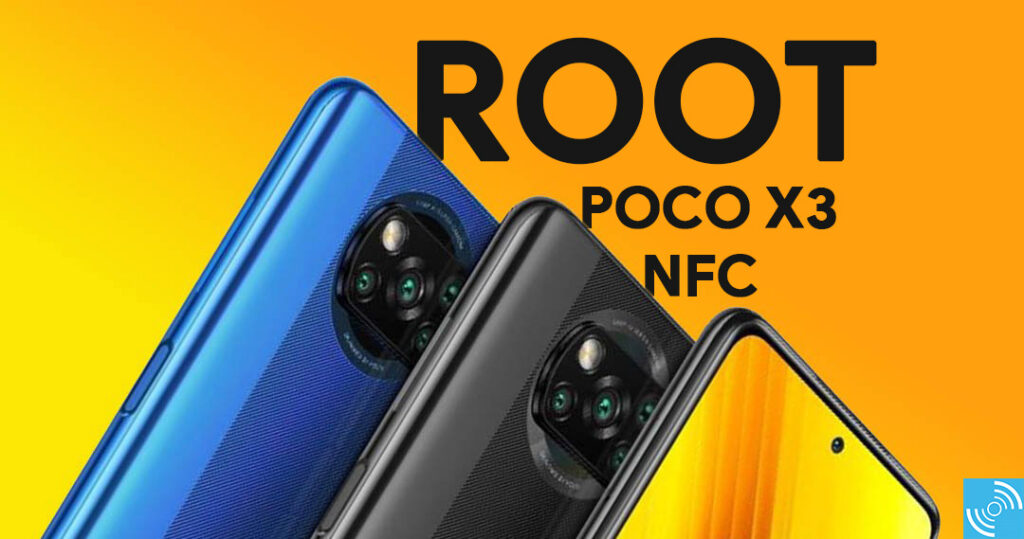
The smartphone is powered with Snasdpragon 732G chipset coupled with LPDDR4x RAM and UFS 2.1 storage. Itis available in two different storage variants including a 6GB RAM + 64GB storage and 6GB RAM + 128GB storage. The smartphone is available in two color options of Shadow Grey and Cobalt Blue.
It measures 165.3 x 76.8 x 9.4mm and it weighs 215 grams. Moreover, you will find a side-mounted fingerprint reader, an IR blaster, dual SIM support, 4G VoLTE, Wi-Fi 802.11ac, Bluetooth 5.1, GPS, USB-C, and a 3.5mm headphone slot.
Note: Gizmochina.com is not responsible in any way for the loss of data and devices. You’re proceeding at your own risk as in some cases it will even void your warranty.
Overview
- Unlock Bootloader
- Install TWRP
- Root Using Magisk
Unlock Bootloader of Poco X3 NFC
Unlocking Poco X3 NFC will allow the user to root the device and install custom MODs and ROMs without any issue. It is advised to follow each step and download the required pre-requisites from the links below.
Pre-Requisites
- Download and Install ADB and Fastboot drivers on PC/MAC.
- Download Xiaomi USB Drivers.
- Download Xiaomi Mi Unlock Tool
- Ensure the phone’s battery is more than 60%
- Backup important data on any external media
- Download the latest TWRP from here.
- Download the latest Magisk manager and install it on your phone.
Steps to install TWRP on Xiaomi Mi A3
Follow the below-mentioned instructions carefully to successfully install TWRP. Before proceeding, please ensure your Xiaomi Mi A3 bootloader is unlocked.
- Enable Developer Mode by tapping the MIUI version 7 times after heading to the Settings > About Phone.
- Enable USB Debugging by heading to the Settings>Developer Option and toggle USB Debugging.
- Bind your Mi Account which means sign in to the Poco device using your Mi account by heading to Settings > Additional Settings > Developer Options > Add account and device and log in.
- Connect your smartphone with the PC via USB Cable.
- Now boot into the Fastboot mode by pressing and holding Volume Down + Power Button for about 10 seconds. You need to release buttons once the Fasstboot appears on the screen.
- Download and Extract Mi Unlock Tool from the Pre-Requisite section above.
- Open the Miflash_unlock.exe file from the extracted folder.
- Now, Login with the same Mi Account that you used on the Poco X3 NFC.
- It will take some time to verify your smartphone, and will show “Phone Connected.“
- Now, tap on the “Unlock button” and select “Unlock anyway” when prompted.
- The unlocking process will start, and you will receive “Unlocked successfully” once completed.
- Now, Reboot the device, and that’s it!
Root Poco X3 NFC (TWRP)
Make sure you’ve unlocked the bootloader in order to root your Poco X3 NFC.
Pre-Requisites
- Download TWRP Recovery for Poco X3 NFC
- Download Magisk Manager Installer Zip on your phone.
Steps
- Download and Extract ADB and Fastboot utilities in a folder.
- Now, Connect your Poco X3 NFC with PC using a USB cable. (Note: If prompted to “Allow USB Debugging” comes then tap OK on your phone.)
- Open Command Prompt or Powershell by pressing SHIFT + RIGHT-Click in ADB and Fastboot folder.
- Type the below command to restart the phone.
adb reboot bootloader
- Now Flash the TWRP on the recovery partition using the below-mentioned command. (Note: Make sure to replace the twrp-3.4-xx.img name with actual twrp filename.)
fastboot flash recovery twrp-3.4.x-xx.img
- That’s it! You have successfully Installed TWRP. Now, we need to install Magisk to gain root access.
- Reboot into TWRP Recovery by executing the following command. (Or you can press and hold the Power button + Volume Up button to boot into recovery mode.)
adb reboot recovery
- Once in TWRP, then select Install>Select Magisk.zip>Swipe to Confirm Flash.
- Reboot System after installation completes, and enjoy!
You’ve successfully installed TWRP and gained root access on Poco X3 NFC using Magisk. If you’ve any queries then do let us know via the comments below.




Comments