
Add GIZMOCHINA as Preferred Source on Google
Google added a number of AI-based photo editing features to Google Photos that were initially limited to select Pixel and Galaxy devices. However, back in April, the company announced that it would make the AI-based editing tools available for each and every Google Photos user. “It’s really exciting that so many more people will be able to use these tools,” says Google Photos senior product manager Selena Shang. Google has reportedly worked on the AI tools to make sure that they work properly on a variety of devices.

In a recent blog post, the company also explained how to make the most of tools such as Magic Editor, Magic Eraser, Photo Unblur, and more, which you can also find in this article.
Make the most of Magic Editor’s Erase tool and Magic Eraser:
Magic Editor comes with a suite of features, one of them being a generative AI-powered Erase tool. According to the company, both Magic Editor’s Erase feature and Magic Eraser can help you remove unwanted items from an image. However, they each excel in different ways.
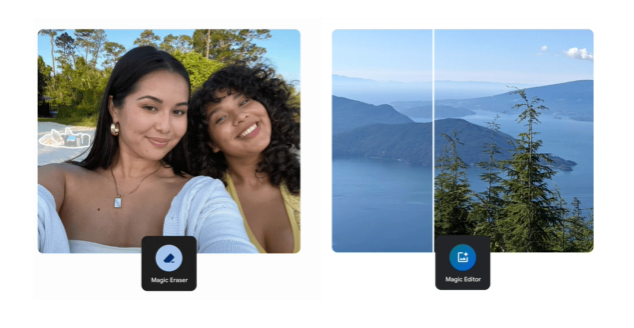
“Magic Eraser works best for quick fixes on smaller portions of the photo,” Selena says. According to her, Magic Eraser could be appropriate for removing people or objects in the background of landscape shots. But if you have more prominent, complex foreground objects, or objects that take up a larger portion of the photo in general that you want to remove, Magic Editor’s generative AI is going to be more effective at filling the space, she explained. The latter one should offer better results with “more complex erases”.
When to tap, brush, or circle items in Magic Editor?
There are three different ways you can select an object while using Magic Editor – tapping, brushing or circling. According to the company, certain methods work best for certain types of selection. Objects with clear boundaries, like a water bottle in the foreground, are usually easier to tap. However, for objects with less distinct edges, like the leaves that make up a tree, it may be simpler to select them by circling or brushing. Users can also zoom in to select the object with a higher precision.
There is also a strength slider that lets you adjust the intensity of the edits. You can always play around with it to fine-tune the result. “After applying Portrait Light, I’ll play with the strength because sometimes I want the effect to be a little more subtle,” Selena says. This is also appropriate for Photo Unblur, where AI will make the subject look more detailed. However, you may prefer to leave a bit of fuzziness for an artistic look, for which you can adjust the strength of the effect.



Comments