
Add GIZMOCHINA as Preferred Source on Google
Projectors are no longer limited to conference rooms and movie theatres. They have emerged as a logical solution for both productivity and fun as more people work remotely and turn to flexible home technology. A projector might be the ideal solution for your home office if you are looking for an all-in-one screen solution or are limited in space.
In addition to saving room, projectors have adjustable screen sizes, which makes them perfect for small spaces. It can turn any wall into a breathtaking display, whether you are using it for a video conference or to relax with a movie after work. Projectors are also becoming increasingly essential in remote settings as more people become curious about what wfh means and how to set up productive workstations at home.

Section 1: Choosing the Right Projector for Small Spaces
Before you jump into setup, choosing the right projector is crucial, especially for small rooms where space and clarity are most important.
1. Consider Throw Distance and Brightness
The distance between the projector and the screen is crucial in small spaces. Due to their ability to produce enormous displays from just a few feet away, short-throw or ultra-short-throw projectors are ideal for tiny settings. Maintaining a sharp image requires a brightness level of at least 2,000 lumens. This keeps images sharp and vivid even in well-lit spaces.

2. Resolution and Connectivity Options
For both work and play, a projector with a minimum resolution of 1080p guarantees a crisp, detailed image. Whether you are watching your favourite series or on a Zoom call, it is ideal. Select devices with wireless features like Bluetooth or Wi-Fi and HDMI. With these capabilities, connecting computers, phones, or tablets is simple and does not require frequent plugging and unplugging.
3. Noise Level and Heat Management
A loud projector fan can soon become an annoyance in a small home office. Selecting a model that is made to operate silently and remain cool is crucial for this reason. Overheating in confined spaces can be avoided with effective heat regulation and enough ventilation. This prolongs the projector’s life and improves the comfort of your workspace when using it for extended periods of time.
Section 2: Setting Up Your Projector in a Home Office
Your home office setup isn’t just about productivity; it’s also where comfort and clarity matter most. Here’s how to place and prepare your projector for the best experience.
1. Finding the Optimal Location
The position of your projector has a direct impact on comfort, image quality, and how well your setup blends into your everyday workspace.
- Ambient Light
Images may be obscured in bright, windowed spaces. To enhance contrast and manage natural light, use blackout curtains or shades. You will have an advantage if your office is naturally dark because less light implies crisper images without requiring your projector to be extremely bright.
- Screen Size and Distance
Consider the size of your screen and the required distance for your projector. Short-throw versions can produce a large image while remaining close to the wall. More distance is required for standard projectors. To discover the ideal arrangement, always verify the throw ratio of your projector.
- Seating Arrangement
Ensure that the screen is in the centre of your desk or chair. Aim to position the screen at eye level or just above it. Long meetings or work hours may strain your neck or eyes if the image is too high or too low.
- Ventilation
Avoid cramming projectors into confined spaces like shelves or corners because they heat up while in operation. To facilitate ventilation, provide room around the vents. In addition to keeping your projector cool, adequate ventilation extends its lifespan and reduces the need for regular maintenance.
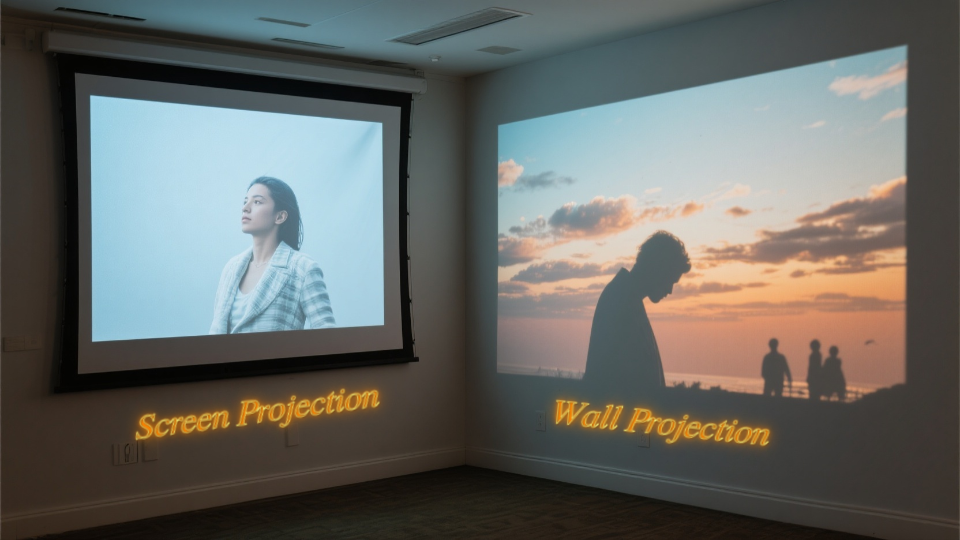
2. Screen vs. Wall Projection
Whether you project onto a screen or a wall can affect clarity, colour accuracy, and the overall quality of your image.
- Screen Projection
A suitable projector screen delivers superior light reflection, clarity, and brilliant colours. Even budget-friendly displays improve image contrast and eliminate blur. They’re also portable, so you can relocate or store them conveniently when not in use. For lengthy hours or presentations, displays are worth the expenditure.
- Wall Projection
Using a clean white wall is an easy, no-cost solution. It performs fine in well-controlled lighting situations. But bear in mind, textures or off-white tones can distort your visuals. Flat, smooth, matte surfaces give the best wall-based performance if you’re skipping the screen.
3. Lighting Considerations
Room lighting may enhance or break your projector’s image, especially during daytime meetings or video calls. Avoid intense overhead lighting and choose dimmable desk lamps for focused tasks. If feasible, position your projector opposite the windows to prevent glare. Soft, ambient lighting keeps the image readable without making the room feel too dark or cave-like.
Section 3: Connecting Devices to Your Projector
Whether you’re giving a presentation or watching a movie, your projector is only as good as the device it connects to. Let’s break down both wired and wireless options, along with some quick troubleshooting tips to keep everything running smoothly.
1. Wired Connections (HDMI, USB-C)
The most dependable option for steady audio and pictures is still wired connections. For media players and laptops, use HDMI; for more recent tablets and phones with display output, use USB-C. These connections are ideal for presentations, real-time screen sharing, and uninterrupted HD video streaming since they lower latency.
Use the proper cable lengths and refrain from laying them freely across the room for the neatest arrangement. Solutions for managing cables, such as floor coverings, sleeves, or clips, make your area neat and safe, especially in conference rooms or home offices.
2. Wireless Options (Miracast, AirPlay, Chromecast)
Wireless projection is the best option if you like a clutter-free setting. Without the need for physical wires, you may stream media from your laptop, tablet, or phone using technologies like Miracast, AirPlay, or Chromecast. When several people need to swiftly cast their screens in a shared area, these choices are ideal.
With built-in wifi capability, smart meeting projectors like CZUR StarryHub eliminate the need for dongles or adapters. Connect the projector and your casting device to the same Wi-Fi network to begin. Then, with a few taps, start screen mirroring by following the on-screen instructions or the user manual that came with your projector.

Troubleshooting Tips
Even the best tech setups sometimes hit snags, especially with wireless casting. If you also face issues of screen mirroring not working or failing to connect, there are a few quick things you can try before diving into deep settings.
- Check your internet connection first if screen mirroring is not functioning for you right now. Screen lag, blackouts, or complete casting failures are often the result of unstable or slow Wi-Fi.
- The simplest solution is sometimes the best one. To fix short-term issues and reset network detection, restart your projector and the casting device if screen mirroring stops working.
- Make sure that both devices are connected to the same wireless network. Mismatched networks are a common cause of screen mirroring issues.
Section 4: Optimising the Setup for Work and Entertainment
Whether you are seeing a late-night movie or participating in a Zoom session, your projector setup should smoothly support both business and play.
1. Best Practices for Video Meetings
During video calls, ensure your projector displays a clear and bright image. Glare can affect both your camera’s sharpness and viewing experience, so position the projector away from strong lights and reflective surfaces. To maintain a professional appearance on camera, choose a neutral-colored background and keep ambient lighting well-balanced.
2. Dual-Purpose Setup
With a well-configured projector, your space can effortlessly transition from work mode by day to entertainment mode by night. Use wall-mounted projectors or folding screens to keep your workspace neat and organized. After hours, simply dim the lights, connect your streaming device, and enjoy a movie in the very spot where you held your meetings or presentations.
3. Sound Solutions for Small Spaces
Particularly in tiny rooms, built-in projector speakers are typically weak. Invest in a tiny sound bar or a portable Bluetooth speaker to increase clarity during meetings or movie nights. These are essential for both business and pleasure calls because they are compact and produce better, more engaging audio.

Section 5: Maintenance and Longevity Tips
With just a little regular maintenance, you can keep your projector running smoothly for years. Here’s how to keep it in top condition.
Regular Cleaning and Dust Management
Dust accumulation can affect the lifespan and brightness of your projector by clogging air vents and dulling the lens. Every week, carefully wipe the lens with a soft, lint-free cloth. To assure even airflow and prevent overheating, clean the projector’s exterior and vents once a month with a can of compressed air.
1. Proper Cooling and Ventilation
Your projector must have proper ventilation because compact spaces heat up rapidly. To avoid overheating, always leave adequate space around the unit. Keep the projector away from closed cupboards and walls. In addition to working more silently, a well-cooled projector prolongs the life of its internal parts.
2. Keep Software/Firmware Updated
Always check for firmware updates from your projector’s manufacturer. These updates often include performance improvements, bug fixes, and better compatibility with newer devices. If wireless casting or screen mirroring begins to lag, a simple update could resolve the issue without the need for extra hardware or complicated troubleshooting.
Conclusion
Setting up a projector in a small home office might seem daunting at first, but with the right guidance and equipment, it’s quite simple. A projector provides a versatile, space-saving solution for remote work, virtual meetings, and after-hours entertainment all from the same setup. Whether you’re just discovering the wfh meaning or you’re an experienced remote worker looking to upgrade your workspace, a projector can be a surprisingly powerful tool. And if you ever hit a snag, you’ll find plenty of video tutorials to guide you through each step.

Comments