
Add GIZMOCHINA as Preferred Source on Google
When Samsung first started talking about “Galaxy AI,” I wasn’t exactly sure what to expect. The term “AI” gets thrown around a lot these days. Sometimes, it’s just another buzzword for features we’ve had for years.
But after actually using a Samsung phone with Galaxy AI built in, I’ve realized that some of these tools are not only useful but also surprisingly easy to fit into everyday life. They’re not gimmicks; they actually help.

So instead of giving you a technical breakdown, I want to walk through the features that stood out to me the most, the ones I keep going back to. Here are all of them.
1. Live Translate

The first time I used Live Translate on a call, I was a little skeptical. I was talking to a friend who isn’t comfortable with English, and I figured the translations might be clunky or slow. But the feature actually worked surprisingly smoothly.
Here’s how it works. While you’re on a call, you can activate Live Translate by pressing on the Call Assist menu that appears on top of the in-call menu. You can now select the language you want your conversation to be translated into. And this way, both sides of the conversation get real-time translations.
I speak in English, and the other person hears it in their preferred language. When they reply, I see their words translated into English on my screen.
It’s not perfect; sometimes the translations can be a little stiff, but it’s good enough to keep the conversation flowing. The best part is that it all happens directly on the phone, so you don’t need a separate app running in the background.
For me, this has been one of the most impressive Galaxy AI features. It’s practical and removes a real barrier when you’re talking to people who speak different languages.
2. Circle to Search
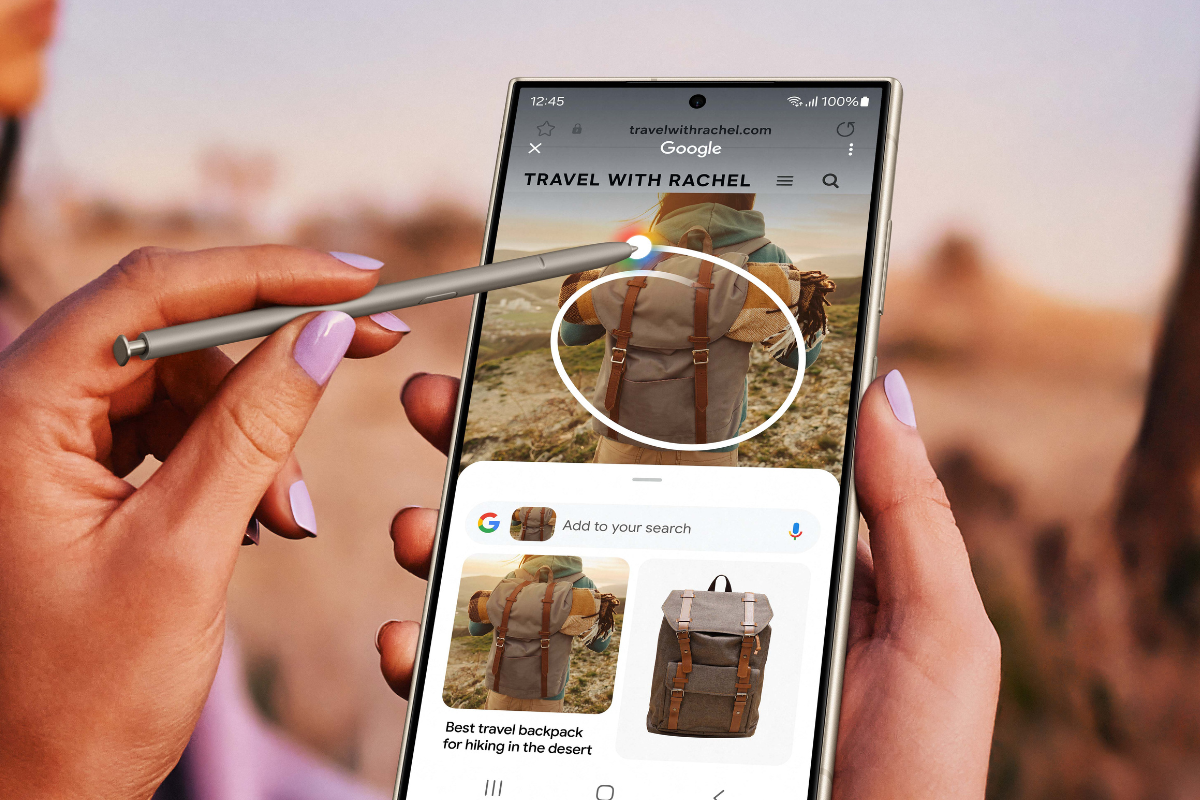
Even though it’s incredibly simple, Circle to Search is one of the features I use the most. We’ve all been in situations where we spot a product, a place, or even just a random object while scrolling through social media that makes us curious. Circle to Search makes it incredibly easy to learn more about those things.
You just hold down the home button and literally draw a circle around whatever’s on the screen. Instantly, Google pulls up results about that item, no need to type anything, no need to open a browser separately.
I used it the other day while scrolling through Instagram. Someone was wearing a jacket I liked, so I circled it, and within seconds, I had links to where I could buy similar styles. Another time, I used it on a picture of a dish I didn’t recognize, and it showed me what it was and even gave me recipes.
It feels like a small feature, but the way it integrates into daily use makes it one of the most natural AI tools Samsung has added.
3. Chat Assist
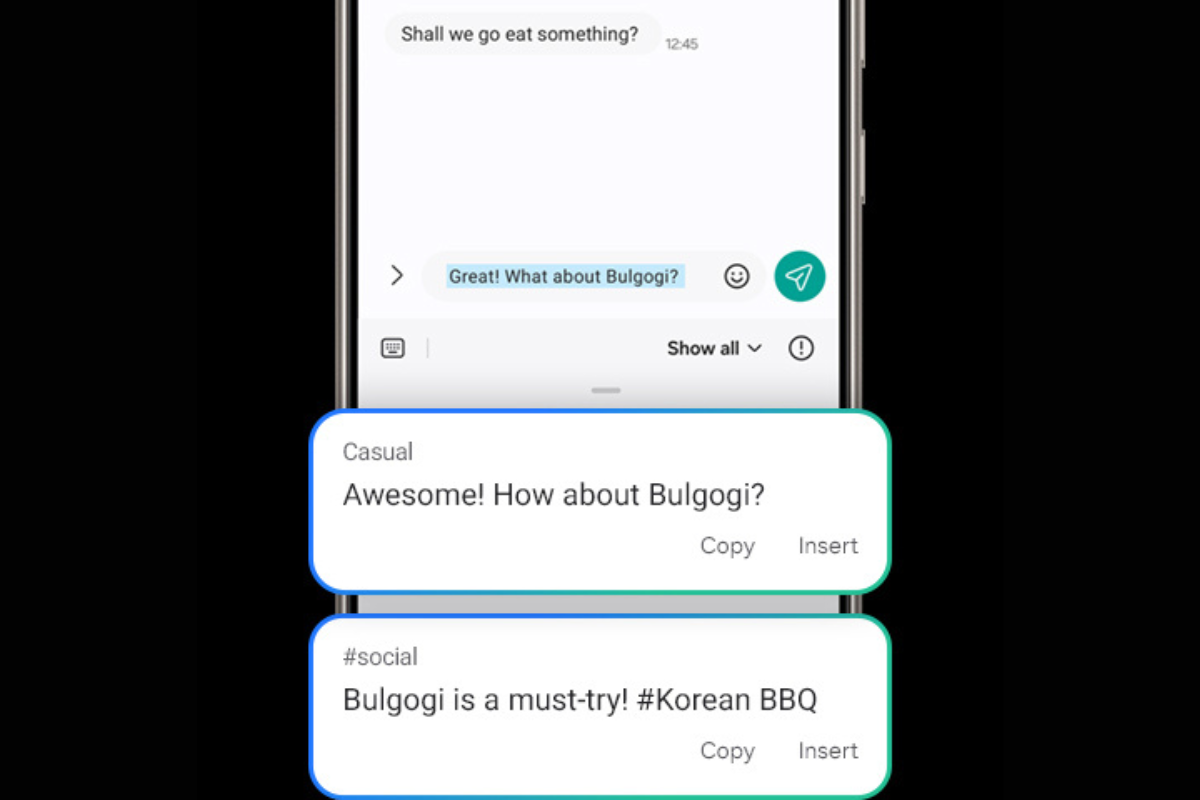
Messaging is probably a big part of everyone’s daily life in 2025, but sometimes you want your words to come across differently depending on the situation. That’s where Chat Assist comes in handy.
I tried it while drafting an email, and the tool offered to rephrase my text in different tones. If I wanted it more professional, it cleaned up my wording. If I wanted it casual, it relaxed the tone.
You may still want (or need) to tweak the message here and there to add your personal touch, but it’s a huge time-saver. And since everything happens within the keyboard itself, you don’t have to switch apps either.
4. Note Assist
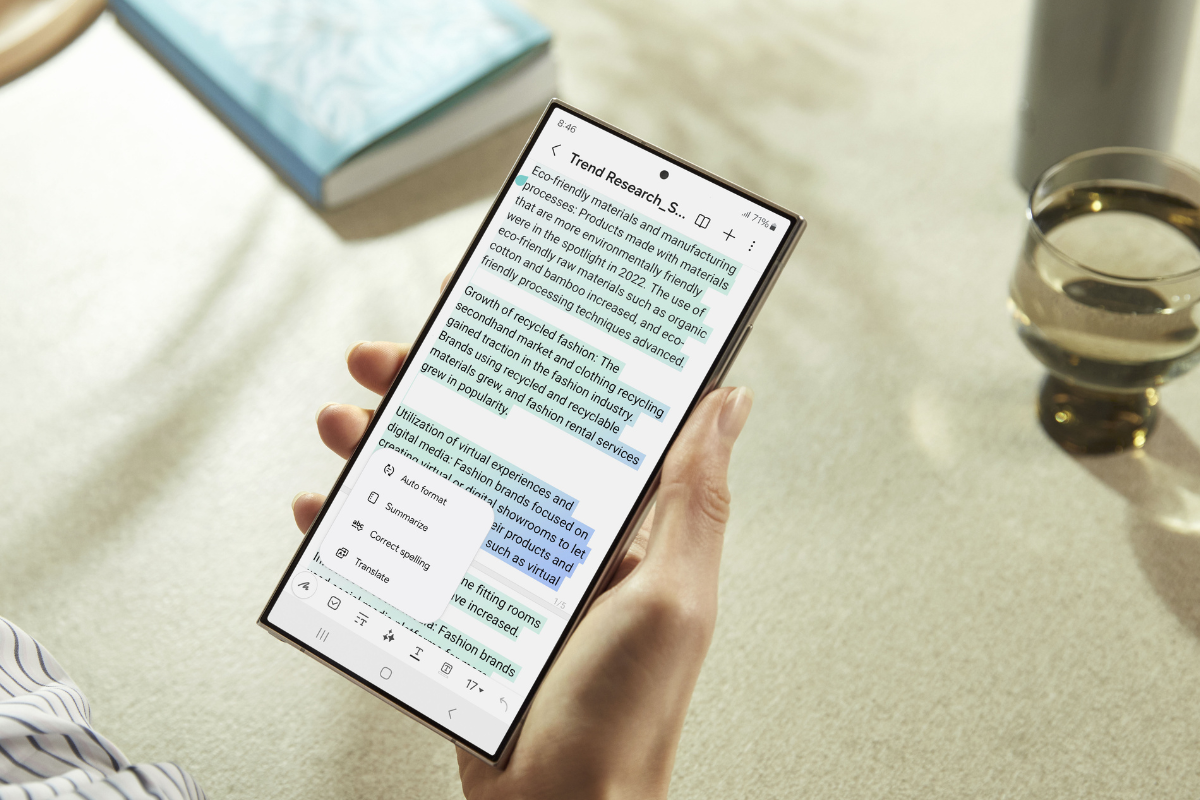
If you’ve ever recorded a lecture, an interview, or even just a long voice note, you’ll know how messy it can be to go back and figure out what was said. Samsung’s Transcript Assist has been surprisingly useful here.
The feature can clean a transcript within seconds and can even summarize the main points. What surprised me most was how accurate it was, even with multiple people speaking.
It’s not just for professionals either. I’ve used it to capture personal notes, like when I had a long conversation with a relative about a family function or gathering. Having it written out makes it so much easier to revisit later.
5. Generative Edit
Samsung has built some AI smarts into its photo editor as well, and while I usually don’t bother much with editing, I ended up using these tools more than I expected.
The standout for me is the ability to remove unwanted objects. I might not be wrong in saying that Samsung currently has the best generative fill for object removal.
You’ve probably seen some reels or shorts where Samsung’s generative AI reconstructs an entire face even when it’s partially covered, while Apple’s AI often struggles in the same scenario. That’s how good it is.
Another neat trick is resizing or moving objects within a photo. At first, I thought it might look fake, but most of the time, the edits are seamless. If you post a lot on social media, these tools can save you from retaking shots over and over.
6. A few things I’ve noticed
After using these features for a while, there are a couple of things to take notes of. First, most of them require an internet connection since the AI runs partly on Samsung’s servers. That means if you’re offline, you can’t rely on them.
Second, the accuracy can vary. Live Translate works best with major languages, but it’s less reliable for rare ones. Similarly, generative edits in photos sometimes leave small glitches.
But overall, these aren’t deal-breakers. The important thing is that the features save time and effort in real situations.
For more daily updates, please visit our News Section.
Stay ahead in tech! Join our Telegram community and sign up for our daily newsletter of top stories.