
Add GIZMOCHINA as Preferred Source on Google
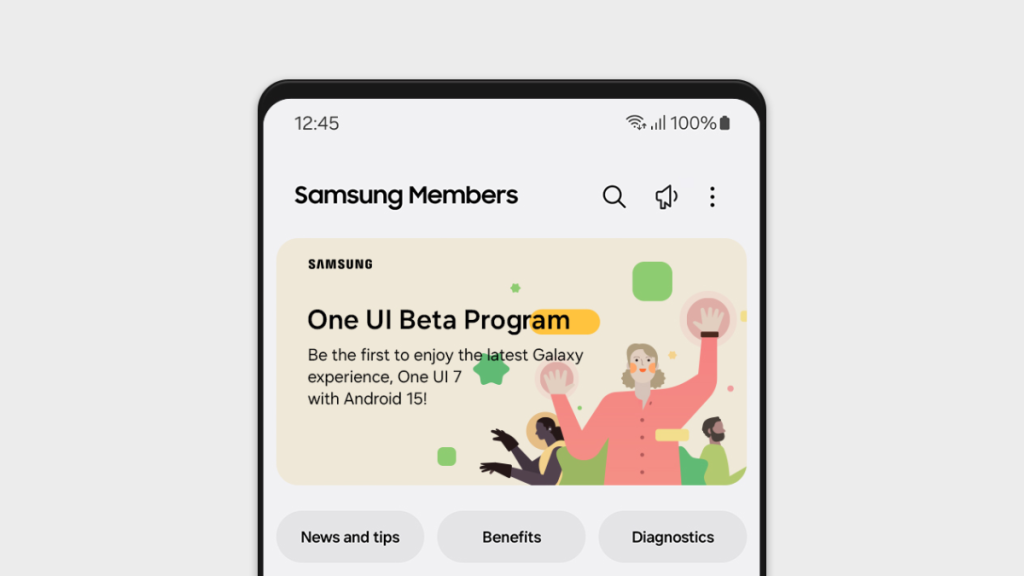
The long wait finally comes to an end as Samsung has already begun distributing the first One UI 7 beta, based on Android 15. There are very few recipients now, but the list should be longer in the coming days and weeks.
One of the most exciting features of One UI 7 is the new live activity pill “Now Bar” on a revamped lock screen. There are also new app icons, a new camera interface, smoother animations, and more flexibility in widgets. One UI 7 beta separates the notifications and quick panel, depending on which part of the status bar you’re swiping down from — left of the selfie camera for notifications and right for quick settings. A host of Galaxy AI features are also there. Plus, there is improved PC integration with the ability to use your phone as a webcam, among many other changes.
One UI 7 is an exciting upgrade, but the stable rollout isn’t happening until early 2025. However, the One UI 7 beta program lets you enjoy the newest software ahead of the public release. Here, we’ve shared two ways to get One UI 7 beta on your Samsung Galaxy.
Tech enthusiast? Get the latest news first! Follow our Telegram channel and subscribe to our free newsletter for your daily tech fix! ⚡
One UI 7 beta eligible devices
The One UI 7 beta program is currently live for the Galaxy S24 series (excluding the S24 FE). So, ensure that you have one of the following eligible models:
The next step is to check if you currently belong to a region where the beta program is live: Germany, India, Korea, Poland, the UK, and the US. If yes, you can use the Samsung Members to get One UI 7 beta (check method #1); otherwise, you may have to sideload it (check method #2).
[Note: Remember to back up your important data on a PC, external drive, or cloud to save yourself from accidental data loss.]Also Read: These Galaxy phones might get One UI 7 beta
Method 1: Install One UI 7 beta using Samsung Members app
This is the official method of signing up for the One UI 7 beta program. Here are the steps you need to follow:
1. Install the Samsung Members app on your Galaxy device (if not done already).
2. Open the app and log into your Samsung account.
3. Look for the One UI Beta Program banner and tap on it. If it isn’t showing, tap the announcement icon, and under the Notices section, click on Registration for One UI 7 Beta Program.
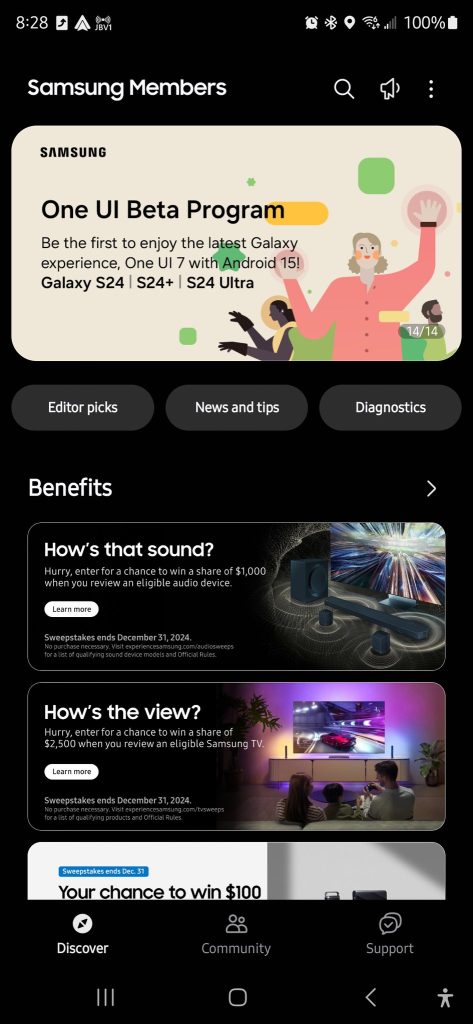
4. Tap on the One UI 7 Beta Program image and click Join Now to enroll in the beta program.
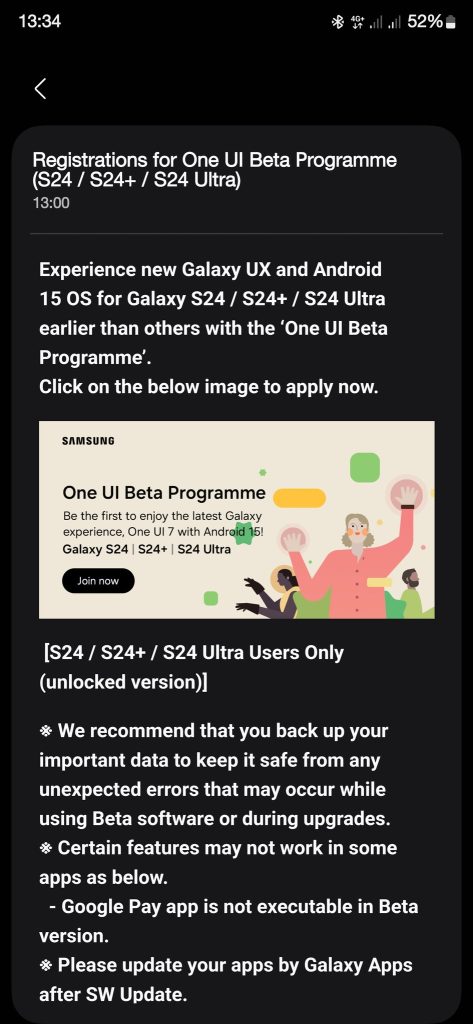
5. Tap Enroll to agree to terms and conditions and hit Agree.
6. Open the Settings app and navigate to Software update > Download and install.
7. You’ll see the One UI 7 beta update, which you need to download and install.
Now, explore the new features and improvements in One UI 7.
Method 2: Install One UI 7 beta by sideloading it
If the first method isn’t working (in other words, the Members app doesn’t show the One UI 7 beta banner), you can manually download the update package and flash it on your Galaxy S24 using ADB.
Before proceeding, ensure that your Galaxy S24 runs on the build number ending with “AXK4” and that you own international, Korean, US, or Chinese Galaxy S24 units. To see the build number, navigate to Settings > About phone > Software information.
Now, follow these steps:
1. Connect your phone and PC using a USB cable.
2. On your phone, tap 7 times on the build number to enable Developer options.
3. Toggle on USB debugging. If greyed out, turn off Auto blocker in Settings and then enable USB debugging.
4. Download SDK Platform Tools ZIP file on your PC.
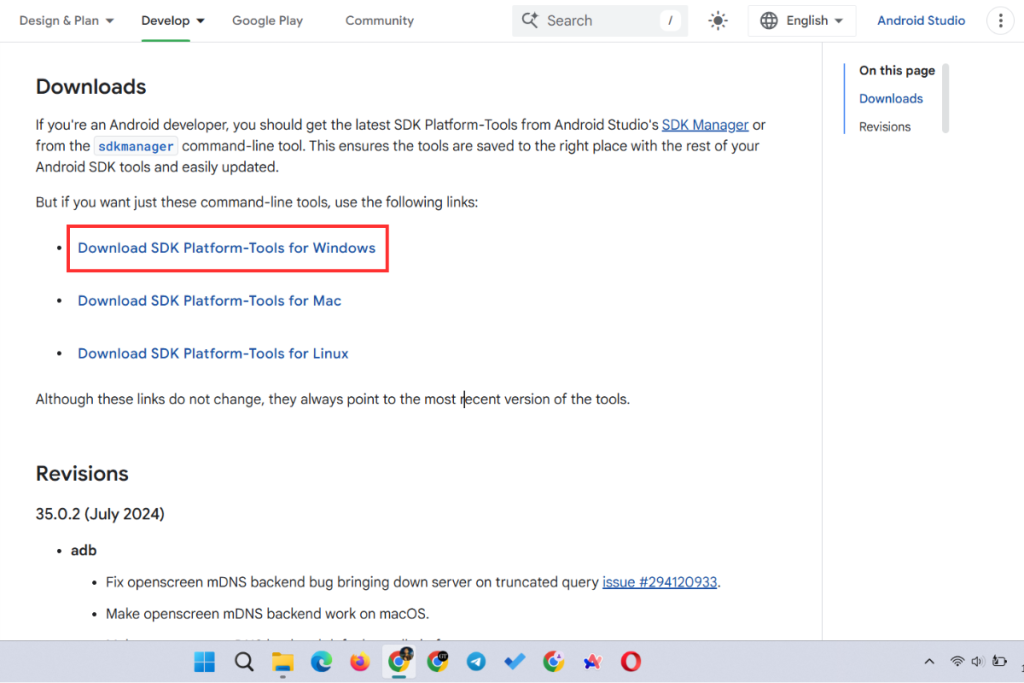
5. Unzip the file.
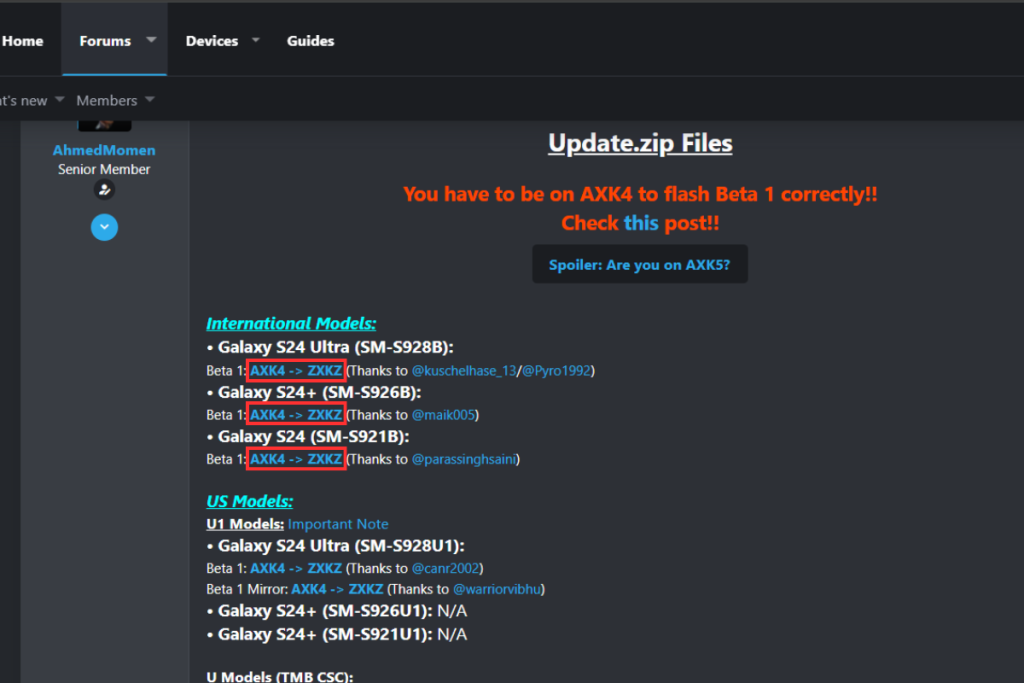
6. Download the correct One UI 7 beta update package for your device using this link.
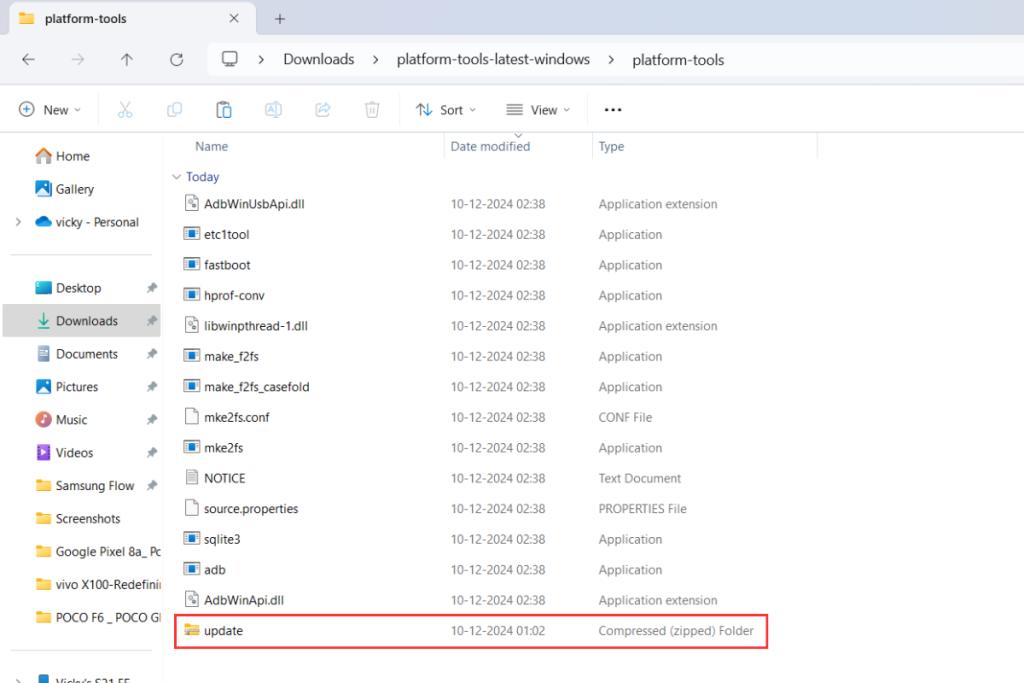
7. Rename this file to “update” (make sure it’s still a ZIP file) and copy it to platform-tools-latest-windows > platform-tools folder.
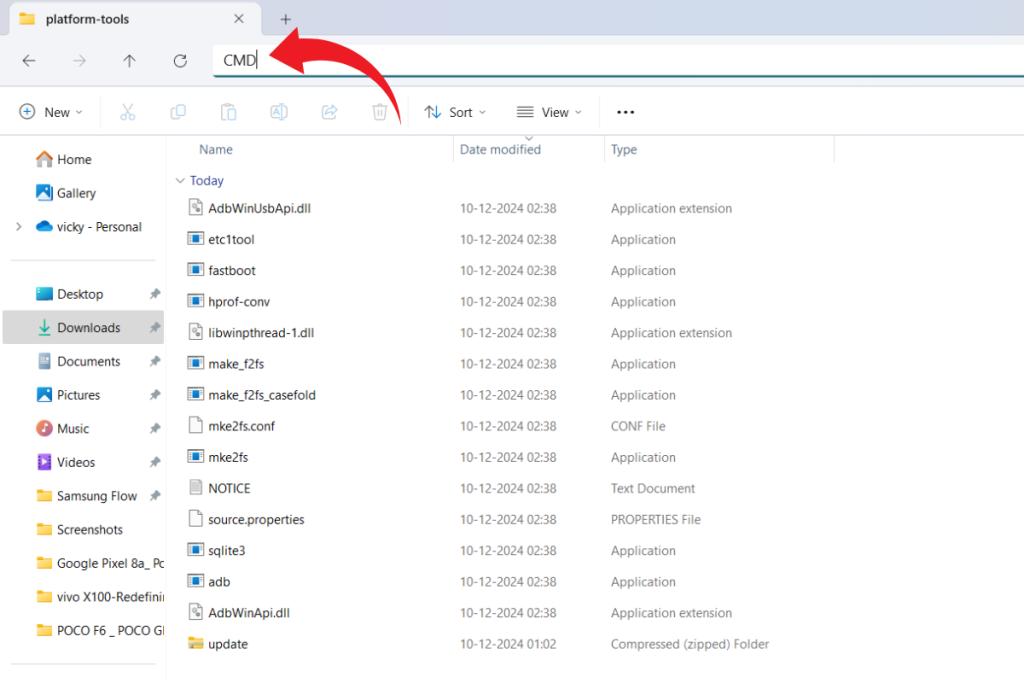
8. Type “CMD” in the address bar and hit Enter to open Command Prompt here.
9. Type in the following command and hit Enter to check if your phone is connected to the PC:
adb devices
If you see a random string of characters below the list of devices attached, it means the ADB connection is successful, and you’re good to go. If not, unplug the USB cable and connect it again.
10. Run this command to boot your phone into recovery:
adb reboot recovery
11. Using the volume down button on your phone, navigate to Apple update from ADB and press the side/power button.
12. Run the following command to sideload One UI 7 beta ZIP:
adb sideload update.zip
13. Wait for the process to finish.
Your Samsung Galaxy S24 should boot into One UI 7 beta within a few minutes.
So, these are two ways to install One UI 7 beta on the Galaxy S24 series. If you face any trouble during the installation, share your query in the comments below. We’ll try to respond at the earliest.
Also Read:
1. Top new features on Samsung’s One UI 7
2. Samsung Black Friday 2024 sale brings exciting deals on storage products and other devices
Stay ahead in tech! Join our Telegram community and sign up for our daily newsletter of top stories! 💡


Comments